A PDM race condition: When Saving Directly Causes Issues
How to handle race conditions between SOLIDWORKS and PDM API.
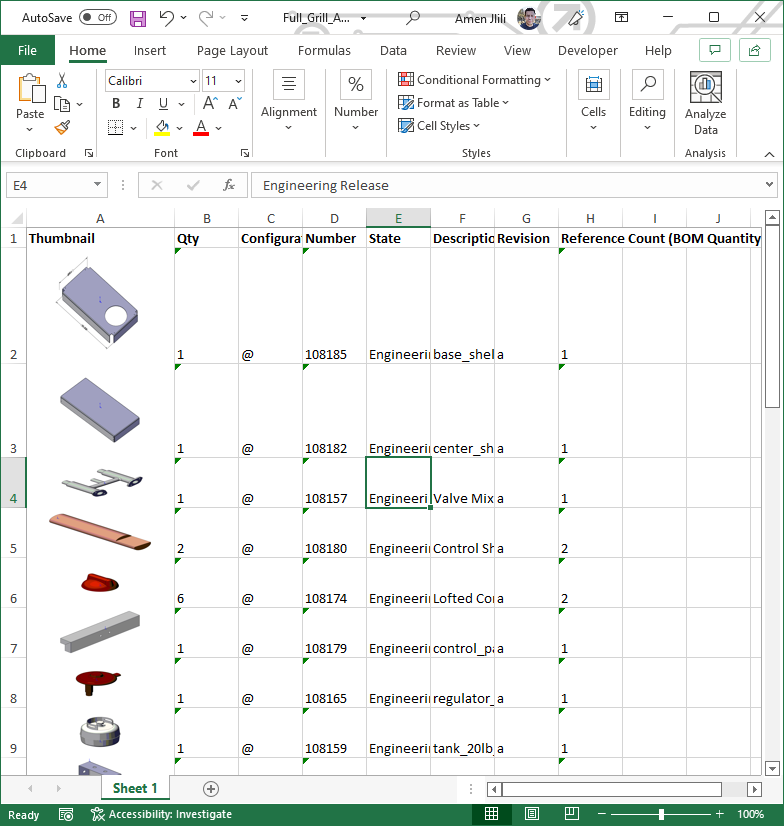
Fed up with having to manually create bills of materials (BOMs) from your SOLIDWORKS PDM vault? You’re not the only one. Manually exporting BOM data into Excel is tedious and prone to errors, especially if you want to include visual context like thumbnails. This is where PDM2Excel helps. Our heavy-duty utility will export your SOLIDWORKS PDM BOMs to XLSX with quick and easy effort. Please keep reading this article to know how to export SolidWorks PDM BOMs to XLSX with thumbnails. The Automation Power of PDM PDM automation isn’t merely about time savings; it’s also about improving accuracy and process simplification. Here’s the picture: your BOMs populated automatically with the right information, such as configuration, quantity, state, and even high-definition thumbnails. It’s an engineer’s, procurement individual’s, and anyone who ever must review and OK a BOM in a hurry’s utopia. With our latest version of PDM2Excel 6, we incorporated an extremely useful feature that exports your PDM BOM with thumbnails to an XLSX file directly. Bye-bye to the pain of screenshotting or copy-and-pasting. How to Export Your PDM BOMs with Thumbnails? To export your PDM BOMs with thumbnails… it can be done directly from the PDM2Excel task setup page, where you have full control of the output. The following are the key settings that have been explained: What’s with This “Save Thumbnail in Excel?” You might be asking yourself, “What is save thumbnail in Excel, and why do I even need it?”. Well… to answer, it’s the process of placing a small graphical preview of a file in your spreadsheet. For a BOM, that equates to having a picture of each part next to its data. That provides you with precious context. Besides, with these thumbnails, identifying parts and detecting possible errors becomes much easier on the eye. An Overview of Open Source PDM Solutions Even though open source PDM SOLIDWORKS solutions are available, they usually require a lot of development and upkeep. On the other hand, PDM2Excel is a solidly developed purpose solution that integrates well into your own SOLIDWORKS PDM infrastructure, with less time and resources remaining for you. Automatically exporting your SOLIDWORKS PDM BOMs to XLSX with thumbnails is the smart move to boost your productivity by a notch and improve data quality. PDM2Excel provides you with the unique, high-powered PDM automation tool necessary to do just that and provide you with clean, readable BOMs every time. Interested in finding out more? Get in touch with us today to organize your API key and see how PDM2Excel can revolutionize your BOM generation process and productivity.
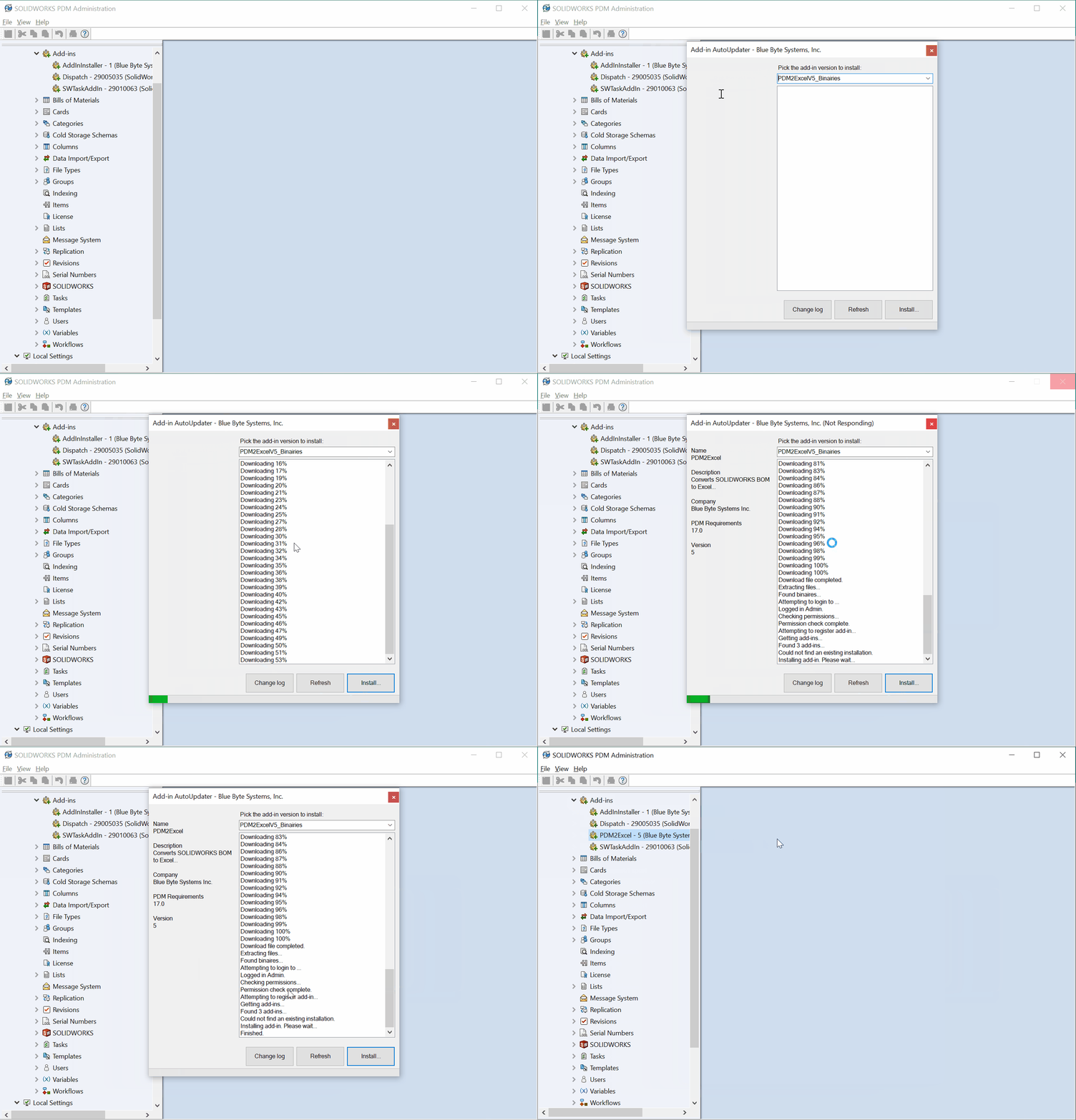
The auto-updater add-in is a tool developed by Blue Byte Systems, Inc. to streamline our code delivery process for our SOLIDWORKS PDM customers.
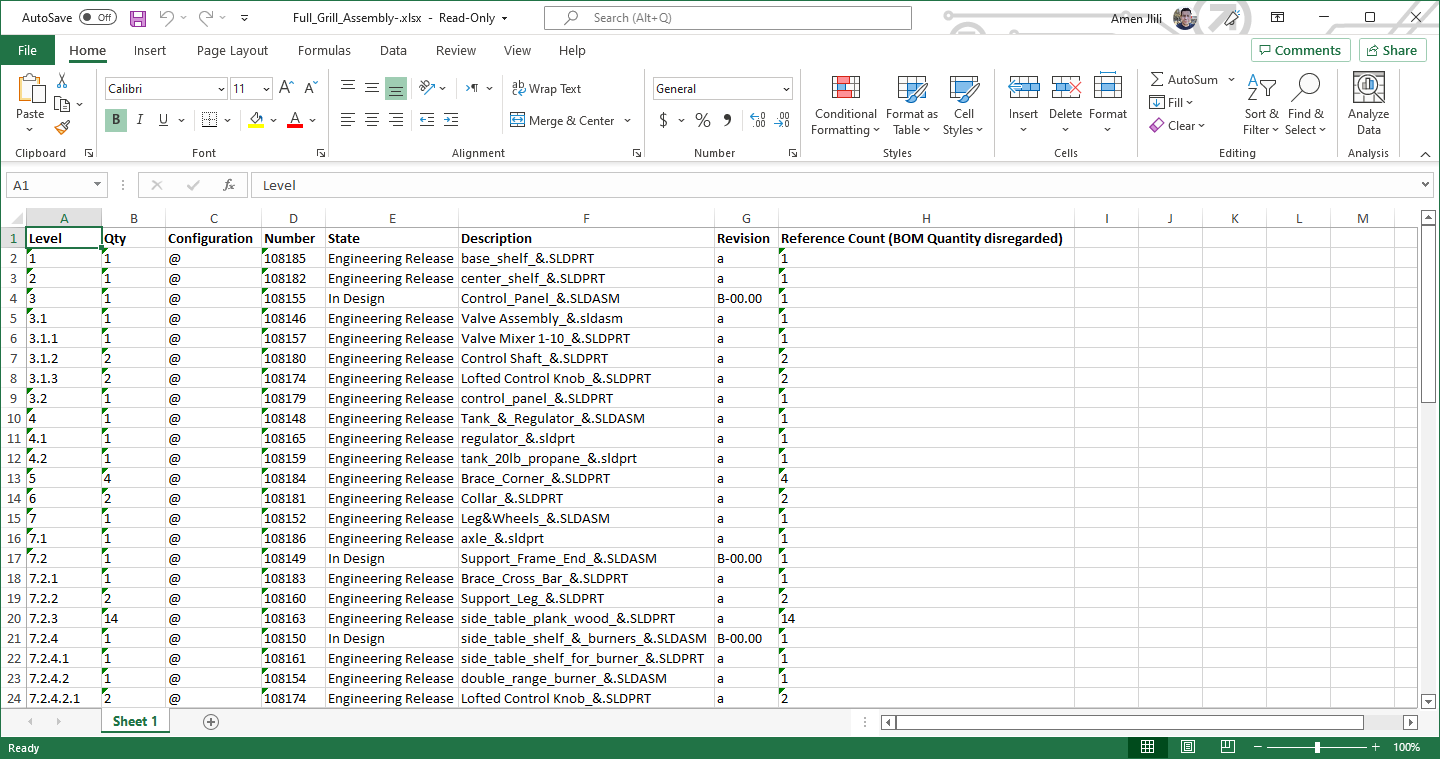
Are you using SOLIDWORKS PDM Professional to manage your product’s CAD data, but still missing an essential part of your release process? While your vault tracks changes and updates the Bill of Materials (BOM) for every part, automating the export of that BOM to an Excel (.xlsx) file might still be a challenge. And of you are finally ready to start exporting PDM BOMs to Excel in a reliable, automated way, this approach can streamline the task and make it heppen automatically, without any extra steps. Automating SOLIDWORKS BOM to Excel Export with PDM Imagine being able to automatically export a customized Bill of Materials for a top-level assembly directly to a network drive—ready for your purchasing department or anyone else who needs it—right when you release that assembly. No manual exports, no extra clicks, just a seamless process from design to procurement. With the right tool, like PDM2Excel, you can automate the export of BOM data in a clean, professional Excel format that fits your workflow. Key Features Why Excel Exports Matter for Your SOLIDWORKS PDM Workflow Automatically exporting the BOM to an Excel format helps streamline communication between departments. For example, your purchasing team will always have access to the latest parts-only BOM, ensuring smooth procurement processes without the risk of outdated information. Additionally, automating this task means fewer manual steps in your release process, reducing errors and speeding up workflow. This level of automation is essential for teams that manage large product data sets and want to stay agile in their operations. Optimize Your Workflow with Thumbnails Another feature to consider in your workflow optimization is the use of thumbnails within your exported BOM. Including part thumbnails in your BOM files can help visualize components, improving clarity for teams unfamiliar with the design. This is especially beneficial for non-engineering departments, like procurement, that may need a quick reference for visual identification of parts. Supercharge Your SOLIDWORKS PDM Experience Whether you’re looking to automate the export of SOLIDWORKS BOMs, customize your Excel files, or integrate thumbnails for better clarity, PDM2Excel is the solution that makes it all happen. With PDM2Excel, you can: Take control of your SOLIDWORKS PDM process, reduce manual tasks, and ensure your Bill of Materials is always accurate, complete, and accessible. Optimize your workflow today with PDM2Excel.
Resources on how to prepare for the CSWP-API Exam like a BOSS
The 2022 release of the SOLIDWORKS PDM profession API did not introduce major changes to the API itself, aside from updates to the PDM web API docs. Even so, these improvements add more flexibility and expand the list of SOLIDWORKS PDM API things you can do, making everyday data management tasks more efficient. 1. You can rename BOM Views You can rename BOM views with PDM Professional 22 SP0.0. The new method is called Rename and is part of the IEdmBomView4 interface. The API help has a straightforward example on how to use it. 2. You can destroy deleted items from a folder You can now destroy files that you have deleted in a folder. Previously, this was not possible with the IEdmFolder12 interface. The interface has been extended by the IEdmFolder13. You can access the docs example here. 3. Serial number counter This is probably the most consequential update. You can now specify the next available counter for a particular serial number using this method. This is particularly useful if you were used to storing your counter in a SQL database. Now, you have control over the next available value. 4. Access to more user settings You can specify some killer user settings from a new interface IEdmUser11::SetSettingsVar. The settings are: EdmUSv_AutoDelete 9 = Whether to automatically delete local read-only files that are not part of the vault; 1 = true, 0 = false; this setting corresponds to the “Automatically delete local read-only files that are not part of the file vault” checkbox on the Explorer tab on the Settings dialog that appears when you click “Settings” on the Properties dialog of a user in the Admin Tool EdmUSv_AutoGetLatest 11 = Whether to always work with the latest version of files; 1 = true, 0 = false; this setting corresponds to the “Always work with the latest version of files” checkbox on the Reference Dialog tab on the Settings dialog that appears when you click “Settings” on the Properties dialog of a user in the Admin Tool EdmUSv_AutoGetLatestRefs 43 = Whether to auto-select reference files to get latest when checking out; 1 = true, 0 = false; this setting corresponds to the “Auto select reference files to get latest when checking out” checkbox on the Reference Dialog tab on the Settings dialog that appears when you click “Settings” on the Properties dialog of a user in the Admin Tool