



US$0.00
0

How to Launch SOLIDWORKS 3D Using the SolidWorks Command Line Arguments

Need to start SOLIDWORKS in a specific set of behaviors or modes? Wellโ€ฆ You can with the SOLIDWORKS command line arguments via the sldworks.exe program. Use the arguments as special instructions you pass to SOLIDWORKS just before it launches, telling it exactly how you’d like for it to behave.

These arguments don’t always get properly documented, but a decent spot to search for them is in this cadoverflow thread. Warning: they are case-sensitive, so make sure to use the exact capitalization provided.

How to Launch SOLIDWORKS with Arguments?

It’s quite straightforward. Here are the step-by-step instructions:

  • Open the Command Prompt (CMD).
  • Navigate to the SOLIDWORKS installation folder. This is done by typing CD followed by the path in double quotes, like this: CD “C:\Program Files\SOLIDWORKS Corp\SOLIDWORKS”.
  • Type the sldworks.exe command followed by the desired argument. For example, to use the /r argument, type: sldworks.exe /r.
sldworks.exe /r

Useful SOLIDWORKS Command Line Arguments

Over the years, several of these arguments have proven to be quite handy. Here are some of them:

/r

This is a good case for hiding some dialog boxes, especially the ones of the MsgBox type. It can eliminate intrusive pop-ups caused by SldWorks.SendToMsgToUser2 and SldWorks.SendToMsgUser, like the journal warning you get when you have more than one running. This keeps the workflow flowing smoothly without interruption.

A screenshot of an error message box from the software SOLIDWORKS. The window title says "SOLIDWORKS" and a yellow warning icon is on the left. The text in the box reads: "A journal file could not be created. Auto recover will not work. Another session of SOLIDWORKS may already be running on this machine." An "OK" button is visible at the bottom right.

/m

Used to run a macro (.swp). A great feature is that it loads the application without the splash screen, which makes the startup faster.

/b

This switch runs SOLIDWORKS in batch mode. It’s convenient for some tasks, but be careful because it opens in a very small window. That can be inconvenient for API calls that require a user interface, like ZoomToFit2, so use it only when those specific features aren’t required.
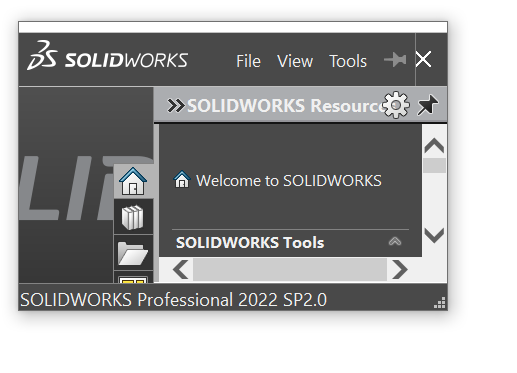
A screenshot of the SOLIDWORKS application window. The top of the window has the SOLIDWORKS logo and a menu bar with File, View, and Tools. Below this, a panel titled SOLIDWORKS Resources is open, showing a welcome message and a section for SOLIDWORKS Tools. The bottom of the window indicates the software version: SOLIDWORKS Professional 2022 SP2.0.
SOLIDWORKS launched in batch mode

/d

Programmers will want this argument to begin SOLIDWORKS in developer mode and add an additional menu with additional features.
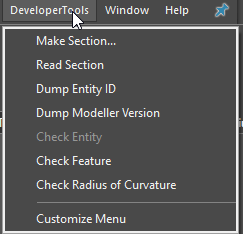
A screenshot of a drop-down menu in a software application. The menu is titled DeveloperTools and lists several options. From the top down, the items are: Make Section..., Read Section, Dump Entity ID, Dump Modeller Version, Check Entity (in gray, suggesting it's unavailable), Check Feature, Check Radius of Curvature, and finally, a horizontal line separating the last option, Customize Menu. The mouse cursor is visible, hovering over the DeveloperTools menu title.

/swlite

Do not have to open a model in order to view it? This argument opens SOLIDWORKS in read-only mode. It comes in handy when you are viewing a model and do not want to accidentally change it. Just note that the close window icon (x) is not available with this argument.
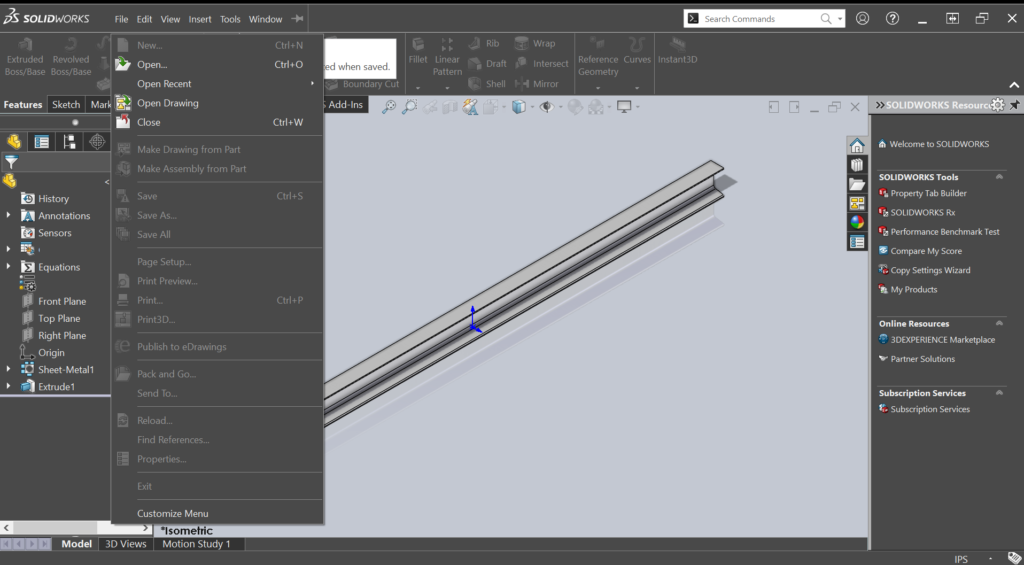
A full-screen screenshot of the SOLIDWORKS application. The main window displays a 3D model of a long, metallic-looking object with a cross-section shaped like a lowercase 'h'. On the left, the Feature Manager Design Tree shows the model's history, including an Extrude1 feature and different planes. A drop-down menu is open from the File menu at the top, listing options such as New..., Open..., Save, and Print.... On the far right, the SOLIDWORKS Resources panel is visible, showing different tools and links. At the bottom of the screen, the view is labeled Isometric.
SOLIDWORKS launched in lite mode.

/SWGenericMainWinTitle

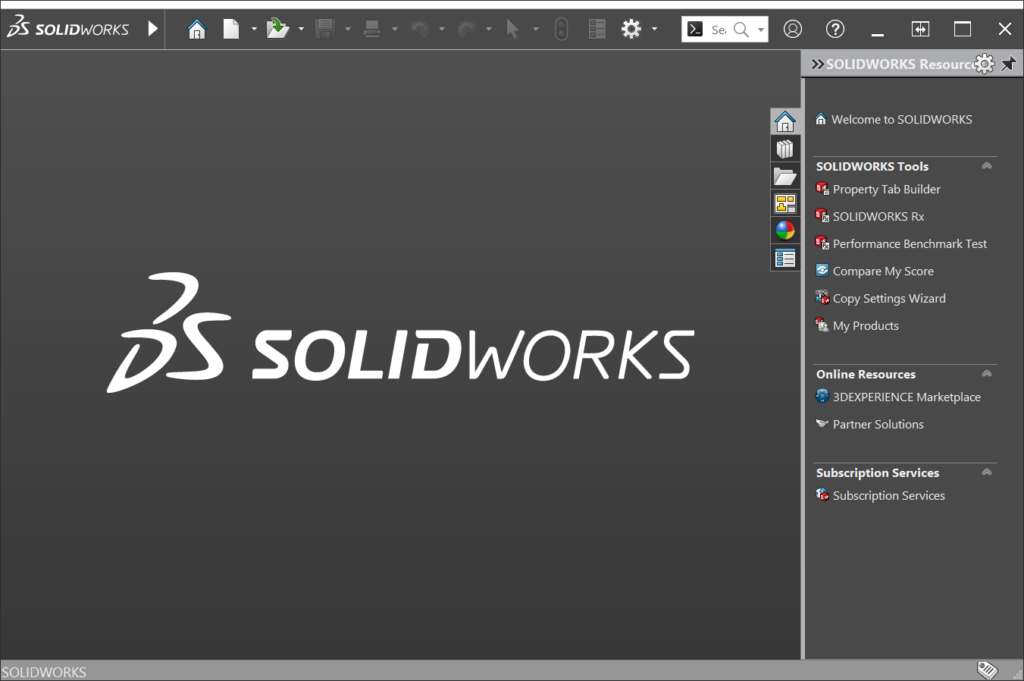
This is a cosmetic tweak and is useful. It does not place the year in the DS SOLIDWORKS logo in the sldworks.exe process, which makes it look more generic.
How to Launch SOLIDWORKS 3D Using the SolidWorks Command Line Arguments
Sldworks.exe launched with a generic DS SOLIDWORKS logo

/SWDisableExitApp

This command can be used to avoid the crash window. It is useful when debugging, and you do not want the crash report pop-up window to interrupt your work.

A fair heads up: These are not officially documented or approved by the SOLIDWORKS API team, so use with caution.

Finally, even though the SOLIDWORKS command line arguments are not supported officially, they offer a potent way to customize how you launch the application. With the sldworks.exe file and these commands, you can streamline your workflow, automate tasks, and access undocumented functions. Fiddling around with these arguments can help you unlock a more streamlined and customized SOLIDWORKS experience.
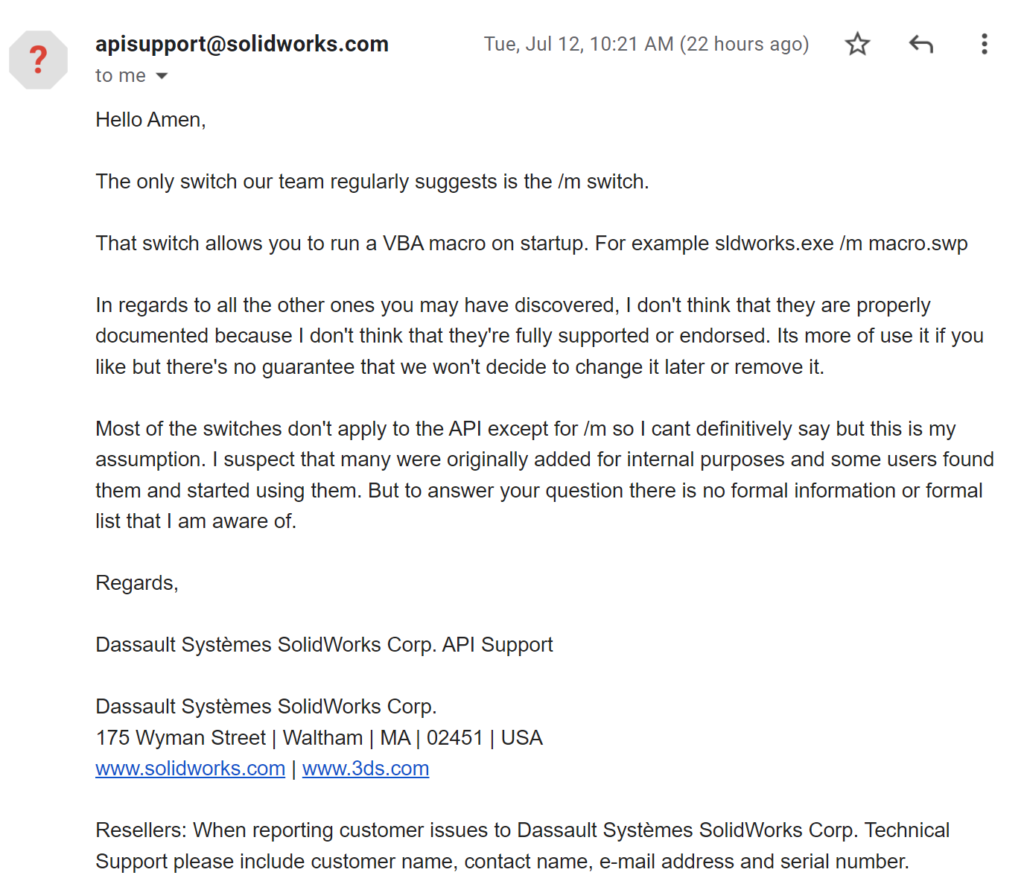
A screenshot of an email from apisuppor@solidworks.com to a user named Amen. The subject is not visible. The email, sent on Tuesday, July 12 at 10:21 AM, discusses command-line switches for SOLIDWORKS.

The body of the email says:
"Hello Amen,
The only switch our team regularly suggests is the /m switch.
That switch allows you to run a VBA macro on startup. For example sldworks.exe /m macro.swp

In regards to all the other ones you may have discovered, I don't think that they are properly documented because I don't think that they're fully supported or endorsed. It's more of use it if you like but there's no guarantee that we won't decide to change it later or remove it.

Most of the switches don't apply to the API except for /m so I can't definitively say but this is my assumption. I suspect that many were originally added for internal purposes and some users found them and started using them. But to answer your question there is no formal information or formal list that I am aware of.

Regards,
Dassault Systรจmes SolidWorks Corp. API Support"

The email signature includes the company's name, address, and website links. A final note for resellers is also included at the bottom.

Author

Amen Jlili

Amen Jlili is the founder and technical director of Blue Byte Systems Inc., a software company in Vancouver, Canada, specializing in automating SOLIDWORKS and PDM. With over a decade of experience, he has authored several courses and open-source frameworks related to the SOLIDWORKS API. His leadership ensures that Blue Byte Systems prioritizes customer satisfaction and delivers high-quality software and CAD design solutions.
0
    0
    Your Cart
    Your cart is emptyReturn to Shop
    ×













