
US$0.00
0

Author: Amen Jlili

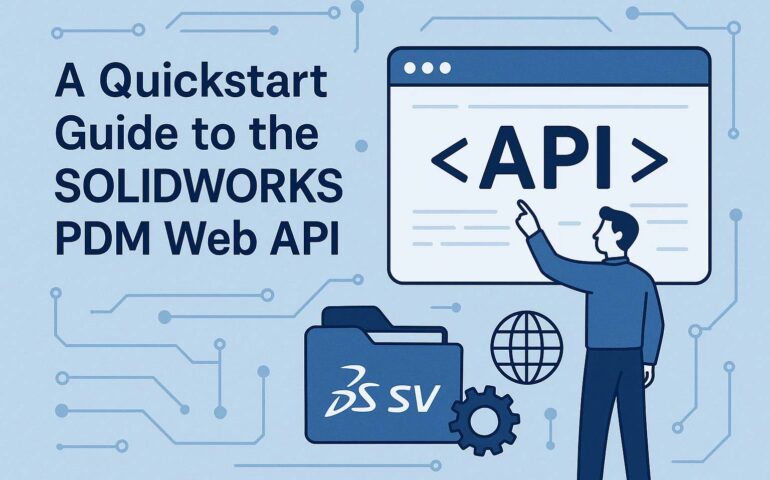
A Quickstart Guide with the SOLIDWORKS PDM Web API

Disclaimer: In 2022, SOLIDWORKS Corp. quietly released documentation for its SOLIDWORKS PDM web API. This feature of PDM Professional installs an IIS web application (Web API) that exposes certain elements of your vault to the web. Any web application can now access your PDM vault, provided IIS and your firewall are configured correctly. As usual, this feature is only available with PDM Professional. At first glance, the documentation is quite dry, if not unreadable. After a couple of back-and-forths with API support, SOLIDWORKS confirmed that the docs were auto-generated and that they plan to create proper documentation in the future. The API support team was able to walk through some of the most common endpoints and showcase how to make the proper calls. In this article, I’d like to go over the authentication endpoint and the file information endpoint. Before we do that, you need to install the Web API component. For further SOLIDWORKS PDM API help, you can always contact our team. Once you have the web API installed, you need to make sure to: Once done, you can use Postman to hit the authentication endpoint like this: Your response should look like this: You will need to use the JwtString (Access token) in subsequent calls. In Postman, just make sure you add the JwtString as a bearer token. This can be done from the Authorization tab. Unfortunately, there is no way to determine when the access token expires. It seems that in this version of the SolidWorks PDM Web API, you need to continue using the token until you receive an unauthorized exception. API support has indicated that they are aware of this and will likely include this as an improvement in the future. What’s Next?

Read More »

SOLIDWORKS PDM Professional: You have chosen to load a .Net Add-in? Well, what do you do next ?

SOLIDWORKS PDM Professional employs a server-client architecture. Your files and metadata is stored on the server (Archive server is where your files and stored and everything else go in the SQL db). You push all of your changes to the server from your local PDM client and you also pull any updates from the server. This applies to PDM add-ins. When you update an existing version with a new version, that version is not automatically updated on each connected client machine. All users who want to use the latest version have to log out of PDM and log back in. PDM will actually warn you of this effect when you update an add-in from the administration tool. To ensure a proper restart of your PDM session, you can use this nice little script that will kill both Explorer.exe and EdmServer.exe and restart them again. taskkill /f /im edmserver.exetaskkill /f /im explorer.exestart explorer.exestart “Path_To_Vault” You can save these lines as a bas script by opening Notepad.exe, copy pasting the code above (make sure to replace the last line with the vault) and then saving it as a bas file. The bas file works very well for a single user environment. If your add-in has a large audience, a good idea for a PDM admin is to do the following: Having issues with your SOLIDWORKS PDM add-ins? Blue Byte Systems, Inc is here to help with your PDM customization needs. Reach out to us via contact page for a free 30-min consultation.
Read More »

Traverse Assembly Tree Recursively – SOLIDWORKS API

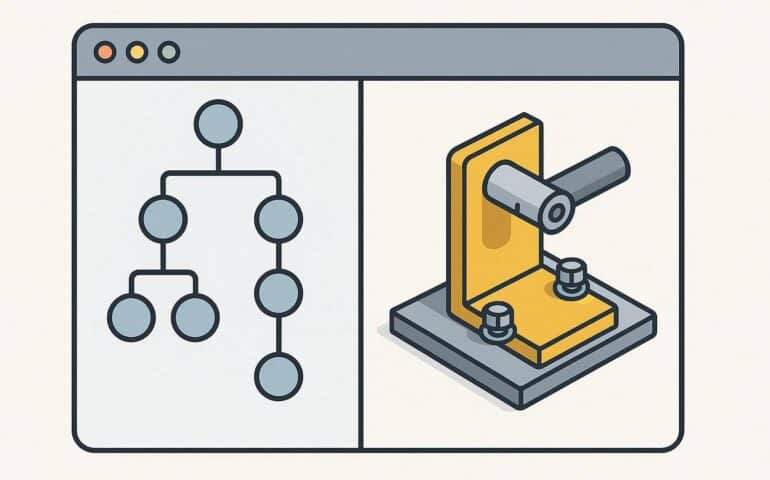
This topic is most definitely a recurring one. I often find myself revisiting old pieces of code I wrote a while ago and having to copy-paste. So I thought it would be a good idea to congregate all that in one useful post for future reference. In this article, we are going to explain traverse assembly tree recursively. Unfortunately, the code samples we have from the SOLIDWORKS Corp fall behind in terms of proper recursion, which is essential for navigating complex assembly structures. Below in this documentation, you will find an example that uses VBA recursion to drill down into an assembly tree effectively. The code examples provided here go beyond the basics often found in the standard SOLIDWORKS API SDK documentation, offering a more robust and reusable solution. I’ve prepared the code in C#, VB.NET, and VBA, demonstrating the easy yet effective technique to traverse assembly completely. Note: While the logic respects the assembly order, it will not traverse the FeatureManager display tree as it appears in SOLIDWORKS (i.e., it ignores components organized into folders). To traverse the FeatureManager design tree exactly as it appears, use this object. Note: The highlighted green line in the C# and VB.NET samples needs to be updated by the user with a proper assembly path. The VBA code sample assumes that an assembly document is open and active in SOLIDWORKS. VBA C# VB.NET Using these recursive functions, you have at your fingertips a powerful and effective tool for working with your SOLIDWORKS assembly data. If all you wish to do is examine the structure or SOLIDWORKS sort assembly tree alphabetically, the code presented here is a good place to begin. If you are still finding that you’re stuck or have specific questions about tailoring this code, don’t hesitate to reach out!
Read More »

How To Automate Solidworks Export Bom To Excel Workflow with Thumbnails

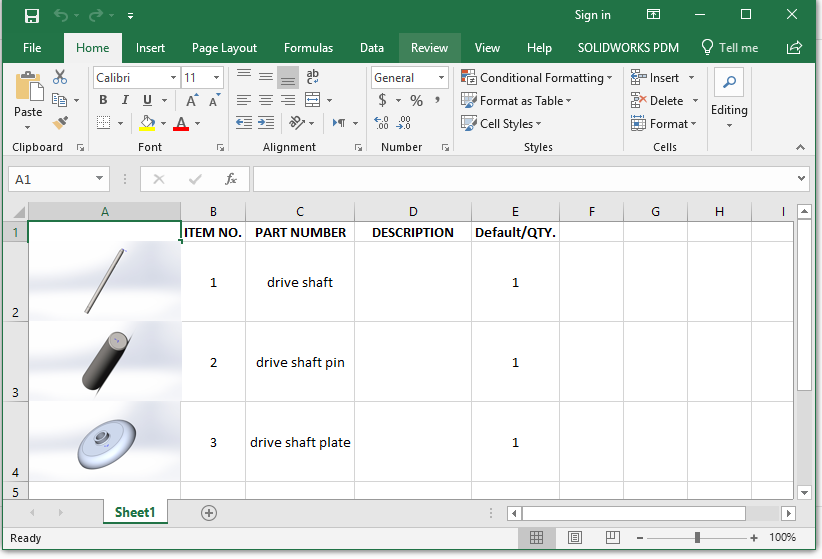
If you are using SOLIDWORKS 2018 or lower, exporting Bill of Materials (BOM) manually to Excel and then adding pictures would be quite a tedious and time-consuming process. But the good news is, you can achieve this process with a speedy macro, saving you heaps of time and accelerating your workflow. In this tutorial, we are going to guide you through how to export Bill of Materials SolidWorks to Excel with thumbnails using a parts-only BOM macro. Not only is this faster, but it also provides you with a visual representation of each part, which is invaluable for design reviews and communications within the team. Note that this macro is optimal for smaller assemblies only; larger ones have alternatives like xlBOM with thumbnails or PDM2Excel, which handle complex assemblies more efficiently. Why Use a Macro for BOM Export in SOLIDWORKS? Having your process automated through a macro is a great way to eliminate the drudgery of repetitive tasks. And that’s where the importance of knowing how to export SolidWorks BOM to Excel comes into play. This is why a macro is the best thing to do for it: Requirements You’ll want the following before you begin: Step-by-Step SolidWorks Bill of Materials Tutorial To install and run the macro in your SOLIDWORKS software, follow these simple steps as explained- The macro will now start running and export the BOM to Excel, complete with thumbnail previews for each visible component. How the Macro Works The macro performs two key functions to help you export a SolidWorks BOM with images: Limitations of the Macro There’s no doubt that this macro is absolutely capable of speeding up your workflow significantly. However, you must also be on the lookout for some of its limitations, such as– As mentioned at the start, for more complex assemblies or additional features, consider using advanced tools like xlBOM. This tool can handle larger assemblies and provides more robust export capabilities. Why Choose Automation for BOM Export? Automating the BOM export process in SOLIDWORKS VBA saves you time and effort, especially when dealing with repetitive tasks. By integrating thumbnail previews in Excel, you make it easier for stakeholders to visualize the components, which is critical in manufacturing and design reviews. Need Help with SOLIDWORKS Automation? Automating these kinds of repetitive tasks, like SolidWorks Export Bom To Excel, can spare plenty of your time and effort, which you can utilize for something more significant. In case you need assistance in this or any other custom solutions, feel free to get in touch with us. At Blue Byte Systems, we specialize in automating SOLIDWORKS and PDM workflows. Contact us today and let us show you how we can help you simplify your design process and boost productivity.

Read More »

Protect macros with a password – Valid for Excel and SOLIDWORKS

Protect macros modules from viewing by adding a password from the protection tab at Tools > Macro Name Properties. While it’s a common to protect macros with a password, keep in mind that a passowrd-protcted macros security is very brittle and can be broken easily. For stronger protection, consider upgrading your code to a VB.NET add-in. The content of this article is applicable to both SOLIDWORKS and Microsoft Office Excel, PowerPoint and Word. Protecting macros with a password will prevent users from viewing the source code. You might want to go the extra mile to protect your macro’s from viewing for many reasons. For example you want to: This short article will show you how to lock a VBA macro from being viewed, with a password. Users will continue to be able to run the macro but will not able to view the content of the macro’s modules. These steps are very straight-forward: Is My Macro Protected 100% of the Time? Unfortunately, protecting a macro with a password does not provide you with the ultimate security. For example, check this article on how to crack any password-protected VBA macro. What to Do to Protect My Code? To conclude, the best thing to do is to upgrade your macro to SOLIDWORKS add-ins. In addition to our PDM implementation services, Blue Byte Systems, Inc. has a great wealth of experience upgrading old legacy VBA code to powerful .net Add-ins. Contact us or schedule a quick zoom call here.

Read More »

Early binding vs Late Binding: How to write macros that will always run with no errors

TLDR: Here’s what you need to know about Early Binding Vs Late Binding The topic of Early Binding vs Late Binding is really close to my heart: The eternal question on whether to use early binding or late binding for SOLIDWORKS or Excel VBA macros. Each of these approaches has its consequences and we’re going to discuss those in great detail in this article. Now, before I give you my personal take on early and late binding, let’s define what they are and go over the pros and cons of each other. By the end of this article, you will be able to discern when use late or early binding. Let’s begin with early binding. Early Binding when writing macros When you early-bind your variables in a VBA macro, you tell the VBE, to assign a specific type to a variable, when it compiles the macro for execution. For example:Dim swApp as SldWorks.SldWorks This tells VBE: “Hey, make sure you that swApp is of type SldWorks.SldWorks”. Now this is awesome because VBE doesn’t have to do anything extra. It will go and find the type that matches SldWorks from the referenced libraries in Tools > References and enforce that type assignment for the rest of your macro. This is called type-enforcement. It means if you misspell a method name or miss a parameter, VBE won’t allow you to run the macro until you have those compile-errors fixed. Now, because you’re early-binding your variables, VBE is able to grab the methods and properties definitions from the tlb reference and assist you into writing the api calls by making autocompleted suggestions. This feature is called “IntelliSense”. It is a productivity boost and sometimes is a necessity when you are working with ill-designed API calls that have +10 parameters like FeatureManager::FeatureExtrusion3 Early binding is great but it also comes with its shares of problems. A good example is when the type definitions cannot be found. You will have to go to Tools > References and fix any missing ones to allow VBE to resolve variable declarations appropriately. Late Binding to the rescue When you use late binding, you’re telling VBE to resolve variables types during runtime. VBE has access to all the COM libraries installed on your machine is able to run through them and grab the appropriate type that matches the declared variable and how it is used. This is great way if you don’t know what version of SOLIDWORKS the end-user has on their computer. To use late binding, simply declare all variables as Object. You can even remove the SOLIDWORKS references from the Tools > References window. You will also have to replace the line : Set swApp = Application.SldWorkswith Set swApp = GetObject(, “SldWorks.Application”) Here’s an example that prints a hello world message using late binding: Dim swApp As ObjectSub main()’Attach to the active sldworks sessionSet swApp = GetObject(“”, “SldWorks.Application”)If Not swApp Is Nothing Then ‘print process id Debug.Print “Process ID is : ” & swApp.GetProcessID() ‘display message to user swApp.SendMsgToUser “Hello from late-bound SOLIDWORKS macro!”End IfEnd Sub Unfortunately when you do that, a few things will happen: As you can see writing a macro using late binding is equivalent of writing code on a white board which is unpleasant because no-one memorizes the API. This brings me to my personal take on binding. Continue reading below. Early Binding vs Late Binding conclusion: How to score two birds with one stone What to do next? That’s a good question! VBA is becoming an obsolete scripting language. It’s great for automating small tasks, but it is not the sharpest tool in the shed for automating complex workflows in SOLIDWORKS or PDM. At Blue Byte Systems, Inc., we encourage our customers to reach out to us to upgrade their VBA macros to add-ins. This secures your code and makes it easier to maintain and deploy, while also addressing important considerations such as early binding vs late binding.

Read More »
0
    0
    Your Cart
    Your cart is emptyReturn to Shop
    0
      0
      Your Cart
      Your cart is emptyReturn to Shop