
 USD
USD CAD
CAD EUR
EUR GBP
GBP AUD
AUD NZD
NZD CHF
CHF SEK
SEK NOK
NOK JPY
JPY CNY
CNY INR
INR SGD
SGD MXN
MXN BRL
BRL ZAR
ZAR KRW
KRW
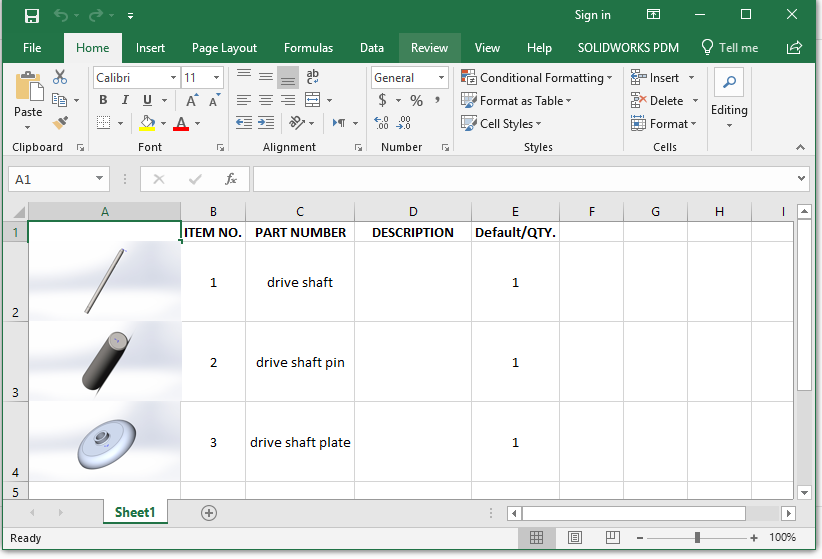
If you are using SOLIDWORKS 2018 or lower, exporting Bill of Materials (BOM) manually to Excel and then adding pictures would be quite a tedious and time-consuming process. But the good news is, you can achieve this process with a speedy macro, saving you heaps of time and accelerating your workflow.
In this tutorial, we are going to guide you through how to export Bill of Materials SolidWorks to Excel with thumbnails using a parts-only BOM macro. Not only is this faster, but it also provides you with a visual representation of each part, which is invaluable for design reviews and communications within the team. Note that this macro is optimal for smaller assemblies only; larger ones have alternatives like xlBOM with thumbnails or PDM2Excel, which handle complex assemblies more efficiently.
Why Use a Macro for BOM Export in SOLIDWORKS?
Having your process automated through a macro is a great way to eliminate the drudgery of repetitive tasks. And that’s where the importance of knowing how to export SolidWorks BOM to Excel comes into play. This is why a macro is the best thing to do for it:
- Saves Time: Export BOMs with thumbnails quickly without any hands-on efforts.
- Improves Clarity: The Excel preview thumbnails that are included provide a visual representation of each part, making the BOM easier to understand.
- Improves Communication: Sharing visual components in BOMs with your team means everyone is working from the same page.
Requirements
You’ll want the following before you begin:
- SOLIDWORKS software of 2018 or older versions.
- Microsoft Excel must be installed to run the macro successfully.
- This macro works only for parts-only BOMs.
Step-by-Step SolidWorks Bill of Materials Tutorial
To install and run the macro in your SOLIDWORKS software, follow these simple steps as explained-
- Insert the VBA Code: After saving the macro, the Visual Basic for Applications (VBE) window will open. Here, clear the default text and copy-paste the VBA code provided below-
- Open SOLIDWORKS and load the Drawing: First of all, you’ll need to open your SolidWorks software and make sure your drawing with a BOM is open and active.
- Create a New Macro: Go to Tools > Macro > New… and store the macro in a location of your choice.
- Choose the Bill of Materials: When you are inside the SOLIDWORKS drawing, check and make sure that only the BOM feature is chosen and not anything else.
- Run the Macro:
- Click the green play button in the macro toolbar.
- If you see a dialog box popping up on the screen asking which subroutine to run, select “main” and click “Run”.
The macro will now start running and export the BOM to Excel, complete with thumbnail previews for each visible component.
How the Macro Works
The macro performs two key functions to help you export a SolidWorks BOM with images:
- Exports Data to Excel: It simply copies the BOM data from SOLIDWORKS to a new Excel session.
- Generates Thumbnails: It generates a new Excel thumbnail preview sheet for each visible component. This visual guide makes it much easier to identify parts without needing to click on each component in turn.
- Parts-Only BOM: This macro only works for parts-only BOMs and will not work with assemblies or sub-assemblies.
Limitations of the Macro
There’s no doubt that this macro is absolutely capable of speeding up your workflow significantly. However, you must also be on the lookout for some of its limitations, such as–
- Cannot Handle Large Assemblies: If you are to use it for very large or complex assemblies, it may not be the best choice and may fall behind in terms of handling the workload efficiency.
- Version Compatibility: Since this macro is specifically designed for use with SOLIDWORKS 2018 and older versions, you’ll not be able to make use of it with the newer once. For that scenario, consider other tools or solutions that allow better functionality.
As mentioned at the start, for more complex assemblies or additional features, consider using advanced tools like xlBOM. This tool can handle larger assemblies and provides more robust export capabilities.
Why Choose Automation for BOM Export?
Automating the BOM export process in SOLIDWORKS VBA saves you time and effort, especially when dealing with repetitive tasks. By integrating thumbnail previews in Excel, you make it easier for stakeholders to visualize the components, which is critical in manufacturing and design reviews.
Need Help with SOLIDWORKS Automation?
Automating these kinds of repetitive tasks, like SolidWorks Export Bom To Excel, can spare plenty of your time and effort, which you can utilize for something more significant. In case you need assistance in this or any other custom solutions, feel free to get in touch with us.
At Blue Byte Systems, we specialize in automating SOLIDWORKS and PDM workflows. Contact us today and let us show you how we can help you simplify your design process and boost productivity.
35 Comments
Ilyas Zorla
Hello, Mr. Amen,
first of all I would like to say briefly that I am glad that there are such persons as you. I am very interested in your solution regarding the parts list with preview. If all this works with the BOM I will try your PDM solution. Is it possible to get step by step instructions for the parts list? I always get an error message (You have not selected any bill of materials). I’d love to get it done, but I’m not getting any further. I’m always grateful for help.
With kind regards
Ilyas Zorla
Amen
Thanks for your comment Ilyas. I appreciate your interaction.
If you are getting that message, it means that you have not selected a bill of materials.
Follow these steps:
– Open you SOLIDWORKS assembly document
– Insert a bill of materials
– Select the bill of materials in the three 3D space
– Run the macro
Ilyas Zorla
Thank you Amen for the quick help.
I have tested it and I am excited how easy it is and how well it works.
Thank you very much for your support. Now you’ve got one more fan.
Keep up the good work
Amen
Thanks Ilyas Zorla!
Gordon Evans
Hello Amen,
This script works very well and as intended for assemblies with a small number of parts (less than 30 to 40) but for an assembly with larger number of parts I’m having Solid Works crash. I had a hunch and it seems that Solid Works is hitting the GDI limit of 10k. I can up the limit to about 16k but that will only delay the crash. It seems that when opening and closing each part the GDI keeps climbing and is not being let go after each part is closed.
Any way to make this work on larger assemblies? Ideas?
Sincerely,
Gord Evans
Mucip
Hi
There is error in this line!
Set swTableAnnotation = swSelectionManager.GetSelectedObject6(i, -1)
Macro is not working?!
Regards,
Mucip:)
Mari K
Hi Amen,
Thanks for your code it works fine and generate image preview in excel sheet but saving the excel sheet i can only see the latest thumbnail image in all the rows, Any suggestions ?
Amen
Can you check the temporary folder and see if the images all get saved there.
Ben
I have the same issue. It only saves the last reverenced thumbnail. I believe that the code overwrites the previous image, and doesn’t create a new one. Any suggestions on how to modify the code so that it creates a new unique file name?
Amen
Can you try running your SOLIDWORKS with administrator privileges?
BEN DRUSHAL
Even when I run it as an administrator, it still only remembers the last image. When I look in the temp folder for the image, it only has one file there isn’t a temp image with multiple numbers, so when the Excel file is opened after saving it references that single image and only shows that thumbnail.
When you run the Marco it works and shows all the images, its just when you save it and reopen it, that it shows the last thumbnail.
Amen
Ben,
I think that is an excel problem. The only way I see this being fixed is through a SOLIDWORKS add-in.
Nik
I have solution for this problem.
Genia
I solved this problem by modifying the code to create a folder for the BOM and a Thumbnails folder inside it. I had it save as Thumbnail (i), where (i) is the index of each thumbnail. Did the trick for me!
TK
Hi Genia,
Would you share how you fix the problem? Regarding the problem you mentioned in other reply (can’t work with a large number of components), I think you can below in-between line 131 and 132
swApp.CloseDoc swComponentModel.GetTitle
Your help is much appreciated!
Thanks!
TK
Ben
I have tried to use this macro. I have run into a few problems. If I run it from the assembly, it exports the BOM but with no thumbnails. If I run it from the drawing of the assembly it only exports a few of the thumbnail.
Any suggestions would be appreciated.
SAID
Thank Amen
whats about assemblies components ?
regards
Miro Wrobel
Amen,
you are the best. Thank you very much for this marvellous work. I have learned a lot from your code, also how to handle an Excel document.
Cheers, Miro
Jeff
Can you make it close the part file when its finished with the part entry? Mine crashes around 20 parts after solidworks runs out of resources.
al swift
Yep, mine also crashes, it would be a great amendment
shiran
Dear Amen
I am using SW 2016 SP5 and excel 2016 when I operate the macro it is not working and it shows a message: “run-time error ‘424’ object required”, and in the visual basic for applications line 59 in the code in marked ( If swSelectionManager.GetSelectedObjectType3(i, -1) = swConst.swSelectType_e.swSelANNOTATIONTABLES Then)…..
can you help me fix the problem?
Thanks in advance,
Shiran
sergi
Hi Amen,
Many thanks for your macro. Unfortunately I´m at the same situation of most of us.
The solidworks crash after running the macro for the first 20 to 30 parts.
Can you let us know if there is any solution? or better start to write the macro from the 0.
Again many thanks for your help.
Best regards.
Sergi
Md Sobug Mia
Thank you sir for this awesome macro…
Ahmed Abdelrazik
Perfect Thanks Man
Tomáš Adámek
Greetings Amen,
First of all I would like to thank you for providing this awesome Macro, it really rocks.
But unfortunately i am facing the same issue as the others. After aproximetly 30 (sometimes 38) items perfectly linked to excel BOM, my SW always collapses. Is there any possibility, how to avoid this unpleasant situation?
Thank you for your respond.
Amen JLILI
Please use the add-in posted on the article header.
Wade
Hi
Thanks for the program. Some of the items when exported show as N/A on the excel spreddsheet. Excel 2010
Amen JLILI
What are you using: the add-in or the macro?
Genia
I solved this problem by modifying the code to (instead of saving in the temp location) create a dedicated folder for the BOM and a Thumbnails folder inside it. I had it save as Thumbnail (i), where (i) is the index of each thumbnail. Did the trick for me!
Genia
Hi Amen,
Fabulous work, I must say! I heavily modified it to do a few extra things 🙂 I am also running into the issue where I can’t get it to work with a large number of components… is there a setting I can change somewhere? I’d like to keep it in macro form (unless there is a way to modify the source code in the add-in)…
Warm regards,
Genia
Amen JLILI
Hmm. This is the reason why I developed the add-in. 🙁
Val
Anybody else notice that Solidworks won’t export a thumbnail if you only have ONE part? Thumbs export correctly to Excel if you have multiple parts or assemblies, but if you have only a simgle part, the BOM exports but the thumb is missing. I was hoping this macro would resolve that, but it doesn’t. It’s a Solidworks issue. Can anyone confirm or have a workaround? THANKS!
Amen Jlili
Interesting find! I’ll look at this later. Meanwhile, check https://bluebyte.biz/product/xlbom-with-thumbnails/ for a better solution.
Jarred Degeyter
Hi,
I’m curious if this will export different thumbnails for difference configurations of a part file? For instance, if I have a part that is used twice in an assembly, and each instance of that part is a different configuration, will it export a thumbnail of each configuration?
Amen Jlili
Unfortunately, no but xlbom with thumbnails ( https://bluebyte.biz/product/xlbom-with-thumbnails/ ) will do. If you are interested in a live demo, let me know when and I will send you an email.
Comments are closed.