US$0.00
0

Author: Amen Jlili

How to Quickly Delete Dangling Dimensions in SOLIDWORKS Drawings?

When you’re drafting using SOLIDWORKS, you’ve most likely encountered those pesky red dimensions, a very typical sign of a dangling dimensions SOLIDWORKS drawing. This is most often a result of a deleted, modified, or suppressed sketch entity or feature to which a dimension was being anchored in the model. Though they do not affect the model, these dimensions can confuse your drawing, make it illegible, and create ambiguity. The tedious and repetitive exercise of manually figuring out how to quickly delete dangling dimensions in solidworks drawings by reviewing every sheet and view is necessary in case of drawings that are more complex. Instead of individually selecting each dimension, a good and convenient choice is to use a VBA macro. This macro itself is purpose-built to help you solidworks delete dangling dimensions by making the cleanup process more efficient. It accomplishes this by iteratively searching through every annotation on every sheet and view in the active drawing document. Once an annotation, like a dimension, is determined to be “dangling,” the macro will select it for deletion. This will save your time and energy to check and select each erroneous dimension manually, a very time-wasting and labor-intensive activity. It is the perfect way to understand how to delete dimensions in SolidWorks drawing with only one click.
Read More »

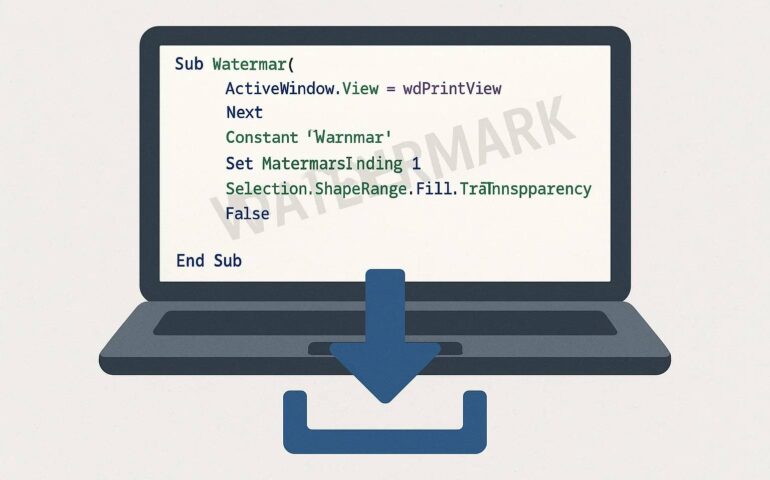
How to Automatically Insert a SolidWorks Drawing Watermark Using A Macro?

What Does This Macro Do? This macro is a fast, easy tool for any SOLIDWORKS user. It performs the following essential tasks: Why Should I Use This Macro? Using a watermark drawing macro is the best way to control quality and communicate effectively on your projects. Instead of wasting precious time inserting and formatting notes manually, the macro is a simple, trusted answer. How to Add a Watermark in a SolidWorks Drawing? To add a watermark to your SolidWorks drawing, you don’t need any particular programming knowledge. Just follow these simple steps to get started: The macro will execute instantly, and your watermark will be aligned centrally on the current drawing sheet. The VBA Macro Code Need a Custom Modification? This free macro is a quick solution to solidworks drawing add watermark, but we know that every engineering workflow is unique. So, if you need a more advanced version tailored to your needs, or one based on a custom property to define the text, we’re here to help. At Blue Byte Systems Inc., we excel at creating bespoke VBA macros and add-ins that are ideally suited to your individual requirements. So if you have a concept for a bespoke macro or a bug you’d like resolved, don’t hesitate to get in touch with us here for a quote or free consultation. Together, let’s achieve even higher productivity, ya?

Read More »

Top reasons to upgrade your VBA macros in 2020

VBA macros continue to be the choice of the SOLIDWORKS community for automating repetitive tasks. After years of contributing to the API forum and seeing various examples of VBA macros being stretched to the limits of what VBA can do, it is about time to compile a list of reasons why upgrading a VBA macro to a .NET add-in makes sense.

Read More »

A Simple Macro for All SolidWorks Delete Dangling Dimensions Automated!

If you’ve been working a while in SOLIDWORKS, you know the drill. You open a drawing, and there they are: those hanging, useless dimensions that lost their reference points. They’re referred to as dangling dimensions, and one or two will not hurt anything, but a whole group can take a neat drawing and make it into a confusing mess. They’re not just visual eyesores; they’re an early symptom of unwanted errors. But what if you could nuke them all in one click? Well… now you can, by following along with this guide. This guide is going to explore a simple macro for all SolidWorks delete dangling dimensions. You can utilize a simple, convenient macro that addresses this very problem by zapping all your dangling dimensions for you. Key Features Deletes all dangling dimensions from active drawings. Works with any SOLIDWORKS version, thanks to late-binding. User confirmation required before deletion. How The Macro Works Behind the Scenes? The VBA macro follows a clear, logical route to make sure that it only targets what you want it to. Here’s a step-by-step breakdown of how it works: It Checks for the Document: It first checks whether the current document is a drawing. If you have something open like an assembly or a part, it will warn you and terminate, so you don’t even use it where it shouldn’t be used. This is also a good thing to keep in mind if you ever wonder how to cancel macros inc before they land you in trouble. It Scans for Dangles: The macro searches every view in your drawing, looking for any annotations SOLIDWORKS has tagged as “dangling.” It only calls out those dimensions that have lost their reference. It Asks for Authorization: You get a message of approval prior to deletion being done. That is your final chance to approve the action and prevent modifications from being inadvertently made, which is really a great safety feature, especially if you are working on something intricate and would like to prevent modifications from being made by accident, as if you have to delete configuration SolidWorks drawings in a particular way. It’s Version-Agnostic: Because it uses late-binding, the macro does not use explicit references and works perfectly across different versions without your involvement in code.es and works perfectly across different versions without your involvement in code. Code: Bottom Line Should you need to automate your SOLIDWORKS workflows even further, from dimension management to automating other drawing processes, Blue Byte Systems Inc. is here to help. We specialize in custom add-ins and automation utilities designed to your specifications. Contact us today!

Read More »
0
    0
    Your Cart
    Your cart is emptyReturn to Shop
    0
      0
      Your Cart
      Your cart is emptyReturn to Shop