
 USD
USD CAD
CAD EUR
EUR GBP
GBP AUD
AUD NZD
NZD CHF
CHF SEK
SEK NOK
NOK JPY
JPY CNY
CNY INR
INR SGD
SGD MXN
MXN BRL
BRL ZAR
ZAR KRW
KRW
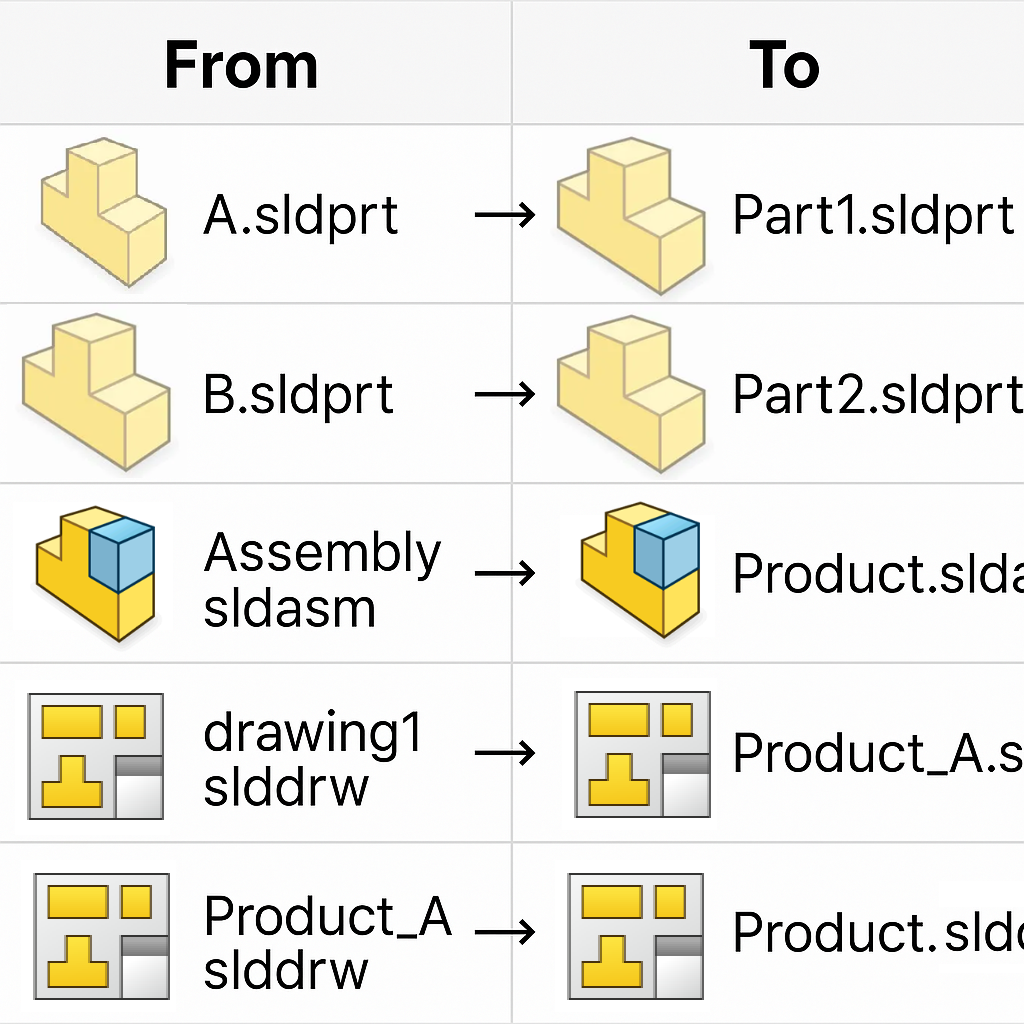
Handling the realm of data management can be perplexing, especially when dealing with massive datasets in a solid system like SOLIDWORKS PDM. Renaming files is one of the most common, yet necessary, tasks. While SOLIDWORKS PDM does these operations admirably with its robust reference-tracking mechanism, a large-scale renaming project… hundreds or thousands of files… requires a methodical and concerted approach. By embracing these PDM best practices, you can avoid the pitfalls of corrupted references, data loss, or system crashes and make the process an error-free and smooth one from start to finish.
This guidebook is meant for CAD engineers and PDM administrators who have to deal with executing a mass-renaming operation in their day-to-day lives. We’ll take you from the first validation of your data through to final procedure cleanup and reporting, so you’ll have everything you need to accomplish the task.
1. The Critical First Step: Data Validation and Verification
Data validation is totally important before you ever think about scripting or acquiring a file. Skipping it is the primary reason for errors with any batch process. If you are scripting from a spreadsheet of filenames, take a few moments to clean up your spreadsheet carefully.
Your spreadsheet will have columns for:
- File ID (if used): The specific identifier for your vault, a valuable search tool for identifying the correct file.
- Current Filename: The file name actually shown in the vault.
- File Extension: The type of file (e.g., .sldprt, .sldasm, .dwg).
- Full File Path: The full path where the file resides in the PDM vault.
This anticipation ensures that all of the files you are attempting to rename actually exist in your vault. It may seem like a tiny thing, but when you’ve got gigantic vaults with hundreds of thousands or even millions of files, it’s easy for a child to have old or outdated entries in your source list.
After you’ve made sure that the source files are present, you will also need to confirm that the target filenames do not yet exist. This is especially true if your vault is configured to disallow duplicate filenames. If some or all of your proposed new names already occupy, you will be forced to edit those entries in order to prevent conflicts.
2. Strategic File Prioritization and Sorting
Not all files are created equal when renaming. To minimize complications and potential mistakes in your SOLIDWORKS PDM batch plot or rename operation, sort your files in a strategic order. This is a key step in the SOLIDWORKS batch processor task, especially when using assemblies with heavy complexity.
A sound sorting strategy is as follows:
- Start with unreferenced files. They are the simplest to rename and pose the least threat.
- Then move on to process the referenced files that are not yet referenced by other files. These are typically parts used in a sub-assembly; they are not an assembly themselves.
- Lastly, process files with data on the “Contains” or “Where Used” pages. These are the most complex files, like sub-assemblies or top-level assemblies, and should be processed last so their referenced parts have already been renamed successfully.
Also consider sorting your files by name length (longest first). This avoids issues when there is a longer new name that might overwrite a shorter file name if you’re not scripting this. Power users will love the SOLIDWORKS PDM API. You can create your own batch script that does everything for you, sorting it out, checking it, and running it with precision.
3. Required Pre-Rename Vault Preparation
Before proceeding with the renaming process, a few extremely critical steps must be performed in order to avoid interference and make sure that this process is clean. This is your foundational element of PDM best practices.
- Check all files on all machines. This is not an option, but rather required. Anything that has been checked out will not be available to the rename process and will result in an error.
- Have all users clear out their local cache. The same goes for the PDM Administrator account, too. This action prevents local, stale file copies from causing problems.
Temporarily shut down all user logins. This is the dramatic part. Locking logins prevents anyone from checking a file in or out, or accessing the vault while renaming is underway, and causes the entire process to become corrupt.
4. Reporting after Rename and SOLIDWORKS PDM Reference Clean Up
After completing the rename process, your job is not finished. The last, and just as crucial, step is to compile a comprehensive report to share the findings and work out any issues that are left. Your report is your audit trail and is worth its weight in gold to debug.
Columns to include in your report:
- File ID: The file’s unique identifier.
- Original Name: The file’s original name before the rename.
- New Name: The new file name.
- Status: Did it succeed or fail?
- Error Code or Message: If it failed, what was the reason?
Having this report makes it easy to visually notice any renames that have not succeeded and correct them manually. It is also a crucial part of SOLIDWORKS PDM reference clean up since it enables you to find any other broken references or not yet updated files.
Conclusion
Performing a successful batch-renaming process in SOLIDWORKS PDM requires preparation, strict carefulness with data, and foresight. But don’t you worry. Apply the PDM best practices… from verifying your data to all the way up to structuring your files and composing a post-operation report.
If you’ve done so, now you can be confident that your operation will proceed smoothly, precisely, and without any of the usual errors that can plague such massive operations. Success is less about tools, really, but how you operate them in a systemic and smart way.
Frequently Asked Questions (FAQs)
What Is The SOLIDWORKS PDM API?
The SOLIDWORKS PDM API is an application programming interface by which you can automate tasks in your PDM vault. This powerful tool gives you programmatic access to file and folder properties, workflows, and user permissions, significantly improving the functionality of your PDM system beyond its standard interface.
Why Should I Use SOLIDWORKS PDM API To Do Batch Renaming?
As far as batch renaming is concerned, our PDM API offers an option to write a script that can rename hundreds or even thousands of files at once, with smarts to scan and sort, and process them without your intervention. It is much more efficient and less error-prone than doing it manually.
Can The PDM Batch Processor Be Used To Rename Files?
“Batch processor” is an umbrella term. While there are a few built-in utilities within SOLIDWORKS PDM for renaming in batch, a script utilizing the PDM API is typically the best way to go. Utilities like the SOLIDWORKS PDM batch plot are great at batching documents to plot, but for more heavy-duty data manipulation like renaming, a script tailored specifically is recommended.
What Happens If I Don’t Check In A File Before The Rename?
The file will not be renamed and must be reported as an error on your post-operation report. That’s why pre-rename preparation is mandatory. The system cannot write to a file that is not checked into the vault.
