
 USD
USD CAD
CAD EUR
EUR GBP
GBP AUD
AUD NZD
NZD CHF
CHF SEK
SEK NOK
NOK JPY
JPY CNY
CNY INR
INR SGD
SGD MXN
MXN BRL
BRL ZAR
ZAR KRW
KRW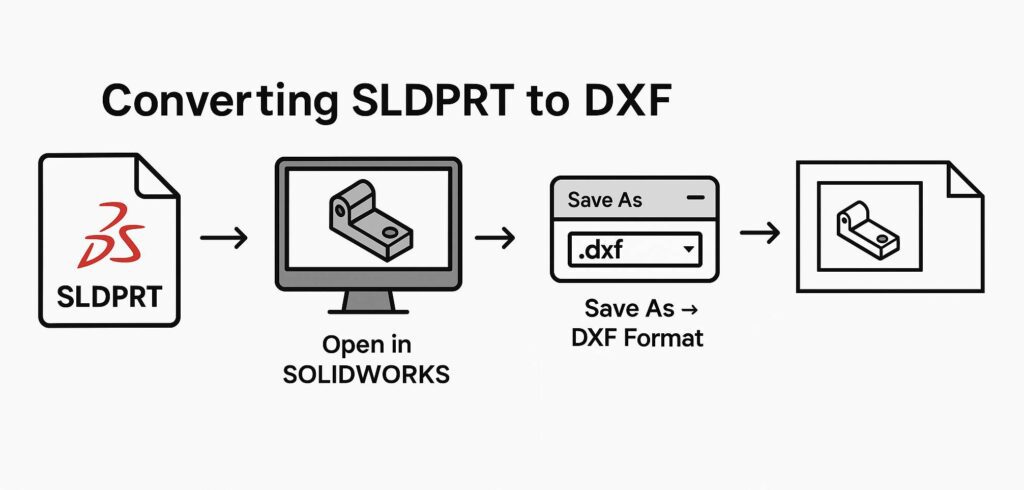

Description
The macro processes an active SOLIDWORKS assembly file (.SLDASM) in a systematic fashion, finds each sheet metal part, and exports its corresponding flat pattern geometry to a DXF file.
System Requirements
- SOLIDWORKS Version: SOLIDWORKS 2017 or higher
- VBA Environment: Pre-installed in SOLIDWORKS (To access, select Tools > Macro > New or Edit)
- Operating System: Windows 7, 8, 10, or higher
Pre-requisites
In order to run the macro, the following requirements must be met:
- The active document must be an assembly document (.SLDASM) inside SOLIDWORKS.
- The components in the assembly must have valid sheet metal parts created with a formed flat pattern.
- In order to run the macro, SOLIDWORKS must be installed and opened on the computer.
Results
- A DXF file is generated for each distinct sheet metal part that we process, which contains the flat pattern.
- The DXF files are placed in the unique directory intended for their SOLIDWORKS part file source.
- The macro calls the ExportToDWG2 method so that the flat pattern can be issue accurate and complete with bend lines.
Steps to Set Up the Macro
- Register Macro File: Either from SolidWorks opened already or not, go to Tools > Macro > New…
- Name Macro File: To help identify your macro in the future, a good practice is to name the macro something relevant. For example, if you are creating a SolidWorks macro to export sheet metal to DXF in SOLIDWORKS, you might call the file “BatchSheetMetalDXF.swp”. Once you have named the macro, you can hit save. A new editor window for your VBA editor should open automatically.
- Paste the code: Download the VBA code we have provided for you below and place it in your editor.
- Run Macro: Exit out of your editor and save your work when prompted. With a Sheet Metal assembly active (the sheet metal option should check under “View>Hide/Show>Sheet Metal”), you are now able to run your macro via Tools > Macro > Run, or via your previously assigned shortcut.
VBA Macro Code
Option Explicit
' ********************************************************************
' DISCLAIMER:
' This code is provided as-is with no warranty or liability by
' Blue Byte Systems Inc. The company assumes no responsibility for
' any issues arising from the use of this code in production.
' ********************************************************************

' Enum for Sheet Metal export options
Enum SheetMetalOptions_e
    ExportFlatPatternGeometry = 1
    IncludeHiddenEdges = 2
    ExportBendLines = 4
    IncludeSketches = 8
    MergeCoplanarFaces = 16
    ExportLibraryFeatures = 32
    ExportFormingTools = 64
    ExportBoundingBox = 2048
End Enum

' solidworks app variable
Dim swApp As SldWorks.SldWorks
Dim swModelDoc As ModelDoc2
Dim swAssemblyDoc As AssemblyDoc
Dim swComponents As Variant
Dim swComponent As Component2
Dim swComponentIterator
Dim processedFiles() As String

Sub Main()


ReDim processedFiles(0)

processedFiles(0) = ""

 Set swApp = Application.SldWorks

 Set swModelDoc = swApp.ActiveDoc

 Set swAssemblyDoc = swModelDoc


 swComponents = swAssemblyDoc.GetComponents(False)

 For Each swComponentIterator In swComponents

  Set swComponent = swComponentIterator

  Dim swComponentModelDoc As ModelDoc2

  Set swComponentModelDoc = swComponent.GetModelDoc2

  If Not swComponentModelDoc Is Nothing Then

   If ExistsInProcessedFiles(processedFiles, swComponentModelDoc.GetPathName()) = False Then

   addItemToProcessedFiles processedFiles, swComponentModelDoc.GetPathName()

   PrintDXF swComponentModelDoc


   End If

  End If


 Next swComponentIterator

End Sub


Function ExistsInProcessedFiles(ByRef arr() As String, fileName As Variant) As Boolean


Dim i As Long

For i = LBound(arr) To UBound(arr)

 If arr(i) = fileName Then

  ExistsInProcessedFiles = True

  Exit Function

  End If

Next i

ExistsInProcessedFiles = False

End Function


Sub PrintDXF(ByRef swmodel As ModelDoc2)

If swmodel.GetType() = swDocumentTypes_e.swDocPART Then

 Dim swPart As PartDoc

 Set swPart = swmodel

 Dim modelPath As String

 modelPath = swmodel.GetPathName

 Dim outPath As String

 outPath = Left(modelPath, Len(modelPath) - 6)

 outPath = outPath + "dxf"

 swmodel.Visible = True

 Dim saveDXF As Boolean

 saveDXF = swPart.ExportToDWG2(outPath, modelPath, swConst.swExportToDWG_e.swExportToDWG_ExportSheetMetal, True, vbEmpty, False, False, SheetMetalOptions_e.ExportFlatPatternGeometry + SheetMetalOptions_e.ExportFlatPatternGeometry + SheetMetalOptions_e.ExportFlatPatternGeometry + SheetMetalOptions_e.ExportBendLines, vbEmpty)

 If saveDXF Then

  Debug.Print swmodel.GetTitle() & " saved"


 Else
  Debug.Print swmodel.GetTitle() & " failed to save"

 End If

 swmodel.Visible = False

End If

End Sub


Public Sub addItemToProcessedFiles(ByRef arr() As String, ByVal processedFile As String)

Dim arrLength As Long

arrLength = UBound(arr)

If arrLength < 0 Then

ReDim arr(0)

arr(0) = processedFile

Else

ReDim Preserve arr(arrLength + 1)

arr(arrLength + 1) = processedFile

End If

End Sub
Macro
You can download the macro from here.
Need Customization & Expert Support?
Our specialized team at Blue Byte Systems Inc. develops custom macros and add-ins to meet these advanced workflow needs.