
 USD
USD CAD
CAD EUR
EUR GBP
GBP AUD
AUD NZD
NZD CHF
CHF SEK
SEK NOK
NOK JPY
JPY CNY
CNY INR
INR SGD
SGD MXN
MXN BRL
BRL ZAR
ZAR KRW
KRW
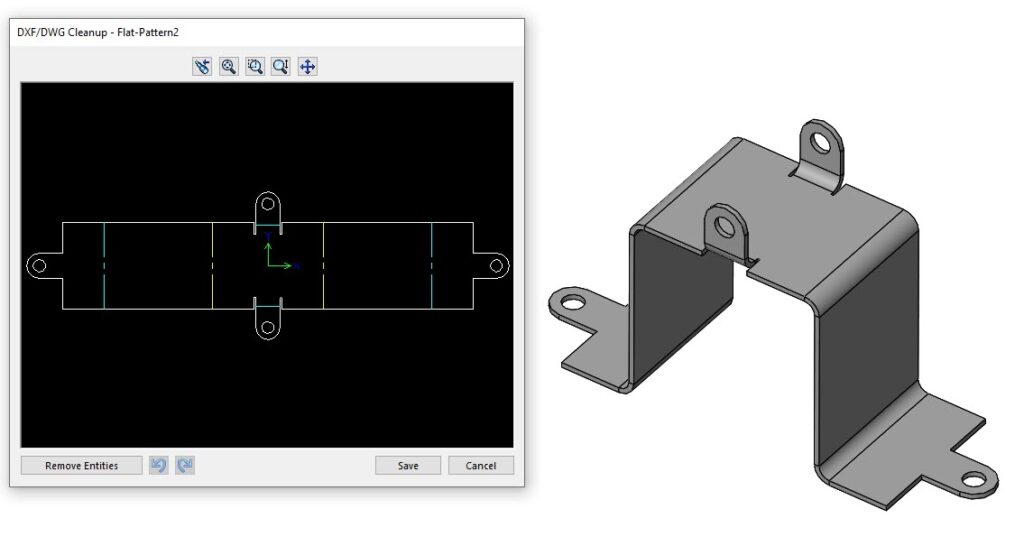
Working with sheet metal in SolidWorks, you’ll often find yourself in need of exporting large assembly files into DXF format for manufacturing purposes. And if you’re someone who needs to deal with exporting dozens of parts from a large assembly manually, you understand how much of a time-consuming task it can be.
You don’t have to worry or waste time on manually exporting each sheet anymore. With a VBA (Visual Basic for Applications), you can automate the SolidWorks export sheet metal DXF process. Now, you can export 1:1 scale DXF files directly with production-ready accuracy and efficiency.
In this guide, we’re gonna walk you through the process of how to automate SolidWorks macro export flat pattern DXF using VBA. Rest assured, this solution is gonna not just save your time but also help you streamline your workflow, regardless of the complexity of assemblies.
Why You Should Automate Your SolidWorks DXF Export
You should automate your SolidWorks DXF export sooner rather than later since manual file conversion is slow and highly prone to human error. Especially when you’ll be dealing with complex assemblies, it’s a must. Automating it provides you with many benefits such as–
- Efficiency: Export all the sheet metal components of the assembly at once automatically, instead of opening each file individually.
- Accuracy: The macro will give you a hard 1:1 scale in your SolidWorks DXF export, which may be critical to production otherwise.
- Time-Saving: The entire process is automated, and you can focus on other, more complex issues of design.
How to Convert a SolidWorks File to DXF Automatically
To begin automating the process, you’ll need–
- SolidWorks
- Basic understanding of VBA and macros
The VBA macro forms the backbone of this automation, wherein it looks for sheet metal parts within your assembly and exports their flat patterns as DXF files in a 1:1 scale.
Here’s A Step-By-Step Breakdown of How It Should be Done
Step 1: Create a New Macro in SolidWorks
Open SolidWorks and go to Tools > Macro > New and choose where you wish to save your new macro file. Choose a folder that is convenient so that you can write the VBA code there and save it.
Step 2: Implement The Provided VBA Code for Auto-Export of DXF
Below is a handy VBA script to loop through all your existing assembly components, check if the part is a sheet metal part, and auto-export it as a DXF file.
This is a preview of what the code does in the background:
- Assembly Check: The macro performs a check to ascertain whether the active document is an assembly or not. In case it is not, the macro displays a warning message, requiring the opening of an assembly, to avoid any mistake.
- Component Loop: It then iterates through all components of the assembly.
- Part Validation: For each part, checking if it is a valid part and not yet processed so that duplicates are not exported by accident.
- Flat Pattern Export: The macro keeps going with the ExportToDWG2 function to flat pattern export. The function is written to flat pattern export SolidWorks export sheet metal DXF with all the right options, such as bend lines.
- File Naming: File Naming: Lastly, it renames the file from .SLDPRT to .DXF, and also saves it in the same folder as the original part file.
Step 3: Personalize the Macro
You can modify the saveDir variable to select where you want to save the DXF files. Include custom file naming schemes or error handling if needed.
Step 4: Run the Macro
Once you have saved the code in your macro file, go ahead and open your assembly within SolidWorks. Go to Tools > Macro > Run, and select the macro file that you saved. The macro will run automatically, saving DXF files for each sheet metal body within your assembly as well as saving them in the provided directory.
Now you can see the huge difference from exporting each file separately.
Benefits of Using SolidWorks Text to DXF
Even though the primary purpose of this macro is to export flat patterns for production, the same idea could be applied to do some other tasks as well. For instance, you might export SolidWorks text to DXF using the script. It will be helpful to generate files to laser engrave or mark.
The SolidWorks API is highly customizable, and you can develop automation solutions that are specifically suited to your requirements, so you have full control over what you’re doing. You can automate your SolidWorks macro export flat pattern DXF process and boost productivity, along with avoiding errors effectively. Due to the power of VBA macros, you are now able to transform your lengthy, time-consuming process into a quick, auto-action.
Need Assistance with SolidWorks Automation?
If you require automation of more of your SolidWorks processes, like sheet metal custom solutions, DXF export, or other niche workflows, Blue Byte Systems is here to help. We specialize in automating SolidWorks and PDM processes for enhanced efficiency and accuracy.
Call us today to discuss your needs and let us help you streamline your operations with custom automation solutions!