
 USD
USD CAD
CAD EUR
EUR GBP
GBP AUD
AUD NZD
NZD CHF
CHF SEK
SEK NOK
NOK JPY
JPY CNY
CNY INR
INR SGD
SGD MXN
MXN BRL
BRL ZAR
ZAR KRW
KRW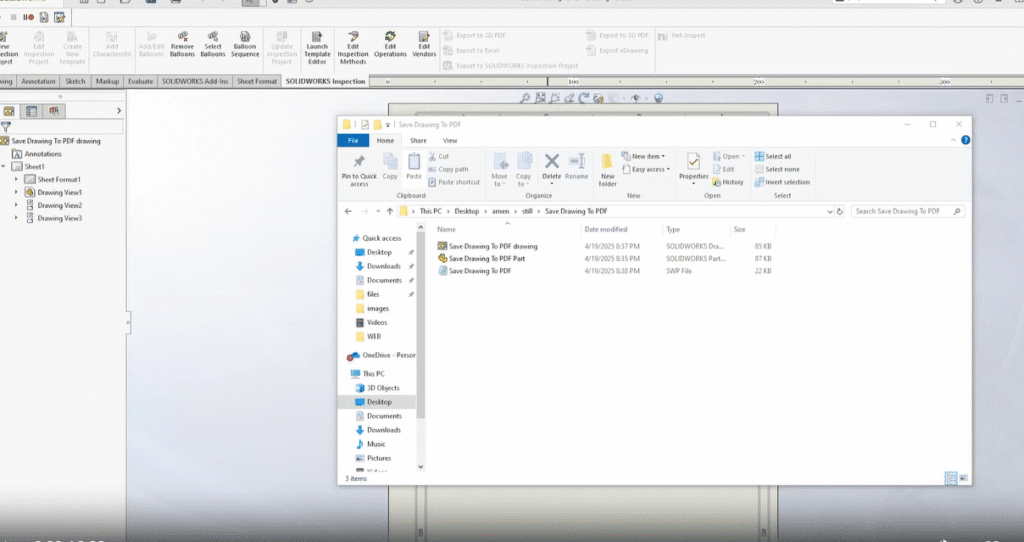

Description
- This macro is a quick option to get the currently active part or assembly drawing in SolidWorks, saved as a PDF.
- The PDF will automatically get the same name and save in the same folder as the drawing.
System Requirements
- SolidWorks Version: SolidWorks 2014 or newer
- Operating System: Windows 7 or later
Pre-requisites
- The active document must be saved as a drawing (.SLDDRW) file.
- The drawing file must contain at least one sheet.
- Confirm that the drawing is open and that it is the active document before running the macro.
Results
- The macro will export all sheets of the active drawing into a single PDF file.
- The SolidWorks PDF will be saved in the same directory as the original drawing file, using the same name as the drawing.
Steps to Set Up the Macro
To configure the macro in your SolidWorks environment, complete the following steps:
- Register the Macro File: Start by opening SolidWorks and go to Tools > Macro > New…
- Name and Register Your Macro: Provide a descriptive name (i.e., SaveDrawingAsPDF.swp) and then save the file wherever you like on the system. This should automatically launch the VBA editor.
- Place the Code: Paste the VBA code provided (located below in the
Example VBA Macro Codesection) into the VBA editor (ensuring that the default code is overwritten) - Execute the Macro: Close the VBA editor and save it when prompted.
- Assign Shortcut (Optional but Recommended): Either go to Tools > Customize, or Options > Customize, depending on your environment, and:
This process essentially creates a SOLIDWORKS macro to save drawing as PDF, allowing users to quickly generate PDM files directly from the drawing environment.
VBA Macro Code
' Disclaimer:
' The code provided should be used at your own risk.
' Blue Byte Systems Inc. assumes no responsibility for any issues or damages that may arise from using or modifying this code.
' For more information, visit [Blue Byte Systems Inc.](https://bluebyte.biz).

Option Explicit
Sub main()

    ' Declare and initialize necessary SolidWorks objects
    Dim swApp As SldWorks.SldWorks             ' SolidWorks application object
    Dim swModel As SldWorks.ModelDoc2          ' Active document object
    Dim swModelDocExt As SldWorks.ModelDocExtension  ' Model document extension object
    Dim swExportData As SldWorks.ExportPdfData ' PDF export data object
    Dim boolstatus As Boolean                  ' Status of export operation
    Dim filename As String                     ' Filename of the PDF to be saved
    Dim lErrors As Long                        ' Variable to capture errors during save
    Dim lWarnings As Long                      ' Variable to capture warnings during save

    ' Initialize SolidWorks application and get the active document
    Set swApp = Application.SldWorks
    Set swModel = swApp.ActiveDoc

    ' Check if a document is currently open in SolidWorks
    If swModel Is Nothing Then
        MsgBox "No active document found. Please open a drawing and try again.", vbCritical, "No Active Document"
        Exit Sub
    End If

    ' Check if the active document is a drawing
    If swModel.GetType <> swDocDRAWING Then
        MsgBox "This macro only works with drawing files. Please open a drawing and try again.", vbCritical, "Invalid Document Type"
        Exit Sub
    End If

    ' Get the extension object of the active drawing document
    Set swModelDocExt = swModel.Extension

    ' Initialize the PDF export data object
    Set swExportData = swApp.GetExportFileData(swExportPDFData)

    ' Get the file path of the active drawing
    filename = swModel.GetPathName

    ' Check if the drawing has been saved
    If filename = "" Then
        MsgBox "The drawing must be saved before exporting to PDF. Please save the drawing and try again.", vbCritical, "Save Required"
        Exit Sub
    End If

    ' Modify the file path to save as PDF (replace extension with .PDF)
    filename = Strings.Left(filename, Len(filename) - 6) & "PDF"

    ' Set the export option to include all sheets in the drawing
    boolstatus = swExportData.SetSheets(swExportData_ExportAllSheets, 1)

    ' Save the drawing as a PDF using the specified filename and export data
    boolstatus = swModelDocExt.SaveAs(filename, 0, 0, swExportData, lErrors, lWarnings)

    ' Check if the export was successful and display appropriate message
    If boolstatus Then
        MsgBox "Drawing successfully saved as PDF:" & vbNewLine & filename, vbInformation, "Export Successful"
    Else
        MsgBox "Save as PDF failed. Error code: " & lErrors, vbExclamation, "Export Failed"
    End If

End Sub
Macro
You can download the macro from here.
Need experts’ help for customization?
Contact us today and let us find your custom solutions that fit the automation of SolidWorks your way!