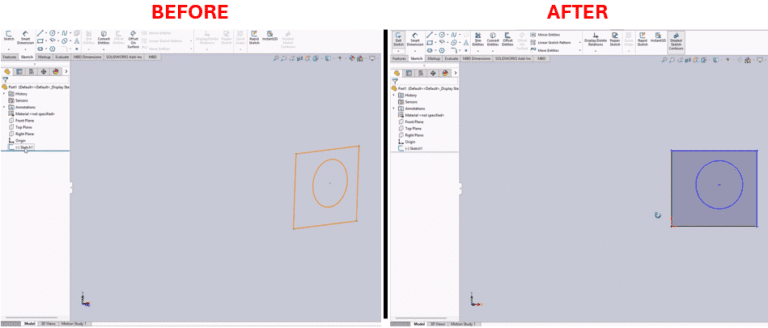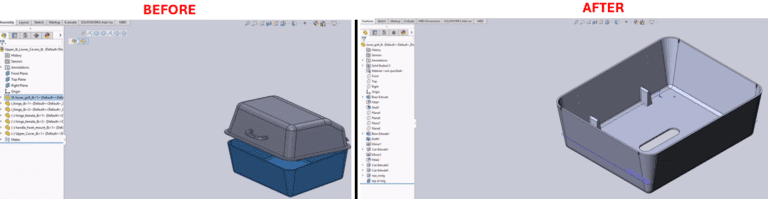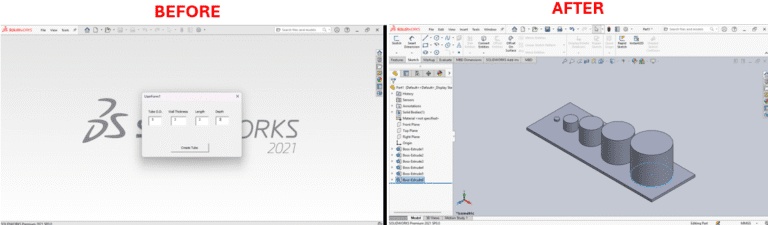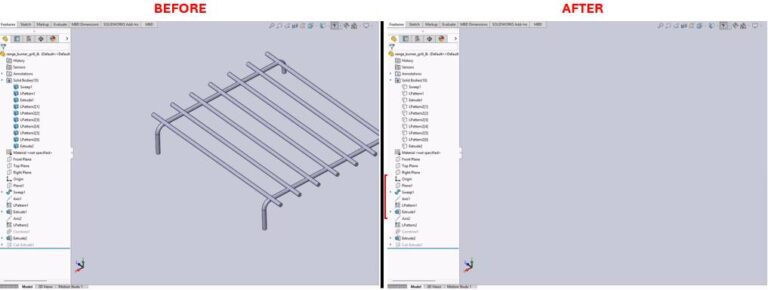



Auto-Mate Addition Macro is a SolidWorks VBA code script applied to automatically add mates to your assemblies. The macro is an efficient solution for engineers and designers to save time on repetitive manual work and prevent human error. Unlike manually creating mates, which is time-consuming and laborious, this macro makes it easier. With the macro, you can use a defined mate in an instant with one operation. Leaning on the SolidWorks VBA API, the macro ensures consistency and accuracy in your designs and liberates you from manual repetitive tasks. This article provides full instructions for installing, using, and customizing the Auto-Mate Addition Macro. With the addition of this tool to your process, you can significantly boost your productivity and work on more complex design problems. In order to use the macro, have the parts to be mated pre-selected, open the SolidWorks VBA editor (Alt + F11), copy and paste the code, and run the macro. Understanding the Auto-Mate Addition Macro Auto-Mate Addition Macro is a simple and effective tool to assist in making your assembly process using SolidWorks as smooth as possible. It makes it easy to add a specific mate relationship between selected entities, which saves you time and effort from performing repetitive manual labor. This macro is useful in workflows where you’re constantly needing to create the same type of mate, for example, a coincident or concentric mate, between parts. By automating it, you’re avoiding the hassle of possible errors and inconsistencies in your designs. Key Features and Benefits This macro is not just about automation, though; it’s about streamlining your design process. Here are some of the ways it makes your life easier: Automatically Cleans Up: Macro gets rid of the chosen entities after being executed, so that you will not inadvertently change your model or contain unnecessary unwanted objects in your workspace. System Requirements To execute this macro, keep your environment as noted below: Prerequisites In order to execute the macro successfully, the following preconditions are necessary: How to Set Up and Use the Macro? The following are the simple steps to get the macro functioning on your SolidWorks computer: Understanding the Results After you’ve run the macro, you should notice the following results: VBA Macro Code You can also download the macro file directly from here. Customization and Advanced Usage This macro is a great starting point, but the strength of it lies in how you can modify it. For example, based on your personalized requirement, you might need to change the mate type, adjust the parameters, run batch operations, etc. And the good news? We, at Blue Byte Systems Inc., specialize in creating customized macros to meet specific requirements. We can provide you with custom macro development tailored to meet your needs and help integrate it with other processes, too. So, should you require any special needs or wish to integrate this macro into a more sophisticated automation process, why the wait? Get in touch with us today!