


US$0.00
0

Category: macros

SOLIDWORKS Macro to Save Assembly as Part (Exterior Components)

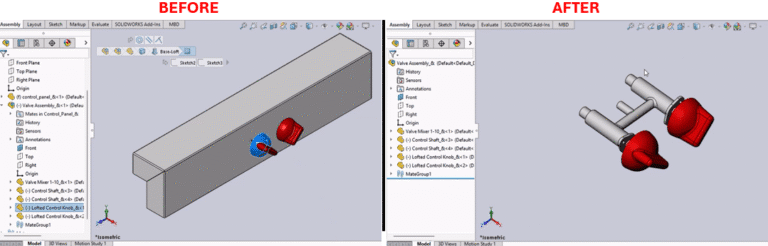
Description This macro converts an active SolidWorks assembly into a part file that contains only the exterior components. This feature is useful for reducing the complexity of the assembly when sharing with external stakeholders or for performance improvements in visualization and analysis. System Requirements Prerequisites The following conditions must be satisfied for the macro to function as intended: Results Steps to Set Up the Macro To deploy the SOLIDWORKS macro to save assembly as part utility, you must follow these simple steps: Prepare SolidWorks Configure and Run the Macro Outcome of Using the Macro VBA Macro Code Macro You can download the macro from here. Customization and Advanced Solutions by Experts To get started with customizing this macro or to create any other fully custom solutions for your engineering projects, reach out to our team of engineers today!

Read More »

SolidWorks Macro for Feature Driven Component Pattern

Description This macro creates a feature-driven pattern for all selected components in an assembly. The last selection in the list is used as the driving pattern, such as a hole feature. System Requirements Pre-Conditions Results Steps to Set Up and Run the Macro Follow these steps to outline the process, from the initial one-time file setup to the routine execution of the Feature-Driven Component Pattern utility. VBA Macro Code Macro You can download the macro from here. Build More Effective Custom Solutions With Our Team Of Experts! Contact us today to discuss your custom automation solutions – and beyond!

Read More »

SolidWorks Macro to Efficiently Manage Assembly by Hiding All Sketches

Description This macro hides all visible sketches in the active assembly. This is useful for cleaning up the view in complex assemblies where multiple sketches may clutter the workspace. System Requirements Prerequisites Results Steps to Set Up the Macro To quickly get the SolidWorks macro to efficiently manage assembly by hiding all sketches up and running, follow these brief instructions: Pro-Tip: It is highly recommended to assign a keyboard shortcut or a toolbar button to this macro to achieve maximum speed and efficiency. VBA Macro Code Macro You can download the macro from here. Customize with Expert Support Contact us today and get the most from your SolidWorks automation.

Read More »

SOLIDWORKS Macro to Export Assembly Components as Parasolid

Description The macro will traverse your open SOLIDWORKS assembly file (.SLDASM) methodically and recursively, detect each child component (part), and then proceed to automatically save each part in the stable Parasolid (X_T) format. The macro traverses recursively through the assembly structure so that each part is saved based on the part name. System Requirements Pre-requisites To execute the macro, the following conditions must be satisfied: Results The results of your automated batch export process are: Steps to Set Up the Macro VBA Macro Code Macro You can download the macro from here. Reach out, and we’d be happy to assist with integrating this or any other batch process into a more complete system based on your needs.

Read More »

SolidWorks Macro to Export Sheet Metal to DXF in SOLIDWORKS

Description The macro processes an active SOLIDWORKS assembly file (.SLDASM) in a systematic fashion, finds each sheet metal part, and exports its corresponding flat pattern geometry to a DXF file.  System Requirements Pre-requisites In order to run the macro, the following requirements must be met: Results Steps to Set Up the Macro VBA Macro Code Macro You can download the macro from here. Need Customization & Expert Support? Our specialized team at Blue Byte Systems Inc. develops custom macros and add-ins to meet these advanced workflow needs.

Read More »
0
    0
    Your Cart
    Your cart is emptyReturn to Shop