US$0.00
0

Category: PDMShell

PDMShell vs. PowerShell: The CAD Admin’s Guide to Engineering Automation

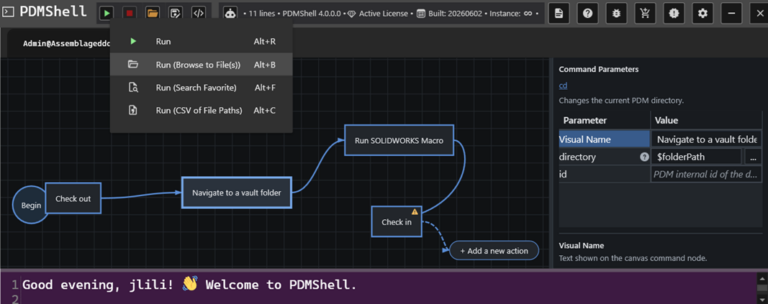
If you work in engineering IT or CAD administration, you’ve likely spent hours trying to make different software systems talk to each other. When searching for ways to automate these clunky processes, two tools with confusingly similar names always pop up: PowerShell and PDMShell. They sound like variations of the same thing, but they aren’t. One is a massive tool built by Microsoft for managing entire corporate networks. The other is a sharp, niche utility built by Blue Byte Systems specifically for SOLIDWORKS PDM Professional. Let’s break down what they actually do, how they differ, and why you might end up using both. The easiest way to understand the difference is by looking at what they were built to control. PowerShell is for your entire operating system and cloud environment. PDMShell is strictly for your SOLIDWORKS PDM vault. Feature PowerShell PDMShell What does it control? Windows, cloud servers, and networks SOLIDWORKS PDM vaults only Who made it? Microsoft Blue Byte Systems Inc. How do you use it? Advanced programming (.NET objects) Simple text scripts (.pdmshell) Who is it for? IT Admins and DevOps Engineers CAD Admins and Data Managers How do you get it? Built right into Windows Download from pdmshell.com PowerShell is Microsoft’s heavy-duty automation framework. It is incredibly powerful because it doesn’t just read plain text; it understands actual data objects. If an IT admin needs to create 50 new user accounts in Active Directory, back up a server to the cloud, or update software registry keys across an entire department, they use PowerShell. The downside? It has a steep learning curve. Because it is a full programming language tied to Microsoft’s .NET framework, you need a decent grasp of coding logic and complex syntax to get anything done. PDMShell: The SOLIDWORKS Short-Cut. If you’ve ever tried to customize SOLIDWORKS PDM, you know that interacting with its API usually requires writing complex C# or VB.NET code in Visual Studio. For a CAD manager who just wants to get a job done, this is often overkill. That is why Blue Byte Systems built PDMShell. It acts as a friendly middleman for the complex PDM API. Instead of writing lines of heavy code, you write simple text scripts using straightforward, built-in commands like checkout, checkin, or addtovault. It plugs right into your existing PDM Tasks and Dispatch actions, letting you automate boring vault tasks without needing a degree in software engineering.
Read More »

Automate Weekly SOLIDWORKS PDM Check-Ins with PDMShell and Windows Task Scheduler

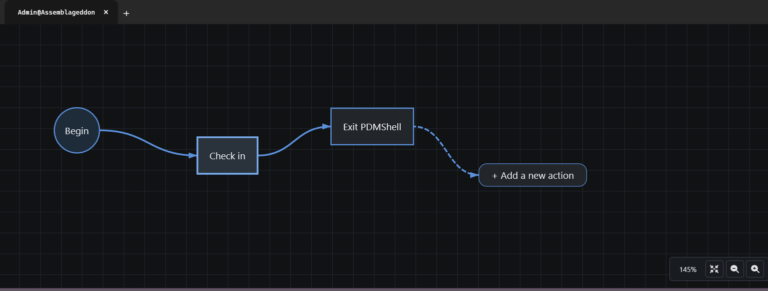
This article explains how to use PDMShell with Windows Task Scheduler to automatically check in files from a SOLIDWORKS PDM vault folder on a weekly schedule. PDMShell is a command-line tool for SOLIDWORKS PDM that allows administrator to run PDM operations from scripts. By combining PDMShell with Windows Task Scheduler, you can automate recurring PDM tasks such as logging in to a vault, navigating to a folder, searching for files, and checking in files. Before setting this up, make sure PDMShell is installed on the computer that will run the scheduled task. The computer must also have a local PDM vault view, and the Windows account running the task must have access to that vault view. The same user must also have permission to check in the files. In most SOLIDWORKS PDM environments, a user can only check in files that are checked out by that same user. If the files are checked out by another user, the scheduled task will not be able to check them in unless you have a controlled administrative process in place. Click on the Open button then click on Browse PDMShell.com scripts… Download the script called Check In All Files: When the download completes, please click Yes to confirm this dialog: PDMShell will load the downloaded script in the Visual Editor: If you click on the check-in box, you will the parameters of the command. In this instance, the command does a search for all checked out files recursively and check them into the vault. The check options configure the check-in operation.The script will eventually terminate the PDMShell application when done through the Exit PDMShell action: Before scheduling the script, test it manually from Command Prompt: Update the path to pdmcli.exe if PDMShell is installed in a different location. Once the script works manually, open Windows Task Scheduler and create a new task. On the General tab, use a name such as: Select the option to run whether the user is logged on or not. Also enable the option to run with highest privileges. The task should run under the same Windows account that has access to the vault view and owns the checked-out files. On the Triggers tab, create a weekly trigger. For example, you can run the task every Friday at 6:00 PM. On the Actions tab, create a new action using Start a program. Program/script: Add arguments: Start in: On the Conditions tab, review the power and network options. If the task runs on a workstation, make sure the machine is online and connected to the PDM archive server when the task starts. On the Settings tab, it is recommended to allow the task to be run on demand, run the task as soon as possible after a scheduled start is missed, stop the task if it runs longer than a reasonable time, and prevent a new instance from starting if the task is already running. For production usage, keep the script focused on a controlled folder instead of running it against the entire vault. For example: PDMShell and Windows Task Scheduler provide a simple way to automate recurring SOLIDWORKS PDM maintenance tasks. For production environments, always test the script on a small folder first and make sure the scheduled task runs under the correct Windows and PDM user. Few considerations:

Read More »
0
0
Your Cart
Your cart is emptyReturn to Shop