
This article explains how to use PDMShell with Windows Task Scheduler to automatically check in files from a SOLIDWORKS PDM vault folder on a weekly schedule.
PDMShell is a command-line tool for SOLIDWORKS PDM that allows administrator to run PDM operations from scripts. By combining PDMShell with Windows Task Scheduler, you can automate recurring PDM tasks such as logging in to a vault, navigating to a folder, searching for files, and checking in files.
Before setting this up, make sure PDMShell is installed on the computer that will run the scheduled task. The computer must also have a local PDM vault view, and the Windows account running the task must have access to that vault view. The same user must also have permission to check in the files.
In most SOLIDWORKS PDM environments, a user can only check in files that are checked out by that same user. If the files are checked out by another user, the scheduled task will not be able to check them in unless you have a controlled administrative process in place.
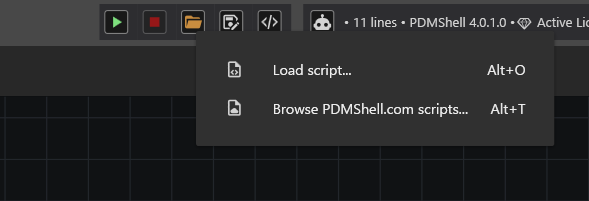
Click on the Open button then click on Browse PDMShell.com scripts…
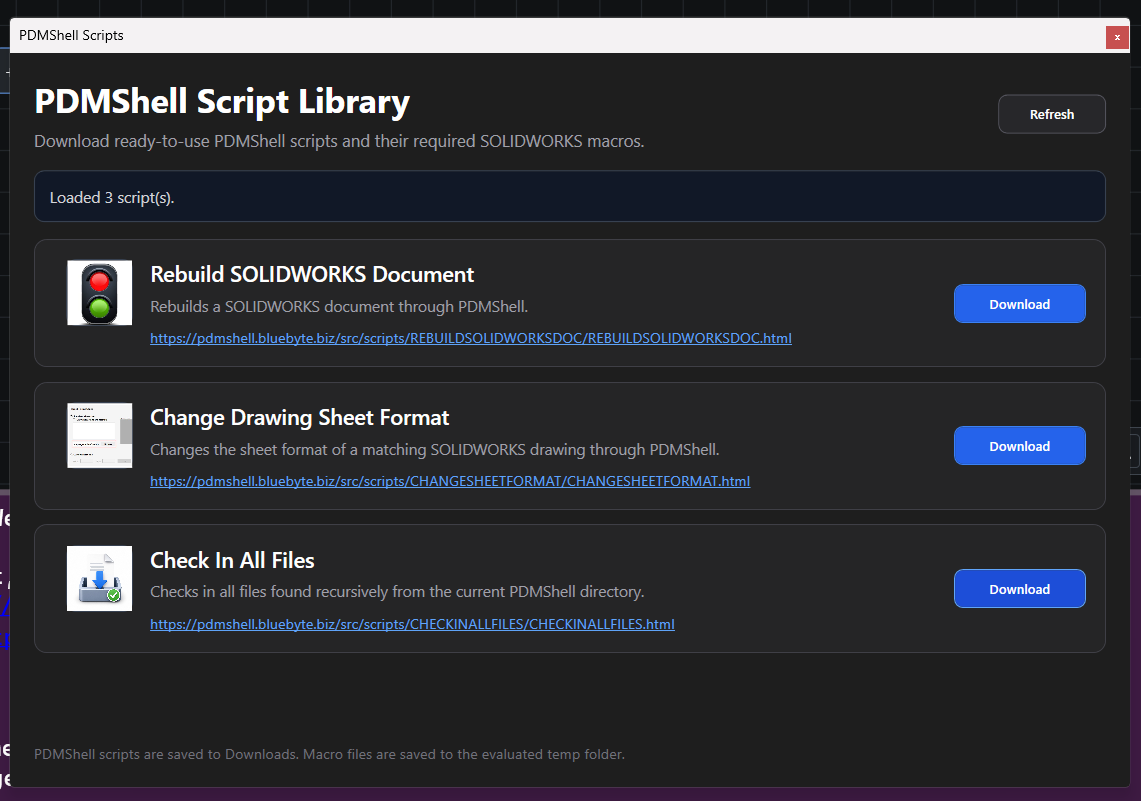
Download the script called Check In All Files:
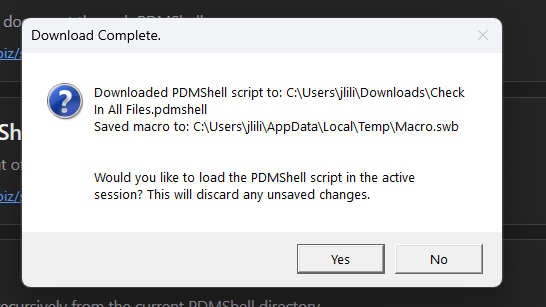
When the download completes, please click Yes to confirm this dialog:
PDMShell will load the downloaded script in the Visual Editor:
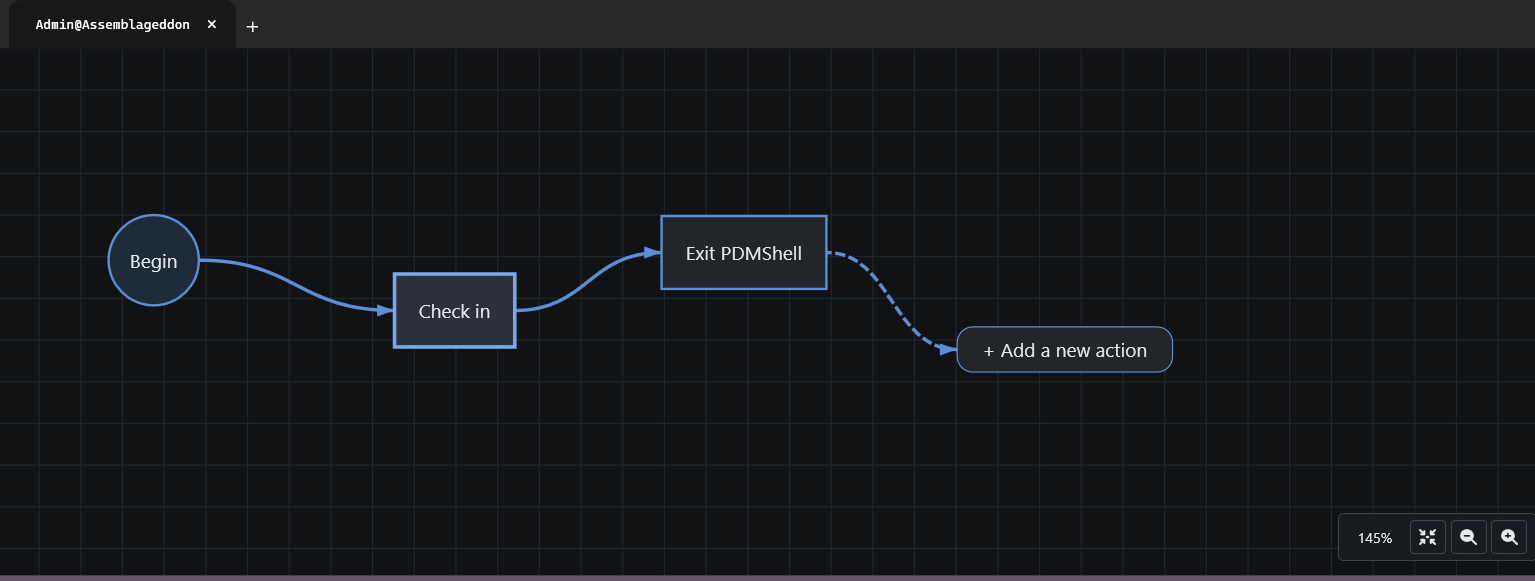
If you click on the check-in box, you will the parameters of the command.
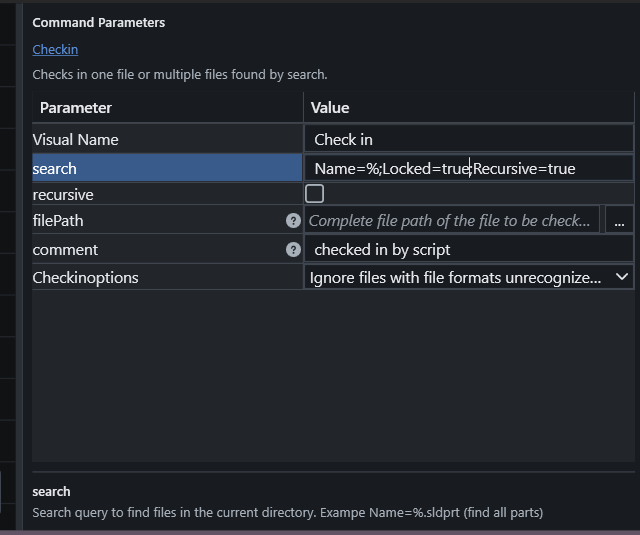
In this instance, the command does a search for all checked out files recursively and check them into the vault. The check options configure the check-in operation.
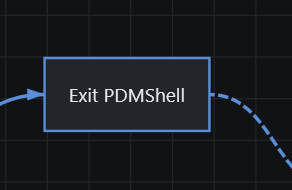
The script will eventually terminate the PDMShell application when done through the Exit PDMShell action:
Before scheduling the script, test it manually from Command Prompt:
"C:\Program Files\Blue Byte Systems Inc\PDMShell\pdmcli.exe" runscript "C:\Scripts\WeeklyCheckIn.pdmshell"Update the path to pdmcli.exe if PDMShell is installed in a different location.
Once the script works manually, open Windows Task Scheduler and create a new task.
On the General tab, use a name such as:
Weekly PDM Check-InSelect the option to run whether the user is logged on or not. Also enable the option to run with highest privileges. The task should run under the same Windows account that has access to the vault view and owns the checked-out files.
On the Triggers tab, create a weekly trigger. For example, you can run the task every Friday at 6:00 PM.
On the Actions tab, create a new action using Start a program.
Program/script:
C:\Program Files\Blue Byte Systems Inc\PDMShell\pdmcli.exeAdd arguments:
runscript "C:\Scripts\WeeklyCheckIn.pdmshell"Start in:
c:\Program Files (x86)\BLUE BYTE SYSTEMS INC\pdmshellOn the Conditions tab, review the power and network options. If the task runs on a workstation, make sure the machine is online and connected to the PDM archive server when the task starts.
On the Settings tab, it is recommended to allow the task to be run on demand, run the task as soon as possible after a scheduled start is missed, stop the task if it runs longer than a reasonable time, and prevent a new instance from starting if the task is already running.
For production usage, keep the script focused on a controlled folder instead of running it against the entire vault. For example:
Checkin -search "Name=%;Locked=true;Recursive=true" -comment "checked in by script" -Checkinoptions "EdmUnlock_IgnoreCorruptFile+EdmUnlock_IgnoreRefsOutsideVault+EdmUnlock_IgnoreRefsNotLockedByCaller"
quit -silent
PDMShell and Windows Task Scheduler provide a simple way to automate recurring SOLIDWORKS PDM maintenance tasks. For production environments, always test the script on a small folder first and make sure the scheduled task runs under the correct Windows and PDM user.
Few considerations:
- Before scheduling PDMShell scripts, make sure automatic login is enabled in SOLIDWORKS PDM and PDMShell. This allows PDMShell to connect to the vault using the Windows/PDM session of the logged-in user, instead of hard-coding usernames and passwords inside scripts.
- This approach is more secure and easier to maintain, especially for scheduled tasks.
- You will also need PDMShell Premium, since scheduled and unattended automation scenarios require the premium command-line capabilities.
- Finally, the scheduled script must run on the computer of the user who has the correct PDM access, local vault view, and automatic login configured. The Windows Task Scheduler job should run under that same Windows user account.