US$0.00
0
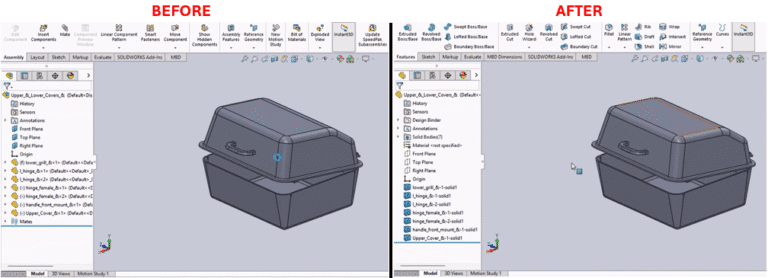
SOLIDWORKS Macro to Save Assembly as Part and An image divided into two side-by-side sections labeled "Before" and "After," showing a SOLIDWORKS software interface. The "Before" section displays a 3D model of a box-like container with a hinged lid, a blue plane labeled "Top Plane," and a feature tree on the left listing "Upper & Lower_Covers" with components like "Hinge" and "Handle" under "History" and "Solid Bodies." The "After" section shows the same container with the lid closed and a shaded surface, the feature tree updated with additional "Solid Bodies" like "Upper_Cover-B1-solid1," and similar components. Both sections include toolbars and an isometric 3D view with axes indicators.

SOLIDWORKS Macro to Save Assembly as Part (Exterior Components)

Description This macro converts an active SolidWorks assembly into a part file that contains only the exterior components. This feature is useful for reducing the complexity of the assembly when sharing with external stakeholders or for performance improvements in visualization
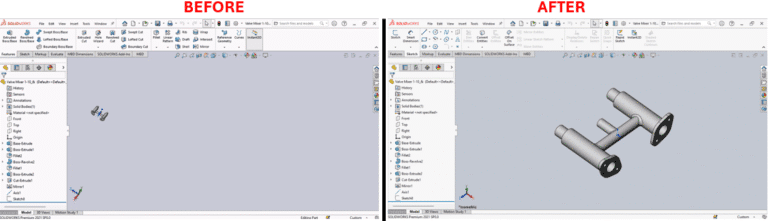
SOLIDWORKS Macro to Create Custom ISO Views and n image divided into two side-by-side sections labeled "Before" and "After," showing a SOLIDWORKS software interface. The "Before" section displays a partially constructed 3D model of a valve with a few extruded components and a feature tree on the left listing steps like "Base Extrude" and "Cut Extrude." The workspace is mostly empty with a gray background. The "After" section shows the completed 3D model of the valve, featuring a more detailed structure with multiple cylindrical and connected parts, and the same feature tree on the left with additional steps like "Fillet" and "Mirror." Both sections include toolbars and menus at the top, with the "After" section highlighting the finalized design in a 3D view.

SOLIDWORKS Macro to Create Custom ISO Views (8 Orientations)

Description System Requirements Pre-requisites Results Steps to Implement the Macro VBA Macro Code Macro You can download the macro from here Need to modify the macro to meet specific requirements? Contact us today to see how our experience can help provide
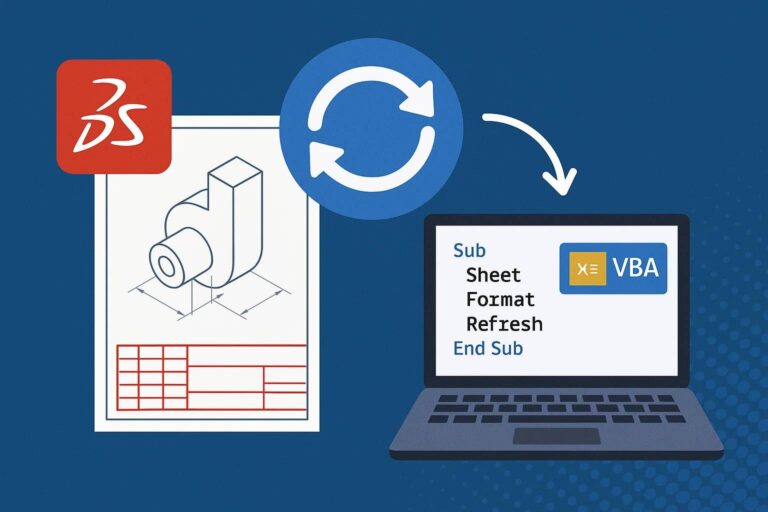
Automatically Refresh Drawing Sheet Formats in SOLIDWORKS with VBA and An illustrative diagram showing a workflow from SOLIDWORKS to VBA automation. On the left, a red SOLIDWORKS logo sits above a technical drawing of a 3D mechanical part with dimensions and a red-outlined title block at the bottom. A large blue circular arrow with two white curved arrows inside points clockwise, indicating a refresh or update process. An arrow from the circle leads to a laptop on the right, whose screen displays VBA code: "Sub Sheet Format Refresh End Sub" with a VBA icon. The blue background and flow suggest that a SOLIDWORKS macro written in VBA is used to refresh or update the sheet format of drawings.

Automatically Refresh Drawing Sheet Formats in SOLIDWORKS with VBA

Managing large drawing sets in SOLIDWORKS often means working with inconsistent or outdated sheet formats. Whether due to legacy templates, changes in company standards, or imported files, it’s not uncommon to find drawing sheets that don’t match the expected formatting.

0
    0
    Your Cart
    Your cart is emptyReturn to Shop