
 USD
 CAD
 EUR
 GBP
 AUD
 NZD
 CHF
 SEK
 NOK
 JPY
 CNY
 INR
 SGD
 MXN
 BRL
 ZAR
 KRW
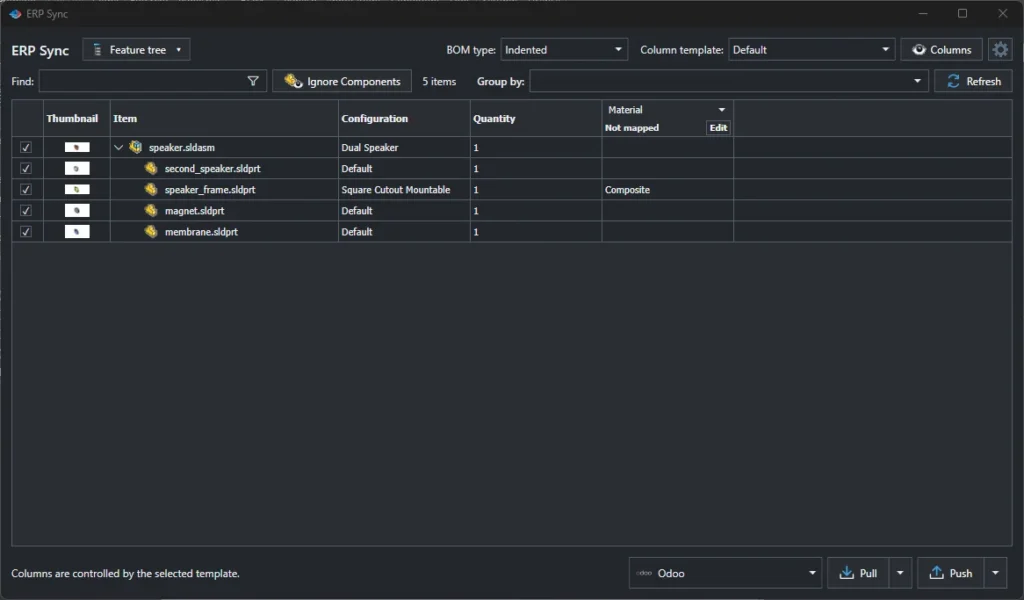

To sync a SOLIDWORKS BOM to Odoo, open ERP Sync in PDMPublisher for SOLIDWORKS, choose the Odoo connector, map your custom properties to Odoo fields once, then click Push. PDMPublisher shows every proposed change for review, and on Commit it creates the products, fills their fields and builds the Odoo bill of materials for you.

Retyping a BOM into an ERP is one of those jobs that never quite goes away. Engineering finishes an assembly, someone exports a BOM to Excel, and someone else copies part numbers, descriptions and quantities into the ERP one line at a time. It is slow, and every copy is a chance for a typo or a missing line. ERP Sync removes the copy step: the SOLIDWORKS assembly is the source, and Odoo receives exactly what the feature tree says.
Prefer to watch? This short video shows the Odoo connector in PDMPublisher for SOLIDWORKS from start to finish.
What ERP Sync sends to Odoo
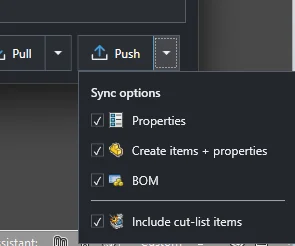
From the Push button you choose what to send, in any combination:
- Properties: update fields on items that already exist in Odoo.
- Create items and properties: create missing products in Odoo, then fill their fields.
- BOM: build or update the Odoo bill of materials from the assembly structure.
- Include cut-list items: send weldment and sheet metal cut-list rows as their own lines.
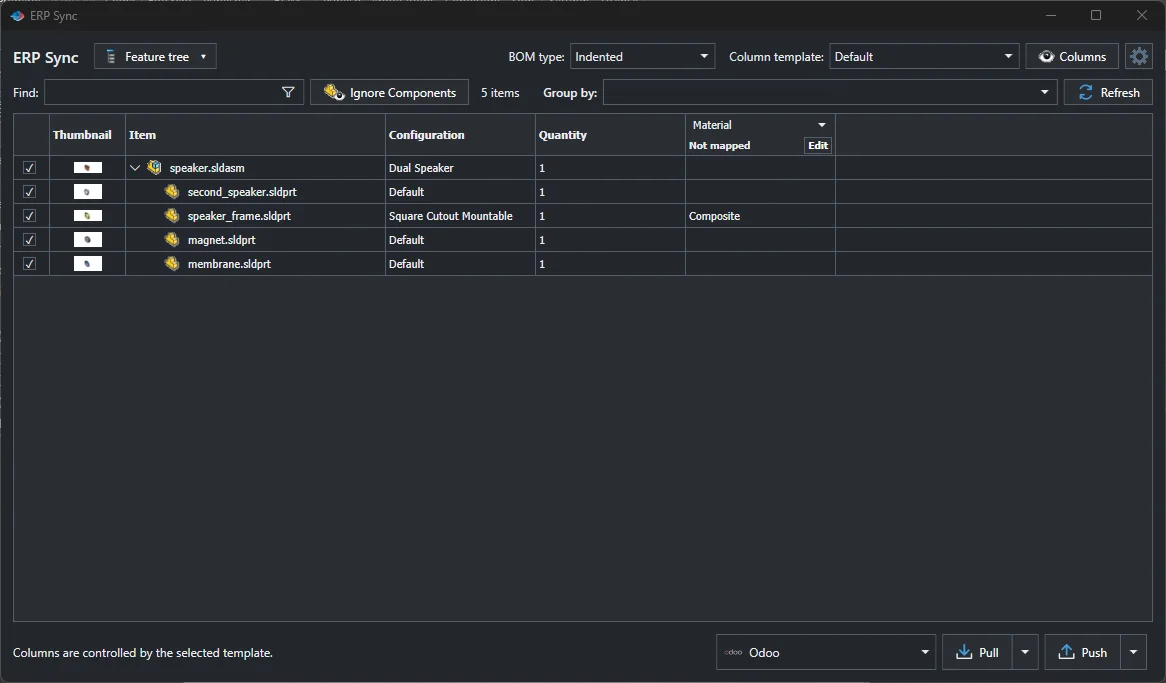
If you have used the BOM Manager in PDMPublisher, the ERP Sync window will look familiar. It reads the open assembly from the feature tree, shows an indented or flat BOM with thumbnails, items, configurations, quantities and your own columns, and lets you filter, group and ignore components before anything leaves SOLIDWORKS.
Step 1: choose the Odoo connector
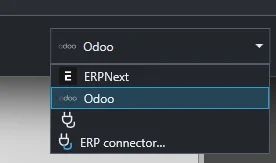
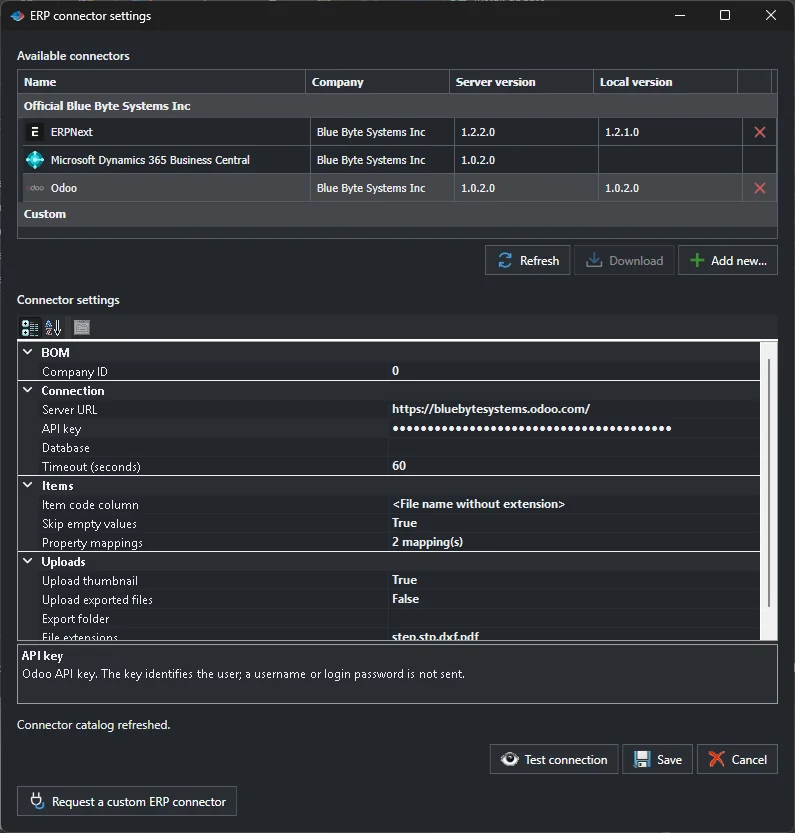
The connector list sits next to Pull and Push at the bottom of the window. Choose Odoo, or choose ERP connector to manage connectors. Blue Byte Systems publishes official connectors for Odoo, ERPNext and Microsoft Dynamics 365 Business Central, and the settings window shows which version is installed on your machine and which is available on the server, with a Download button for updates.
Step 2: connect to your Odoo database
Open ERP connector, select Odoo and fill in the Connection group:
- Server URL: the address of your Odoo instance, for example a yourcompany.odoo.com address.
- API key: an Odoo API key. It identifies the user, and no username or login password is sent.
- Database: the database name, if your Odoo server hosts more than one.
- Timeout: how long to wait for Odoo, 60 seconds by default.
The other groups decide how items are written. Item code column sets which value becomes the product code; the file name without extension is a sensible default, and it is how the speaker parts in our example show up in Odoo as [magnet], [membrane] and so on. Skip empty values stops blank SOLIDWORKS properties from wiping out values someone already entered in Odoo. Under Uploads you can send each part’s thumbnail, and optionally exported files such as STEP, DXF and PDF from an export folder. Click Test connection before you save.
Step 3: map SOLIDWORKS properties to Odoo fields
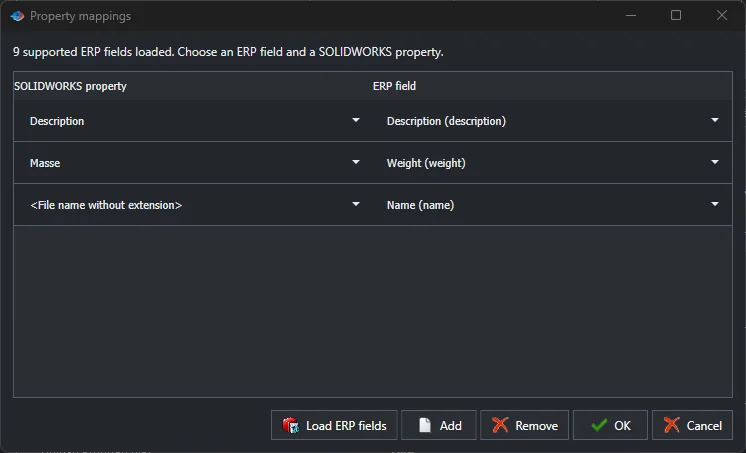
Click Property mappings, then Load ERP fields. PDMPublisher asks Odoo which fields it supports and lists them, so you pick from real field names instead of guessing. Add a row for each property you want to send. In our example, Description goes to the Odoo description, a weight property goes to weight, and the file name without extension becomes the product name. You set this once per connector, and every push after that uses it.
Step 4: push and review the changes
Back in ERP Sync, open the Push menu, tick what you want to send and click Push. Nothing is written yet. PDMPublisher compares the assembly with Odoo and opens Review ERP changes, where every row is marked as added, changed or deleted. In the example, all five items are new to Odoo, so all 28 proposed changes are additions. Tick Show unchanged to see items that already match, and expand All planned changes to see every field, BOM line and attachment that will be written.
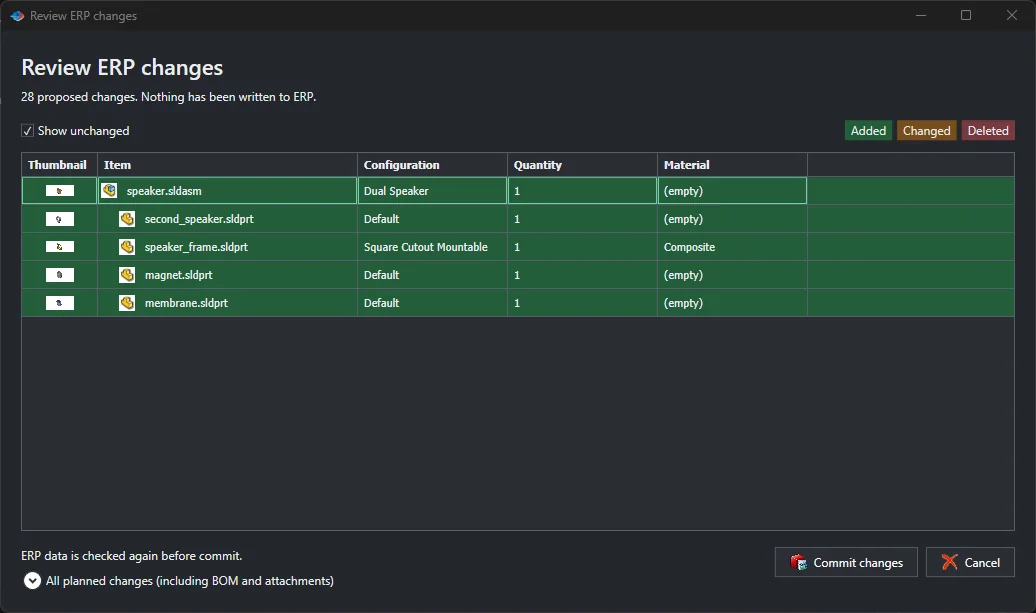
When the list looks right, click Commit changes. PDMPublisher checks the Odoo data again just before it writes, so if someone edited a product in the meantime you are not working from stale numbers.
Step 5: check the bill of materials in Odoo
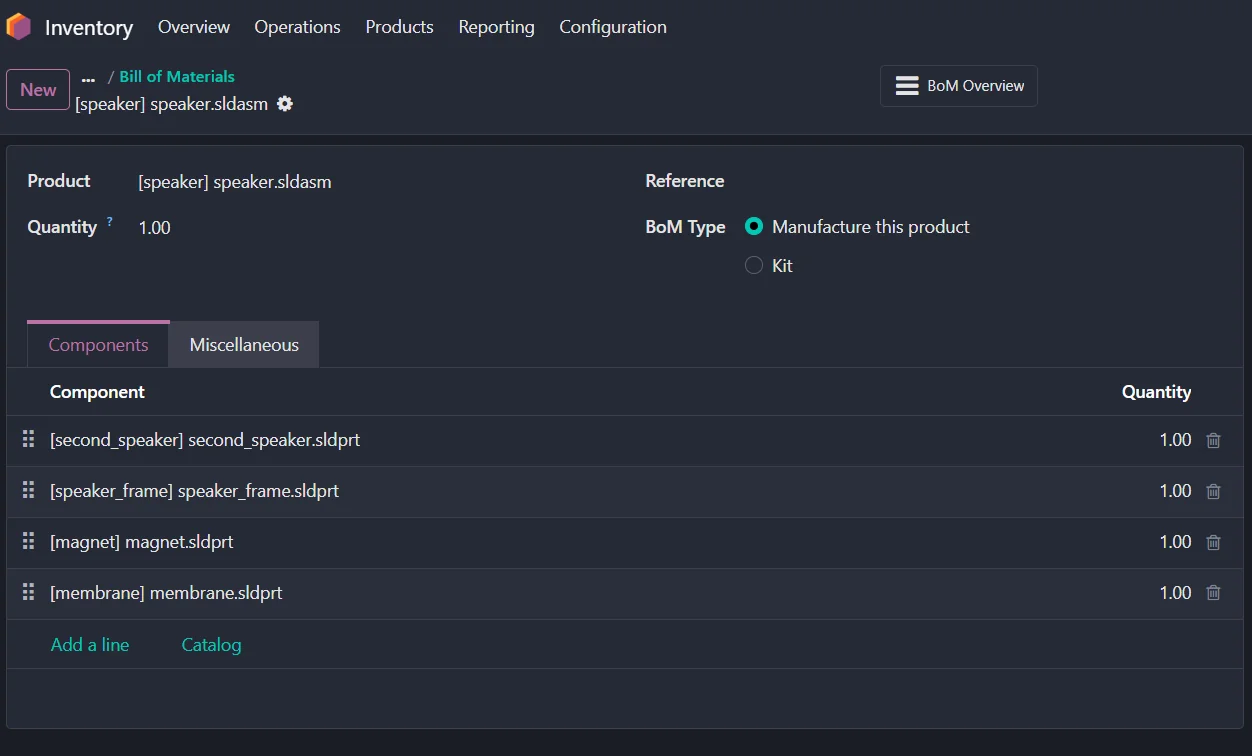
Open Inventory in Odoo and look at Bills of Materials. The assembly is now a product with a BOM set to Manufacture this product, and each SOLIDWORKS part is a component line with its quantity.
Tips from real projects
- Start with Properties and Create items only, check the products in Odoo, then turn on BOM. It is easier to fix one product than a whole structure.
- Keep Skip empty values on unless engineering is the single owner of every mapped field.
- Use Ignore Components for hardware or purchased parts your team does not want as Odoo products.
- Pick an item code that never changes. File names work well when your vault uses part numbers as file names.
Frequently asked questions
Which ERP systems does ERP Sync support?
There are official connectors for Odoo, ERPNext and Microsoft Dynamics 365 Business Central. If you use something else, the connector settings window has a Request a custom ERP connector button.
Does it work in the free edition?
Yes. The Community edition of PDMPublisher for SOLIDWORKS includes BOM Manager and ERP Sync for up to 10 rows, which is enough to try it on a small assembly. Premium removes the limit.
Do I need SOLIDWORKS PDM?
No. ERP Sync runs inside SOLIDWORKS on the open assembly.
Want help connecting SOLIDWORKS to your ERP?
For an overview of what syncs, pricing and how ERP Sync compares with a custom integration, see our SOLIDWORKS Odoo integration page. If you want to see ERP Sync on your own assemblies, start a free trial of PDMPublisher for SOLIDWORKS. If your ERP needs a custom connector or field mapping, contact us and we will set it up with you.