
 USD
USD CAD
CAD EUR
EUR GBP
GBP AUD
AUD NZD
NZD CHF
CHF SEK
SEK NOK
NOK JPY
JPY CNY
CNY INR
INR SGD
SGD MXN
MXN BRL
BRL ZAR
ZAR KRW
KRW

A lot of the teams I work with keep their item data in SOLIDWORKS PDM and run purchasing and manufacturing in Odoo. The data card already has the description, the cost and the BOM, and then someone types the same thing again in Odoo. PDMShell now has an Odoo connector, so you can sync items, properties and BOMs straight from the vault, without opening SOLIDWORKS.
In this article I will show how I set it up in our own vault, from the connection to a one-click sync from the PDM right-click menu.
How it works
The connector is the odoo command in PDMShell. It reads the selected files in the vault, their data card variables and the computed PDM BOM, compares them with Odoo and shows you a preview before anything is written. Products are matched by their Internal Reference in Odoo, so the same part never gets created twice.
If you work inside SOLIDWORKS rather than PDM Explorer, PDMPublisher has the same kind of sync from the CAD side. I covered that in how to sync SOLIDWORKS BOMs to Odoo with PDMPublisher ERP Sync. PDMShell is the one to use when the data you care about lives on the data card and you want it to run from the vault.
Step 1: Connect the vault to Odoo
Open the Odoo configuration from the preview window with Configure, or run the odoo command with the configure option. On the Connection page, enter your Odoo server URL and an API key. The connector uses the Odoo JSON-2 endpoint.
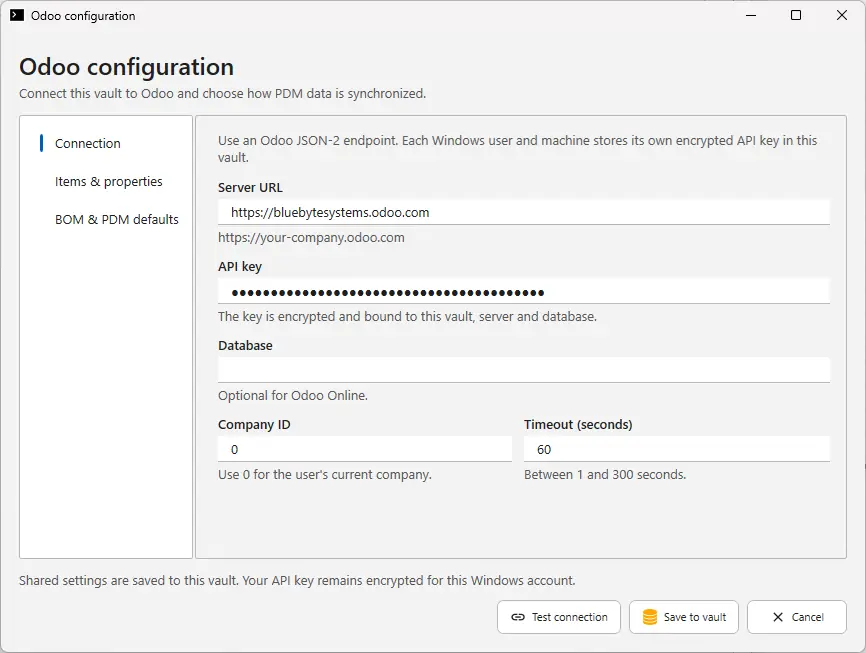
- Each Windows user and machine stores its own API key in the vault, and the key is encrypted and bound to that vault, server and database.
- Database is optional for Odoo Online.
- Company ID 0 uses the current company of the Odoo user.
- Timeout can be set between 1 and 300 seconds.
Click Test connection, then Save to vault. The shared settings are saved once for the whole vault, so the rest of the team only needs to add their own API key.
Step 2: Map items and properties
On Items and properties, choose where the item code comes from. I use the file name without extension, because our files are named by part number. You can also pick any data card variable, or a computed BOM column.
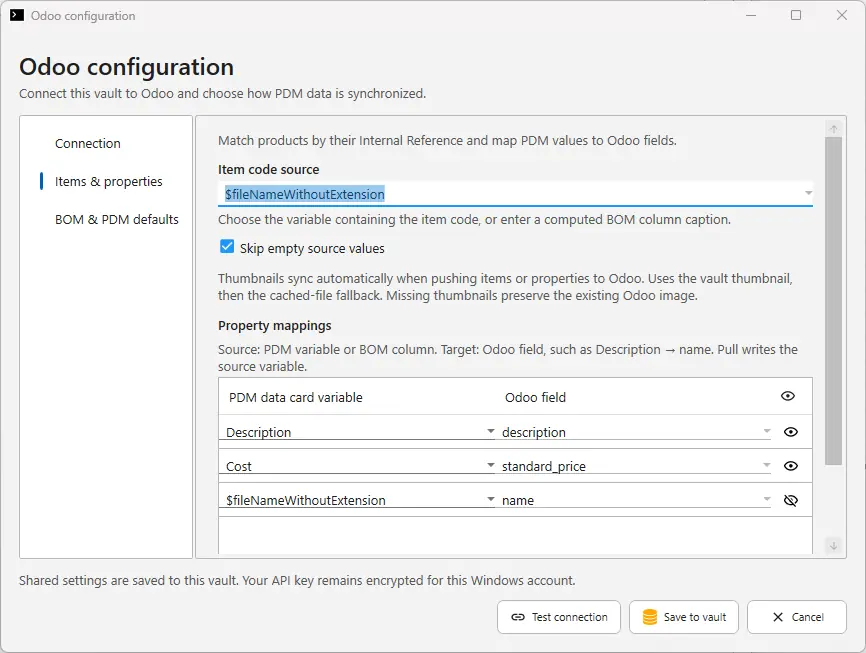
Then map each PDM variable to the Odoo field it should fill. In this example Description goes to description, Cost goes to standard_price and the file name goes to name. The eye icon controls whether a mapping shows up as a column in the preview. When you pull from Odoo, the value is written back to the PDM variable on the left.
A few details I like here. Skip empty source values stops a blank data card field from wiping a value in Odoo. Thumbnails also sync automatically when you push items, using the vault thumbnail first. If there is no thumbnail, the existing Odoo image is kept. For more on picking the right fields, see how to map SOLIDWORKS custom properties to Odoo product fields.
Step 3: Set the BOM defaults
On BOM and PDM defaults you choose which PDM BOM layout to read, which configuration to use, and what type of BOM Odoo should create.
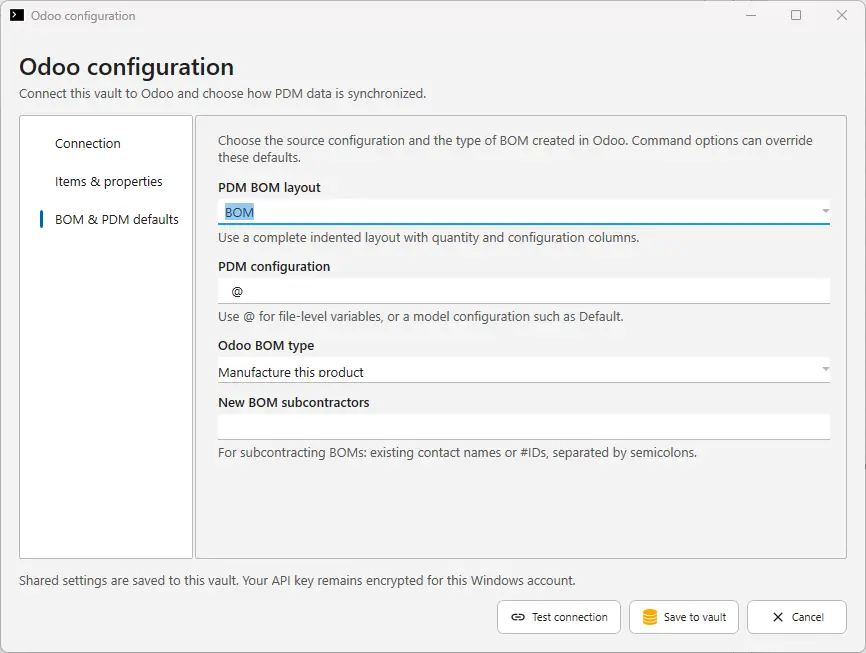
- PDM BOM layout should be a complete indented layout with quantity and configuration columns.
- PDM configuration takes @ for file-level variables, or a model configuration such as Default.
- Odoo BOM type is usually Manufacture this product.
- For subcontracting BOMs, list the subcontractors by contact name or #ID, separated by semicolons.
These are defaults. The command options can override them for a specific script.
Step 4: Add it to the PDM right-click menu
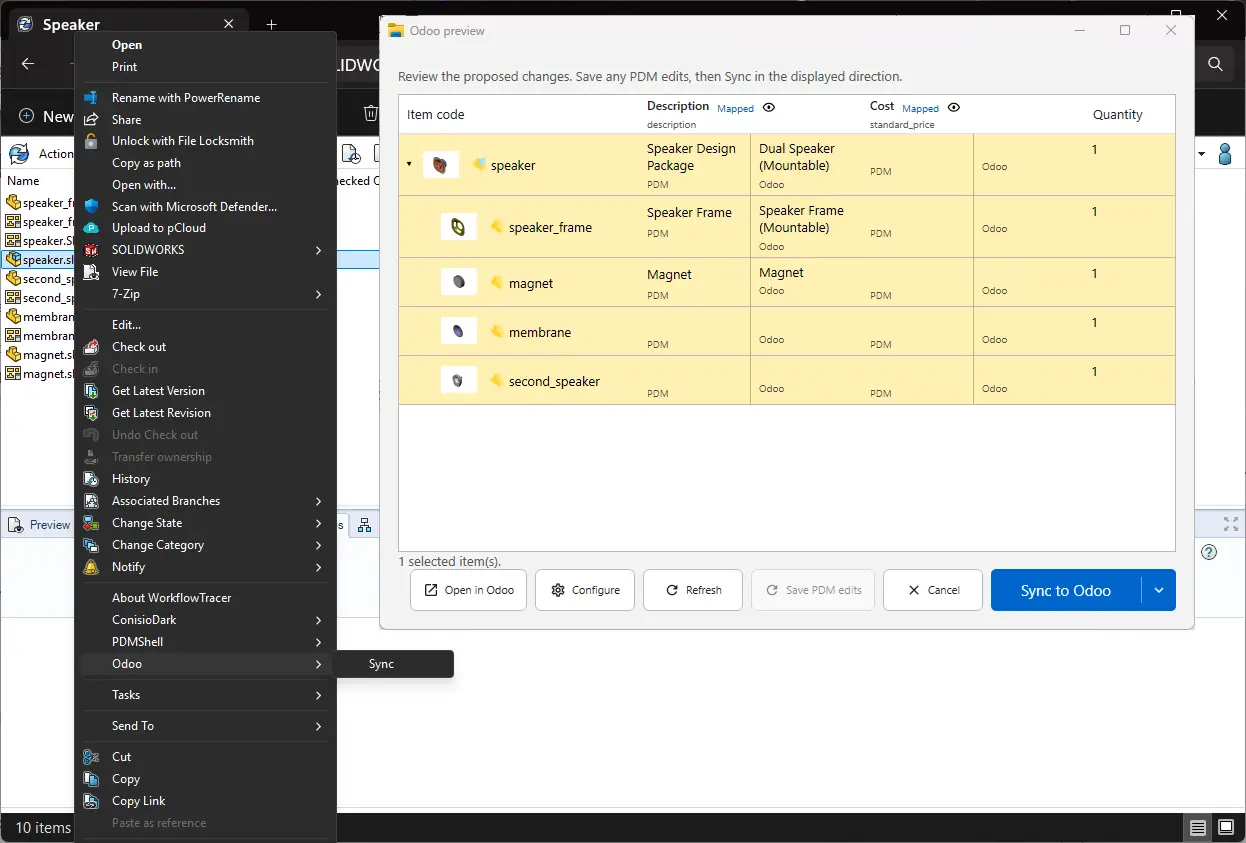
Now the part that makes it usable for everyone. In the PDMShell visual editor I created a vault script with a single Synchronize with Odoo action. It uses the odoo command with the file path of the selected file, sync set to all, direction set to push and preview turned on.
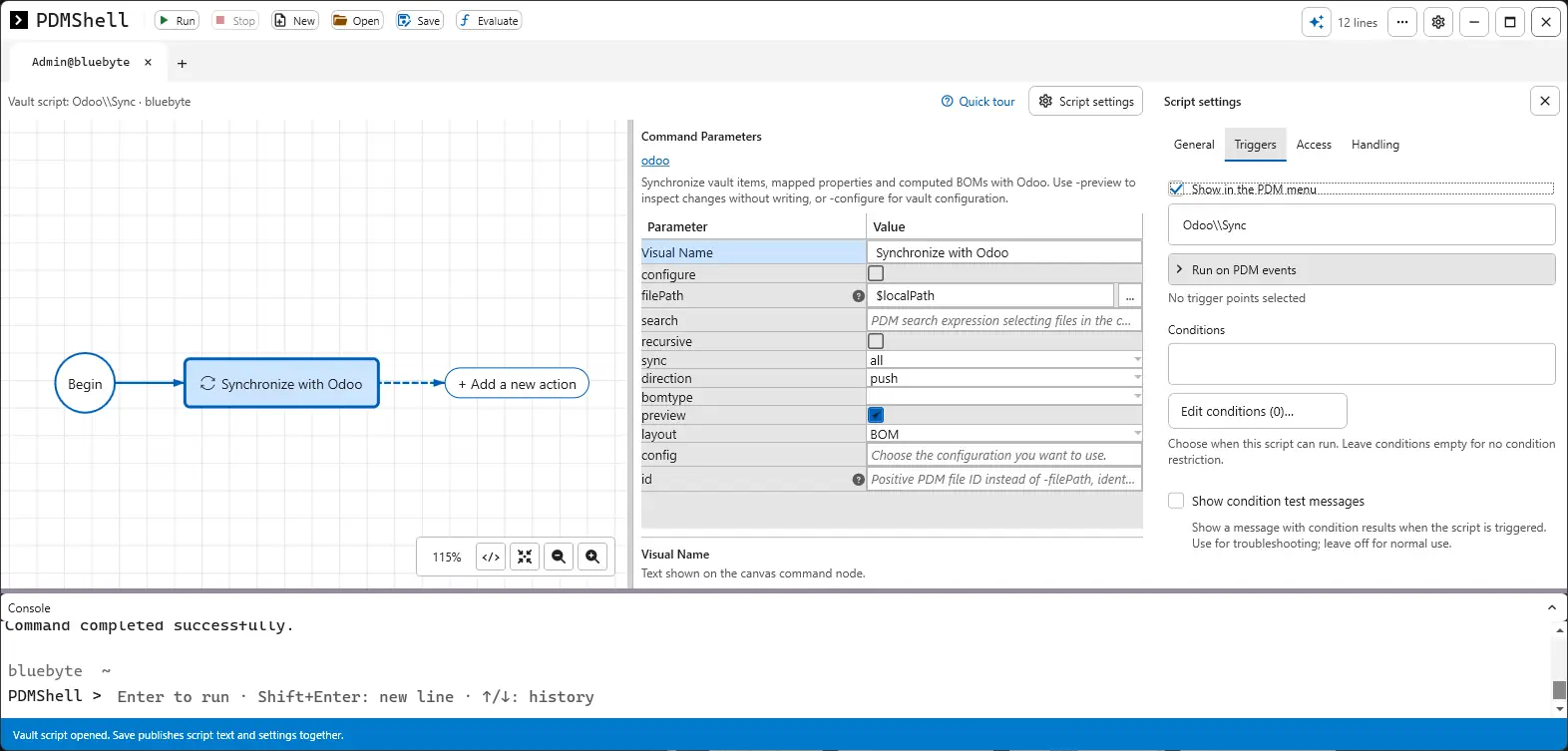
In Script settings, under Triggers, I turned on Show in the PDM menu and named it Odoo\Sync. You can also run the same script on PDM events, for example when a file moves to Released, and add conditions so it only runs for the files you want.
Step 5: Review and sync
In PDM Explorer, right-click an assembly, go to Odoo and choose Sync. The preview window opens with every item in the BOM, the PDM value and the Odoo value for each mapped field, and the quantities.
If something looks off on the PDM side, you can fix it right there and click Save PDM edits. When everything is right, click Sync to Odoo. The arrow next to the button lets you change the direction. Open in Odoo takes you straight to the product.
Nothing is written until you click Sync, and you always see the direction before you do. That is the part I would not skip in any ERP integration.
Try it in your vault
The Odoo connector is part of PDMShell. You can start a free trial from the PDMShell page, and if you want to see the bigger picture, the SOLIDWORKS PDM Odoo integration page shows everything the connector does. If you have a setup that does not fit these steps, send me a message and I will help you get it running.