
 USD
USD CAD
CAD EUR
EUR GBP
GBP AUD
AUD NZD
NZD CHF
CHF SEK
SEK NOK
NOK JPY
JPY CNY
CNY INR
INR SGD
SGD MXN
MXN BRL
BRL ZAR
ZAR KRW
KRW
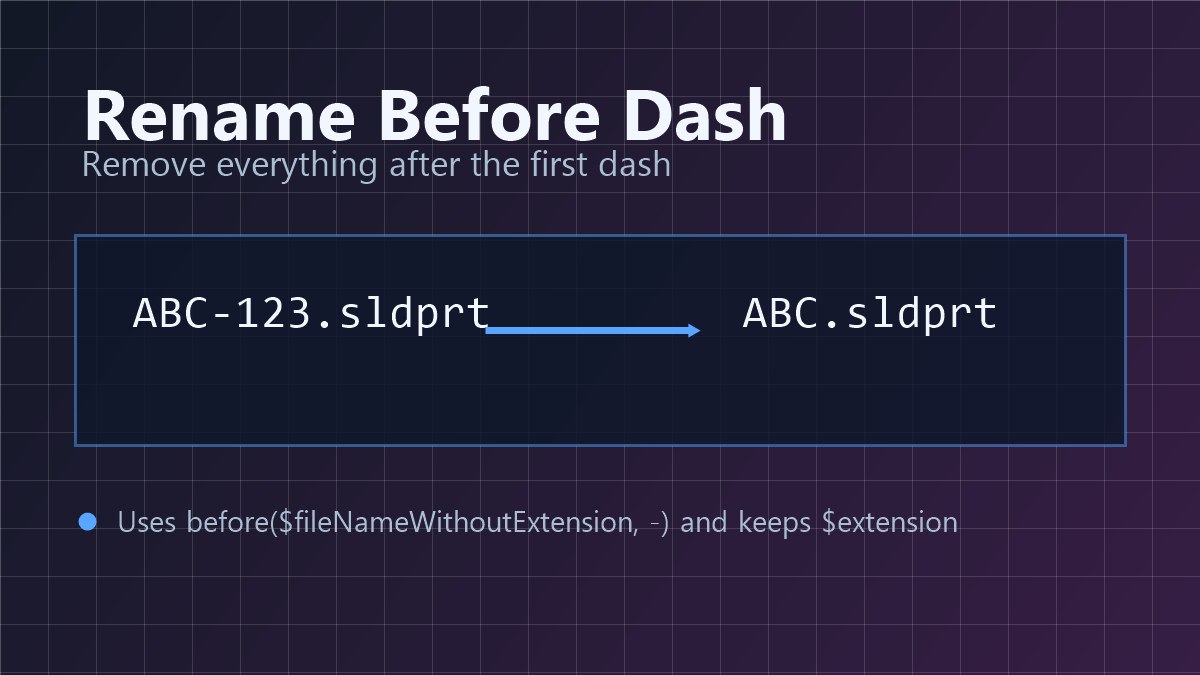
To strip a suffix from SOLIDWORKS PDM file names, such as turning ABC-123.sldprt into ABC.sldprt, right-click the files and run the PDMShell Rename Before Dash script. It keeps everything before the first dash, puts the original extension back and renames the file through PDM. Select many files and each one is renamed the same way.
Suffixes creep into file names all the time. A supplier sends parts named with their revision, an import tool appends a counter, or an old naming scheme used a dash and a version number. Once you move to proper PDM revisions, those suffixes become noise, and renaming hundreds of files one by one in File Explorer is not anyone’s idea of a good week.
The complete script
Load it from the PDMShell Script Library, or copy it from the Rename Before Dash recipe in the PDMShell documentation.
rename -filePath "$localPath" -value "${before($fileNameWithoutExtension,-)}$extension"
msgbox -value "Rename complete" -title "Rename Script" -icon "Information"
How it works
The new name
${before($fileNameWithoutExtension,-)}$extension$fileNameWithoutExtension is the selected file name without its extension, for example ABC-123. The before function returns the text before the first dash, ABC. $extension adds .sldprt back, so the final name is ABC.sldprt.
The rename
rename -filePath renames the selected file inside the vault. Because the rename goes through PDM rather than Windows, the vault keeps the file history and updates the parents that reference it.
The confirmation
msgbox shows Rename complete when the file has been renamed. Remove that line if you rename many files at once and do not want a message for each one.
Change the rule to fit your names
The same pattern works for other naming rules. A few examples:
- Keep the text after the first dash: ${after($fileNameWithoutExtension,-)}$extension
- Split on an underscore instead: ${before($fileNameWithoutExtension,_)}$extension
- Convert the name to upper case: ${upper($fileNameWithoutExtension)}$extension
- Remove a fixed prefix: ${replace($fileNameWithoutExtension,”OLD_”,””)}$extension
Run it from the right-click menu
Save the script as a vault script with a menu name such as Rename before dash. The guide on adding a right-click command to SOLIDWORKS PDM with a PDMShell vault script shows every setting. If you run it from the PDMShell add-in, add quit -silent as the last line so the background session closes afterwards.
You can also save it as C:\PDMShellScripts\renamebeforedash.pdmshell and run it from PDMShell with runscript -source.
Requirements
- PDMShell logged in to the correct vault.
- A file context, such as running from the right-click menu or the PDMShell add-in, so $localPath points at the selected file.
- Rename permission on the selected files.
Frequently asked questions
What happens to a file with no dash?
before returns the whole name when there is no dash, so the file keeps its name and nothing changes.
What if the new name already exists in the folder?
PDM will not create a duplicate name in the same folder, or in the whole vault if unique file names are enforced, so that rename fails and the original file is left as it was. Check for clashes before renaming a large batch.
Does it rename the drawing too?
It renames the files you select. Select the drawings along with their models, or extend the script with a second rename line for $folderPath\$fileNameWithoutExtension.slddrw.
Need a bigger rename project?
If you are moving a whole vault to a new numbering scheme, renaming from a spreadsheet is usually the better route, and PDMShell can do that too, as shown in our guide to renaming files in SOLIDWORKS PDM in bulk. Contact us and we will help you plan it.