
 USD
USD CAD
CAD EUR
EUR GBP
GBP AUD
AUD NZD
NZD CHF
CHF SEK
SEK NOK
NOK JPY
JPY CNY
CNY INR
INR SGD
SGD MXN
MXN BRL
BRL ZAR
ZAR KRW
KRW
PDMShell Premium is sold per seat with a yearly license. What surprises many administrators is that a seat can be used in two different ways. You can activate it on one computer, or you can hand it to a SOLIDWORKS PDM vault so that users borrow it when they run workflow automation. This article explains both options, how to set each one up, and how to decide which one fits your team.
Two ways to use a PDMShell seat
| Machine license | Vault license pool | |
|---|---|---|
| Where the key lives | Activated in the standalone PDMShell app on one workstation | Added to the PDMShell add-in in the vault and activated there |
| Who can use it | Whoever works on that computer | Any vault user who runs PDMShell add-in automation, while a seat is free |
| Best for | One administrator running scripts from their own workstation | Teams running automation from workflow transitions and PDM menus |
| Managed from | PDMShell Settings, License page | Manage Licenses, from the PDM Administration tool or PDMShell Settings |
| Usage tracking | Not needed, the seat belongs to one computer | Borrowed seats list shows vault, machine, user and borrow time |
Both options use the same PDMShell license keys and require SOLIDWORKS PDM Professional 2018 or later. The difference is only where the key is activated.
Option 1: Machine license (standalone computer)
A machine license is the simplest setup. You activate the key in the standalone PDMShell application, and that computer is licensed. This is the right choice when one administrator writes and runs scripts from their own workstation, for example to clean up a vault, run batch changes or test automation before it goes into a workflow.
Activate a machine license
- Open PDMShell on the computer that will run the scripts.
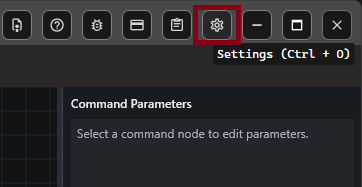
- Select Settings on the toolbar, or press Ctrl + O.
- Select License.
- Paste your license key and select Activate.
When activation succeeds, the status changes to Activated and the expiration date of your yearly license is shown on the same page.
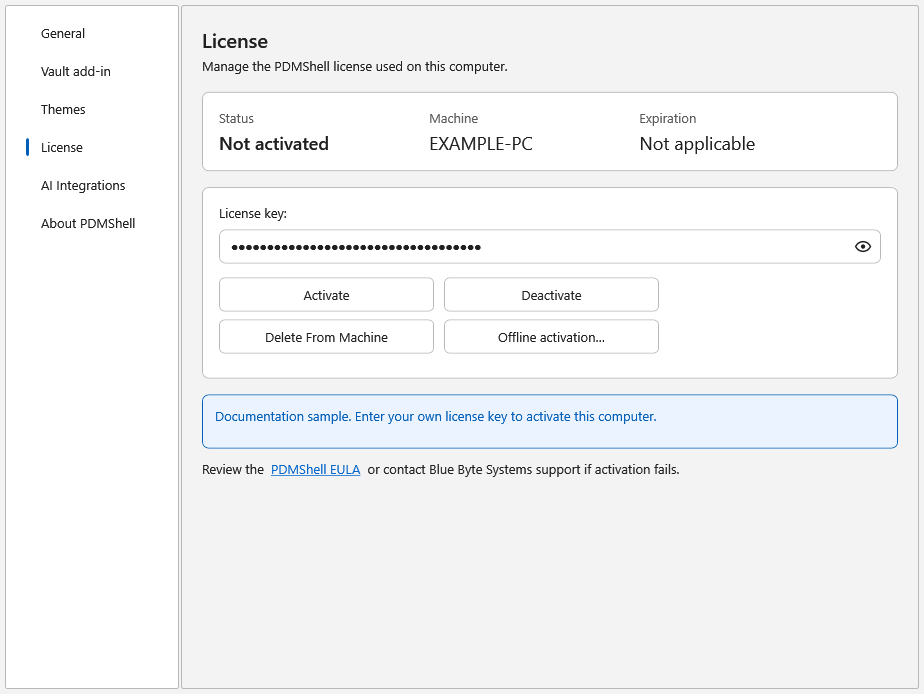
If the PDMShell add-in on that computer should also use this local license, choose Each machine’s license as the license source in Manage Licenses. In this mode the add-in checks the license on the local workstation and does not borrow seats from a vault pool.
Moving a machine license to another computer
Select Deactivate on the License page before you move the key. Deactivating tells the license server to release the seat, so you can activate it on the new computer. The Delete From Machine option only removes the saved key from the current Windows profile. It does not release the seat on the server, so always deactivate first.
Option 2: Vault license pool (workflow automation)
When PDMShell runs from workflow transitions or PDM right-click menus, the automation can be started by many different users on many different computers. Activating a key on every one of those computers would be wasteful. A vault license pool solves this: the administrator adds keys to the vault once, and a seat is borrowed only while a user is running automation.
How borrowing works
- A user triggers PDMShell automation through the add-in, for example by moving a file through a workflow transition.
- The vault checks its enabled and activated pool keys.
- If a seat is free, the add-in borrows it for that user and machine and the automation runs.
- Seat availability is checked when execution starts, so having keys configured does not guarantee a free seat at busy times. Size the pool for how many people run automation at the same time, not for how many people use the vault.
Set up a vault license pool
You can open the license manager in two places:
- PDM Administration tool: expand the vault, open the add-ins list, right-click the PDMShell add-in and select Manage Licenses.
- Standalone PDMShell: open Settings, go to Vault add-in, select the vault and choose Manage licenses. Sign in with a PDM account that has permission to edit add-ins.
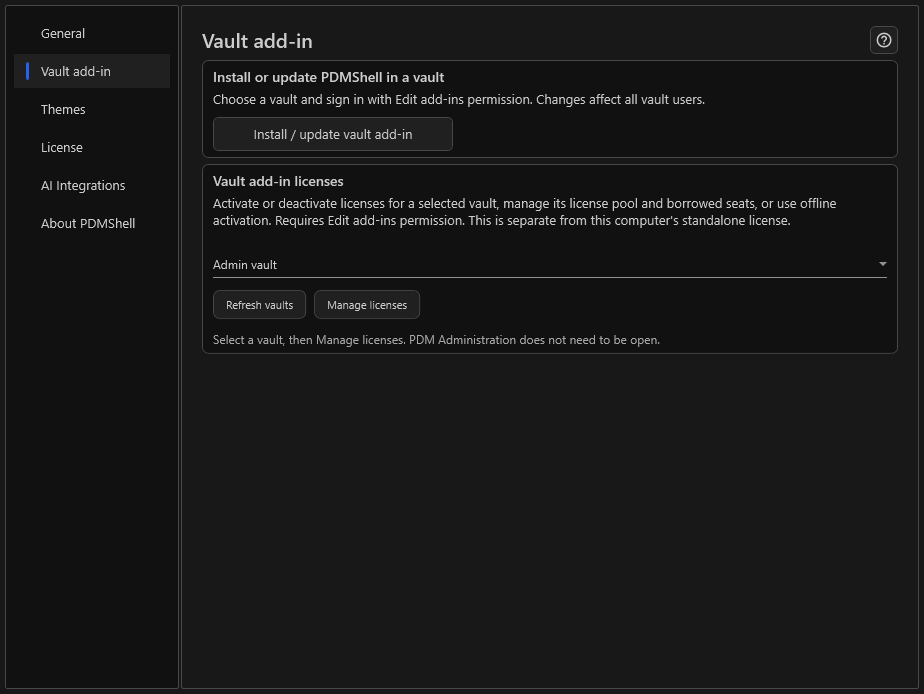
Then, on the Licenses tab:
- Paste one or more keys into Add license keys. You can separate them with new lines, commas or semicolons. Select Add keys.
- Activate the keys, one at a time or all checked keys together.
- Set the license source to Vault license pool and select Save changes.
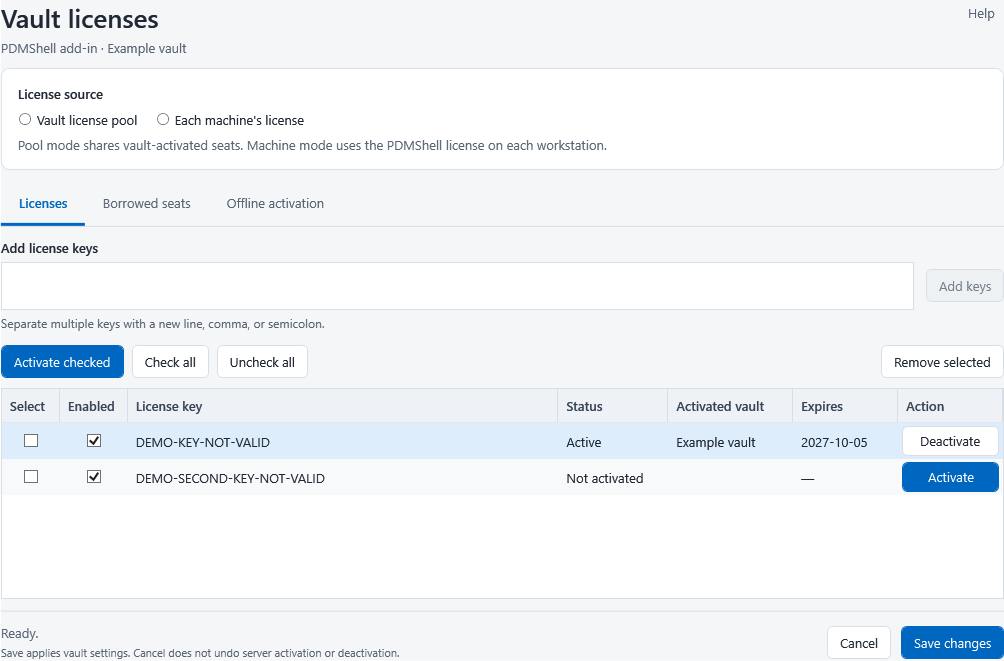
Activation and deactivation take effect right away. Removing a key from the list does not deactivate it, so use the row’s Deactivate action first if you want to use that key somewhere else.
See who is using a seat
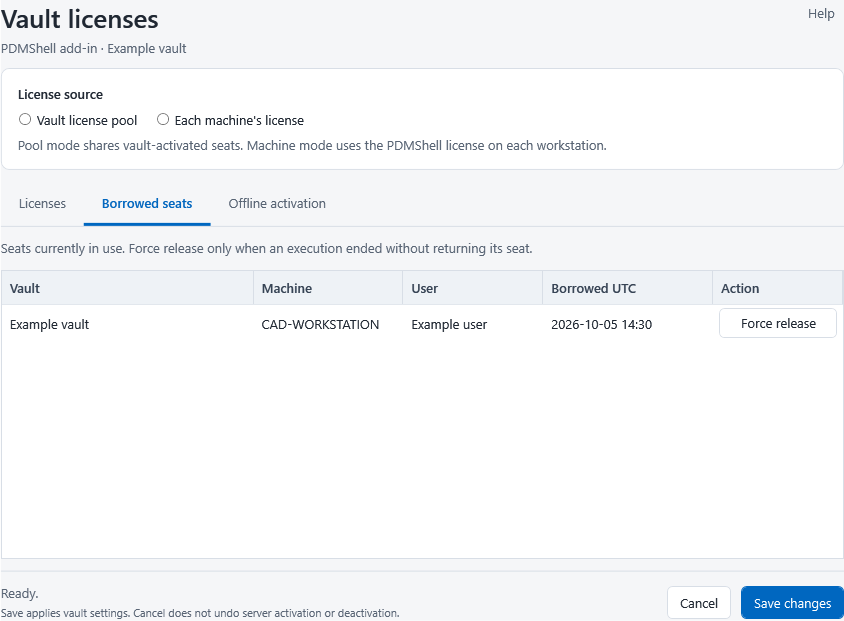
The Borrowed seats tab lists every active borrow with the vault, machine, user and borrow time. If a seat is stuck, Force release frees it immediately. It does not stop a script that is already running.
Rules worth knowing
- Do not activate pooled keys in a user’s standalone PDMShell app. A key used in the pool belongs to the vault.
- A vault pool does not license standalone PDMShell, and a machine license does not add seats to the pool. Each key is used one way at a time.
- Computers without internet access, or that cannot reach the license server, can use offline activation for both machine licenses and pool keys.
Which one should you choose?
Choose a machine license when one administrator runs PDMShell from their own computer and nobody else needs to start automation.
Choose a vault license pool when PDMShell runs from workflow transitions or PDM menus for several users, when you want to manage keys centrally from the vault, or when you want to see who is using a seat.
Many teams use both: one machine license for the administrator who builds and tests scripts, and a small pool for the automation that runs in production workflows.
Try it in your own vault
The 7-day PDMShell trial includes every Premium feature, including the add-in, so you can test both licensing modes before you buy. When you are ready, PDMShell Premium is licensed per seat per year, with lower per seat pricing for larger orders. For more detail, see the license pool and machine license pages in the PDMShell documentation, or book a call and we will help you size your pool.
