
 USD
 CAD
 EUR
 GBP
 AUD
 NZD
 CHF
 SEK
 NOK
 JPY
 CNY
 INR
 SGD
 MXN
 BRL
 ZAR
 KRW

To print or publish only released files from SOLIDWORKS PDM, turn on Use latest permitted states in the PDMPublisher task. For every drawing, model and reference, the task picks the latest version that reached a released state, even if an engineer has since checked out a newer work-in-progress version.
Here is why that matters, told through a release day most PDM admins will recognize. The company is made up; the problem is not. This post is part of our PDMPublisher guide.
Friday: Rev B is released
Picture a mid-size equipment builder. On Friday afternoon, the conveyor frame assembly CNV-1200 and its drawing go through approval and land in Released at Rev B. Purchasing plans to send the drawing package to the welding supplier first thing Monday.
Monday morning: Rev C starts
At 8:30 on Monday, a design engineer gets a change request for the frame. She checks out the assembly and two of its weldment parts, moves them to Work in Progress and starts on Rev C. That is exactly what she should do.
At 10:00, purchasing runs the usual print job from PDM. The job prints the latest version of each file. The drawing itself is still Released, but two of the parts it shows are now half-edited Rev C geometry. The PDF that goes to the supplier is neither Rev B nor Rev C.
Nobody notices until the parts come back and do not fit. The cost is a batch of scrapped weldments, a delayed build and a long meeting about who printed what.
Why it happens
Most print and publish jobs work with the latest version of every file, because that is what PDM gives you by default. Released and latest are the same thing only until someone starts the next change. On an active project, that can be hours after release.
The manual fix is to open the history of every file, find the last version that entered Released, get that version to your cache and print from there. For one drawing that is tedious. For an assembly with forty components it is not realistic, and one wrong click brings the latest version back.
The fix: tell PDMPublisher which states count as released
In the PDMPublisher task, open the Publish settings and go to PDM file versions.
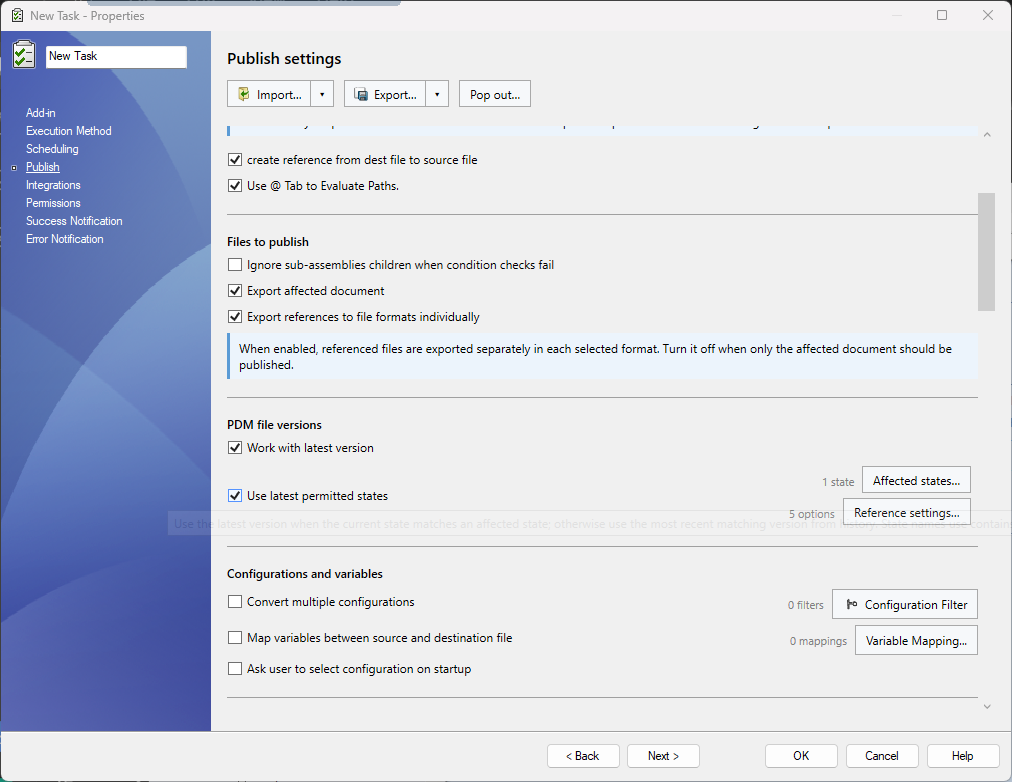
- Check Use latest permitted states. This overrides Work with latest version and the BOM version selection.
- Select Affected states and add the states that count as released for you, for example Released or Approved for Manufacturing.
- Select Reference settings and choose how references that are not released should be handled.
- Save the task. Purchasing runs it exactly as before.
Back in our story, Monday at 10:00 now goes differently. For each file, PDMPublisher checks three things in order:
- If the file is currently in a released state, it uses the latest version. The drawing is still Released, so it prints as it is.
- If not, it looks back through the file’s history for the most recent version that entered a released state. The two parts in Work in Progress print as Rev B, the version released on Friday.
- If neither applies, the reference settings decide what happens.
The supplier gets a clean Rev B package. The engineer keeps working on Rev C without anyone asking her to check her files back in.
Pick your state names carefully
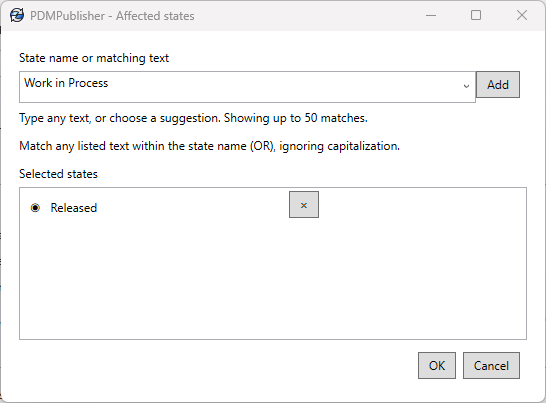
State matching ignores capitalization and uses contains, and any entry in the list can qualify a state. The default text Released matches Released and Chassis Released, but it also matches Unreleased. If your workflows have a state like that, enter the full state names you mean instead of a short fragment.
What about parts that were never released?
Say the engineer also added a brand-new bracket to the assembly on Monday. It has never been released, so there is no released version to print. That is what Reference settings are for. All five options start checked.
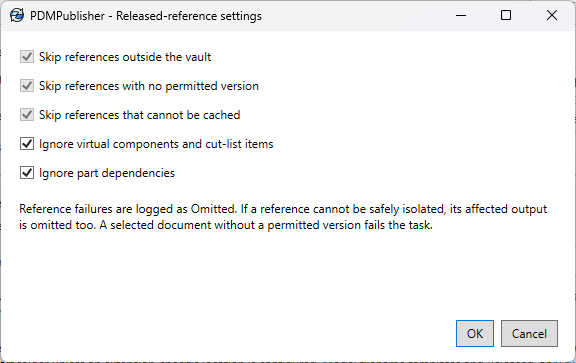
- Skip references outside the vault. A Toolbox bolt in a local folder has no PDM state, so it is left out of the publishing copy.
- Skip references with no permitted version. The new bracket is left out and logged, and the rest of the package still publishes.
- Skip references that cannot be cached. If the released version cannot be retrieved to the task machine, for example because of permissions, the task logs it instead of quietly using another version.
- Ignore virtual components and cut-list items. These are handled with their parent instead of being checked as separate files.
- Ignore part dependencies. A part’s own dependencies, such as an imported STEP file, are not checked separately for a released state.
The three Skip options are always on. The two Ignore options are yours to change.
Anything left out shows in the task log as Omitted, with the filename and the reason. PDMPublisher works on a temporary publishing copy, so your original files are never changed. Purchasing can check the log before sending the package and know exactly what is in it.
Combine it with Conditions
Use latest permitted states decides which version of each file is published. The Conditions editor decides which files are published at all, for example no purchased components in a supplier package. We covered that in How to Export Only Released Parts From a SOLIDWORKS Assembly. Used together, the supplier gets the right files in the right version.
FAQ
Does PDMPublisher change my files or roll back versions?
No. It reads the released version into the task machine’s local cache and builds a temporary copy for publishing. Nothing in the vault changes, and checked-out files stay with the engineer.
What if I select a drawing that has never been released?
A file you select directly with no released version fails validation, so you know straight away. References with no released version are skipped and logged instead.
Can I use more than one released state?
Yes. Add as many entries as you need, such as Released, Approved for Manufacturing and Production. A file qualifies if its state matches any of them.
Does it work for PDF, STEP and other formats?
Yes. The version is chosen before export, so printed drawings, PDFs, DXFs and STEP files from the same job all come from the same released versions.
Try it on your own vault
Use latest permitted states is part of the PDMPublisher task for SOLIDWORKS PDM Professional. Request a free PDMPublisher trial, or read the Use latest permitted states guide in the help center. Questions? Contact Blue Byte Systems.