
 USD
USD CAD
CAD EUR
EUR GBP
GBP AUD
AUD NZD
NZD CHF
CHF SEK
SEK NOK
NOK JPY
JPY CNY
CNY INR
INR SGD
SGD MXN
MXN BRL
BRL ZAR
ZAR KRW
KRW
Want PDMShell AI to run on your own computer instead of a cloud service? Connect it to Ollama. This guide takes a few minutes.
1. Install Ollama
Download Ollama from ollama.com and run the installer. Ollama then runs in the background on your computer.
2. Make sure Node.js is installed
The Ollama launch command in the next step needs Node.js. If it is not installed yet, open PowerShell and run:
winget install OpenJS.NodeJS.LTS
3. Install and choose a model
Install a model from PowerShell. For example, to install Qwen:
ollama launch qwen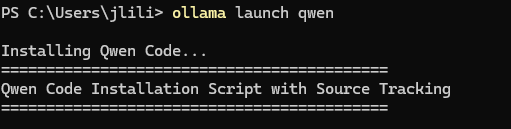
Any model you install with Ollama shows up in PDMShell. In this guide we use gemma4:26b.
4. Connect PDMShell AI to Ollama
In PDMShell, open the PDMShell AI settings to open Set up AI Preview. Choose “Ollama · Local & cloud models” as the provider. PDMShell connects to your local Ollama server at 127.0.0.1:11434. Pick your model and click Done.
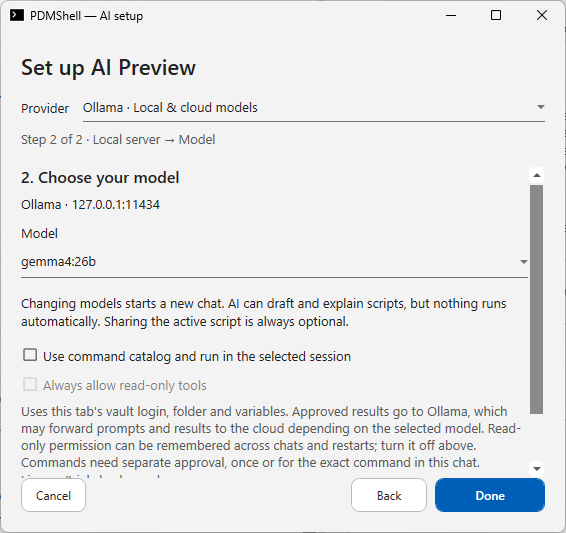
To let the AI use your vault login, folder and variables, turn on “Use command catalog and run in the selected session”. Every command still needs your approval before it runs.
5. Ask your first question
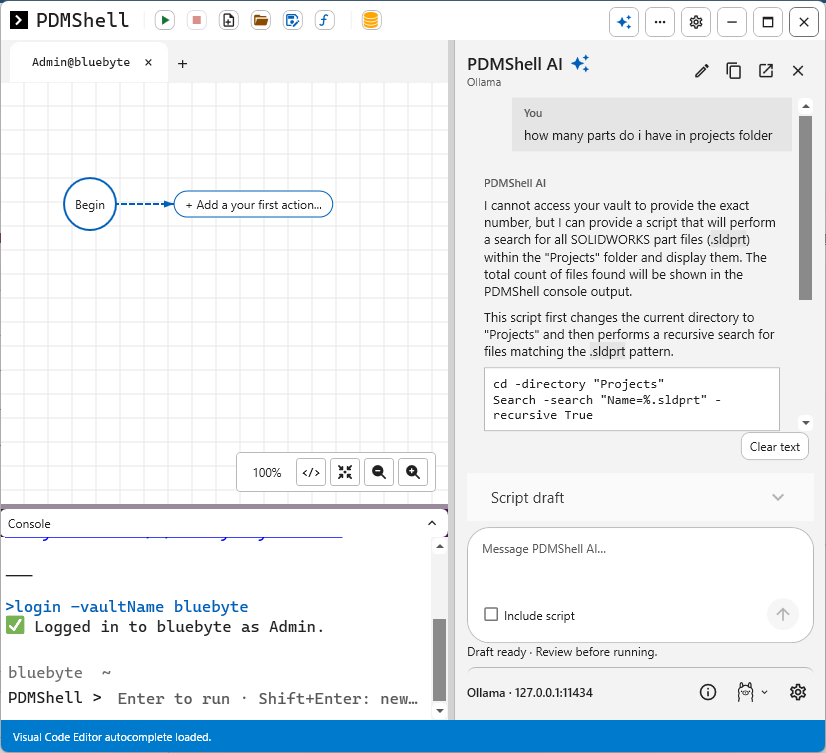
Try “how many parts do I have in the Projects folder”. PDMShell AI drafts a script that searches the folder for part files. Review the draft, then run it to see the count in the console.
New to PDMShell AI? Read PDMShell AI: write SOLIDWORKS PDM scripts with ChatGPT, Claude or Ollama.
