
 USD
USD CAD
CAD EUR
EUR GBP
GBP AUD
AUD NZD
NZD CHF
CHF SEK
SEK NOK
NOK JPY
JPY CNY
CNY INR
INR SGD
SGD MXN
MXN BRL
BRL ZAR
ZAR KRW
KRW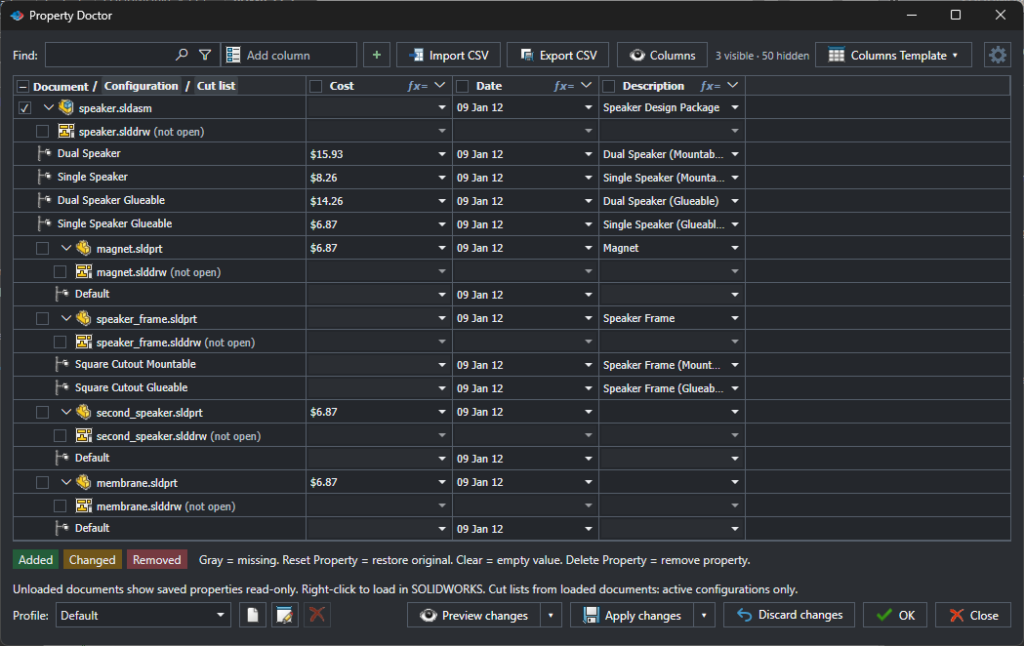

Need to change the same text in a property across a whole assembly? In PDMPublisher Property Doctor, select the cells, right-click, choose Find and replace in this column, type the old and new text and click Replace all. Then click Apply changes. That is it.
Say your Cost property was typed as $15.93 in some parts and 15.93 in others, and you want them all the same. Instead of opening every part and every configuration, you fix them all from one window.
Step 1: open Property Doctor
Open your assembly in SOLIDWORKS and start Property Doctor from the PDMPublisher tab. You see the assembly, its configurations, its parts and their drawings in one grid, with a column for each property.
Step 2: select the cells
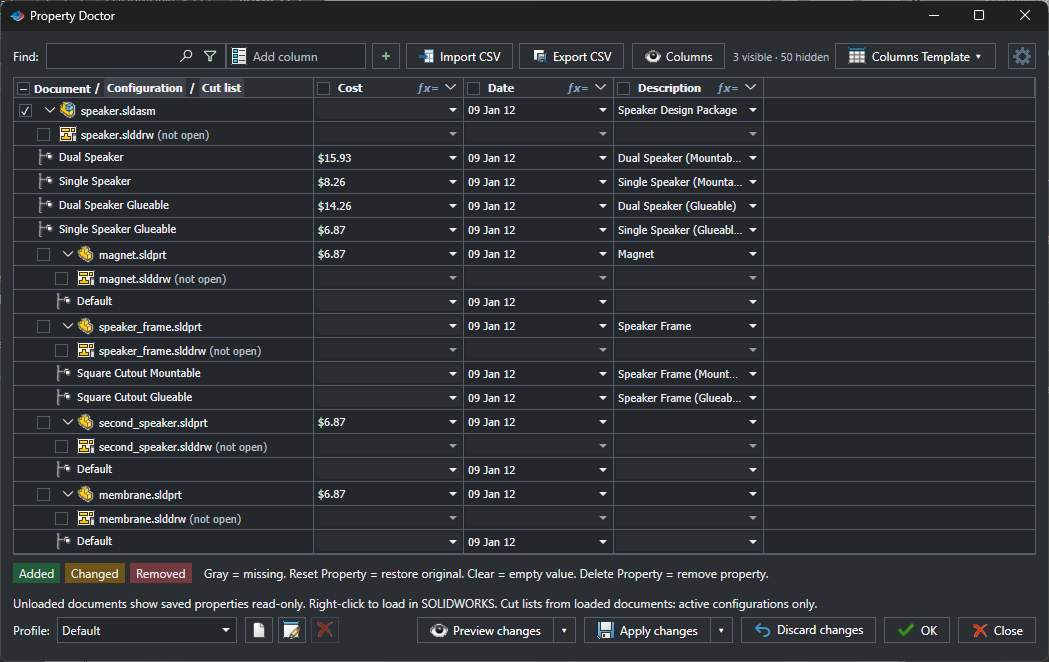
Click the first cell you want to change and drag down the column, or hold Ctrl and click to pick individual cells. Here we selected the Cost cells that contain a dollar sign.
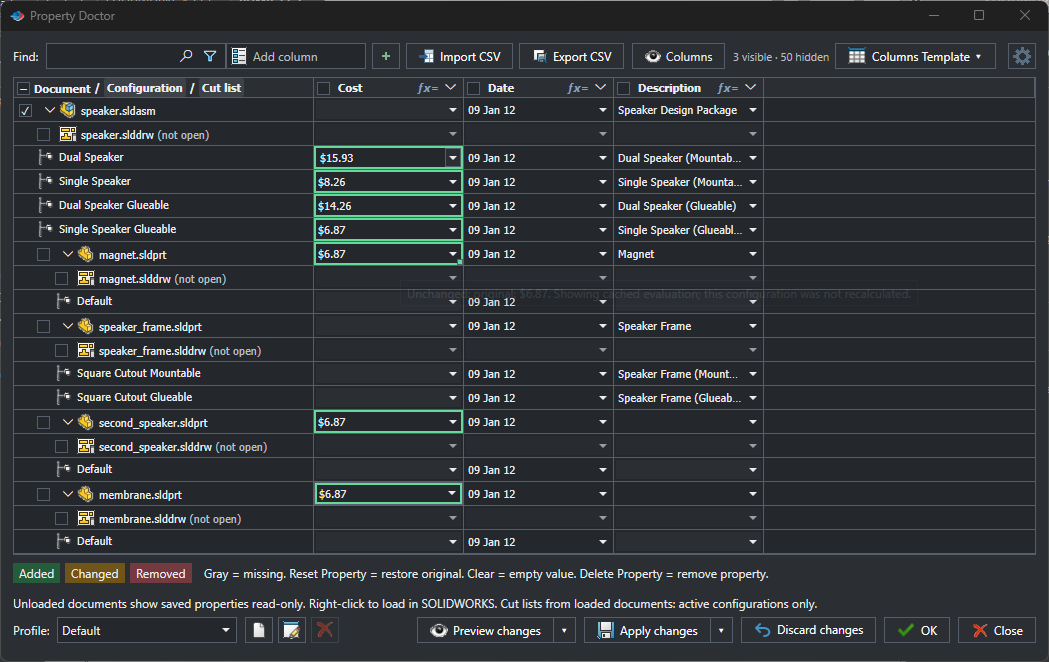
Step 3: right-click and choose Find and replace
Right-click the selection and choose Find and replace in this column.
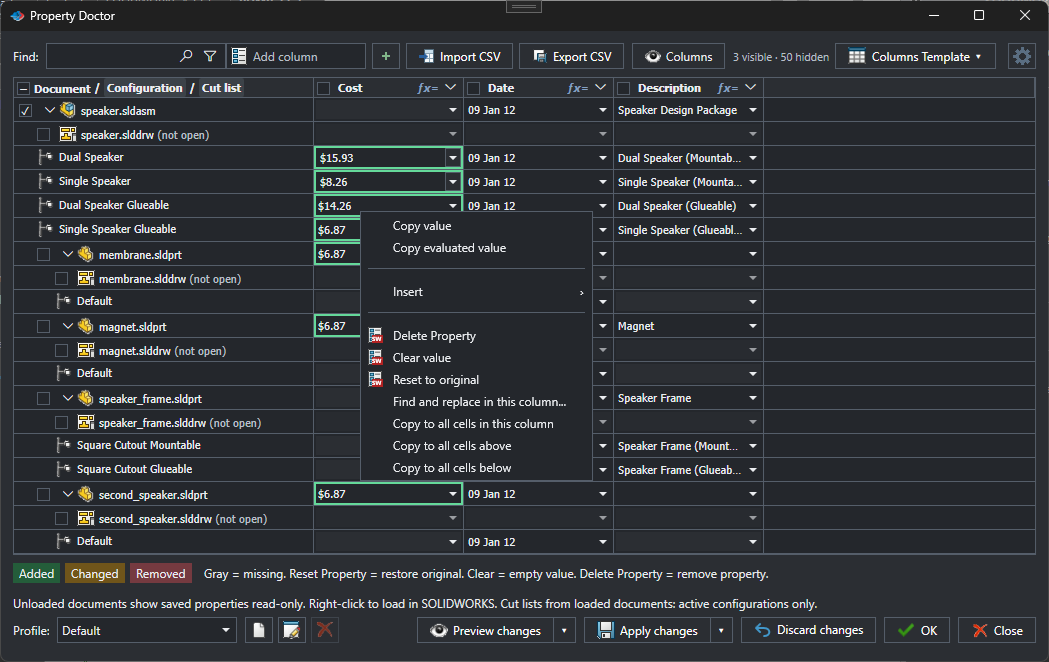
Step 4: type the old and new text
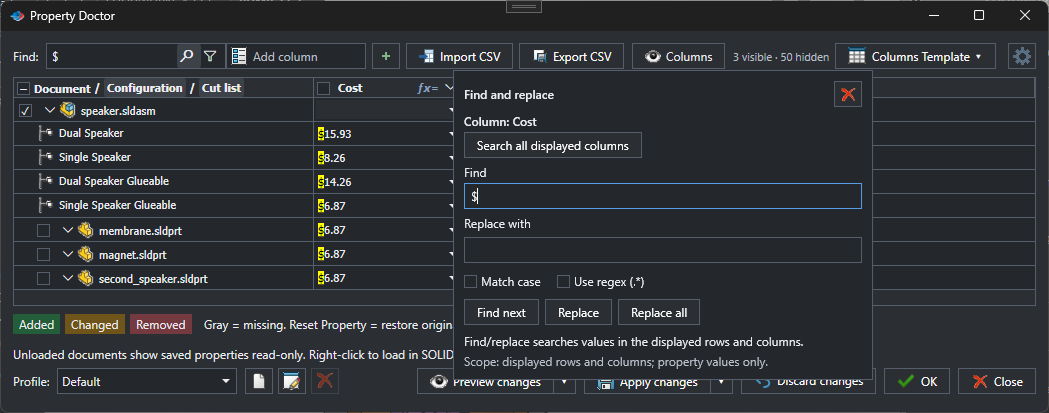
In Find, type the text you want to change, here $. In Replace with, type the new text, or leave it empty to remove it. Every match is highlighted in the grid, so you can see what will change. Click Replace all.
Step 5: apply
The changed cells are marked as Changed. Check them, then click Apply changes to save the new values to your files. Changed your mind? Click Discard changes and every cell goes back to how it was.
Good to know
- Only the values change. Property names stay the same.
- Want to change more than one column? Click Search all displayed columns in the Find and replace window.
- Tick Match case when capitals matter, for example in part numbers.
- Use Find next and Replace to go through the matches one at a time.
A few everyday examples
- Remove the dollar sign from costs: find $ and leave Replace with empty.
- Rename a supplier: find the old name and replace it with the new one.
- Fix a typo that appears in many descriptions: find the typo and type the correct word.
Try it
Property Doctor is part of PDMPublisher for SOLIDWORKS. The free Community Edition lets you try it on up to 5 rows. Download it free, or book a short call with Blue Byte Systems and we will show you on your own files.