
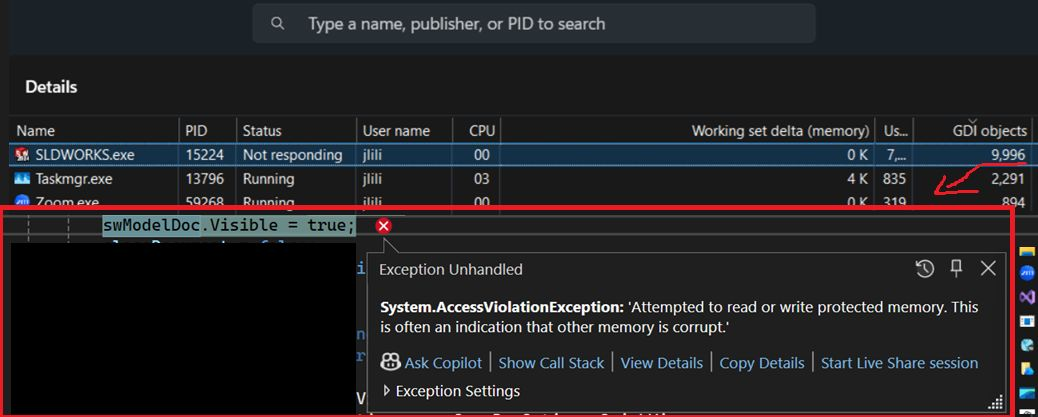
When building long-running SOLIDWORKS API tools, crashes are not always caused by high RAM usage. One of the most common causes of instability is excessive GDI object usage combined with unreleased COM objects.
This often appears during batch automation jobs where SOLIDWORKS repeatedly opens documents, makes them visible, generates previews, switches windows, or captures images.
The most typical symptom is the “Memory access violation” exception which tends to crash SOLIDWORKS.
In many cases, the real issue is that GDI objects are slowly accumulating until the process reaches the Windows limit.
What Causes GDI Object Leaks?
GDI objects are Windows resources used for UI rendering. They include:
- Bitmaps
- Graphics objects
- Pens
- Brushes
- Fonts
- Icons
- Window handles
- Preview images
In the SOLIDWORKS API, GDI count can increase rapidly if you repeatedly:
- Open and activate documents
- Make documents visible
- Switch between drawings, parts, and assemblies
- Generate previews or screenshots
- Create WinForms controls dynamically
- Use
Bitmap,Graphics,Image,Font,Brush, orPenobjects without disposing them
At the same time, COM references to SOLIDWORKS objects can remain alive longer than expected if they are not released manually.
Common SOLIDWORKS COM objects that should be released include:
ModelDoc2AssemblyDocDrawingDocFeatureComponent2Body2Face2EdgeViewSelectionMgr
Opening documents silently is usually much safer than opening them visibly. When a document is made visible, SOLIDWORKS creates additional windows, previews, feature manager graphics, graphics pipeline objects, and UI resources.
For example:
swApp.Visible = true;
var model = swApp.OpenDoc6(path, type, options, "", ref errors, ref warnings);
If this occurs repeatedly inside a large loop without proper cleanup, the GDI count can climb rapidly.
This is especially common when processing:
- Large assemblies
- Drawings with many sheets
- Thumbnail generation
- Image export
- PDF export
- Batch previews
- PDM task add-ins
How to Monitor GDI Object Count
You can monitor GDI usage directly in Windows Task Manager:
- Open Task Manager
- Go to the Details tab
- Right-click the column header row
- Choose Select Columns
- Enable “GDI Objects”
Watch the SLDWORKS.exe process while your code runs. If the GDI count keeps climbing and never comes back down, you likely have a leak. Once a process gets close to around 10,000 GDI objects, crashes and instability become much more likely.
Best Practices to Avoid Crashes
1. Dispose Graphics Resources
Always wrap GDI-related objects in using blocks:
using (Bitmap bmp = new Bitmap(width, height))
using (Graphics g = Graphics.FromImage(bmp))
{
    g.Clear(Color.White);    // Draw content here    bmp.Save(outputPath);
}
This applies to:
BitmapGraphicsFontPenBrushImageIconStream
2. Close Documents Immediately
Never leave documents open longer than necessary:
ModelDoc2 model = null;try
{
    model = swApp.OpenDoc6(path, type, options, "", ref errors, ref warnings);    // Process document
}
finally
{
    if (model != null)
    {
        swApp.CloseDoc(model.GetTitle());
        Marshal.ReleaseComObject(model);
        model = null;
    }
}
3. Release COM Objects Aggressively
SOLIDWORKS API objects often remain alive even after they go out of scope.
Release them manually:
if (feature != null)
{
    Marshal.ReleaseComObject(feature);
    feature = null;
}if (component != null)
{
    Marshal.ReleaseComObject(component);
    component = null;
}
This is especially important in loops processing hundreds or thousands of components, features, faces, or bodies.
4. Periodically Force Garbage Collection
For large batch operations, periodic garbage collection can help reduce memory pressure:
GC.Collect();
GC.WaitForPendingFinalizers();
GC.Collect();
This should not replace proper disposal and COM cleanup, but it can help stabilize long-running jobs.
5. Prefer Silent Processing
Whenever possible, process documents silently instead of visibly:
int options = (int)swOpenDocOptions_e.swOpenDocOptions_Silent;
This reduces UI overhead and significantly lowers GDI usage.
Final Thoughts
If your SOLIDWORKS API application crashes after running for a long time, do not assume the issue is only RAM usage.
Monitor GDI objects, dispose of graphics resources, close documents immediately, and aggressively release COM references.
These small changes can make a major difference in the stability of long-running SOLIDWORKS automation tools, especially when processing large assemblies, exporting files, or generating previews.
For large PDM tasks, image generation, PDF export, or batch automation jobs, careful cleanup is often the difference between a stable application and one that crashes after a few hundred files.
