
 USD
USD CAD
CAD EUR
EUR GBP
GBP AUD
AUD NZD
NZD CHF
CHF SEK
SEK NOK
NOK JPY
JPY CNY
CNY INR
INR SGD
SGD MXN
MXN BRL
BRL ZAR
ZAR KRW
KRW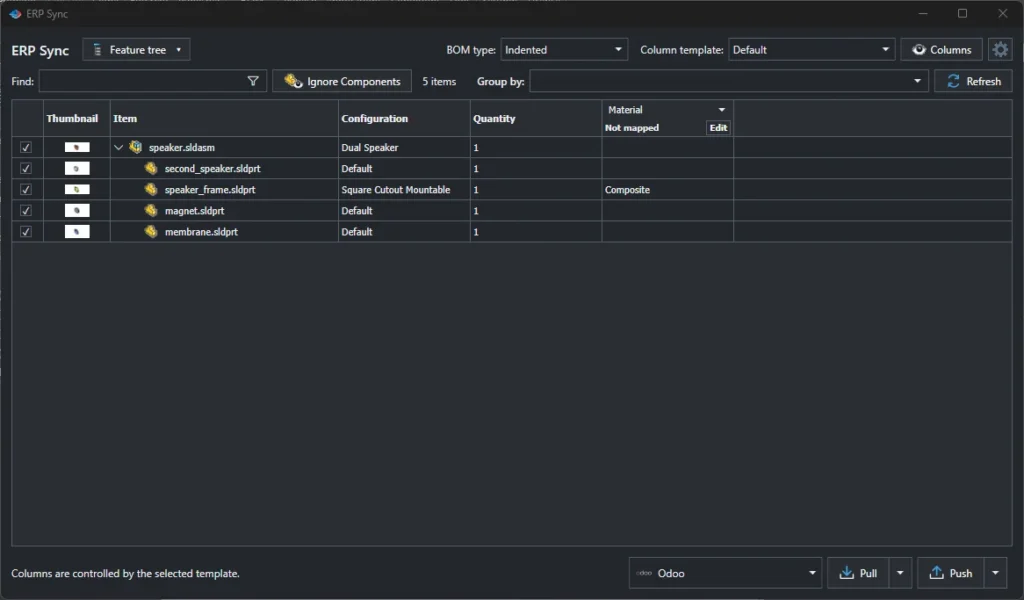

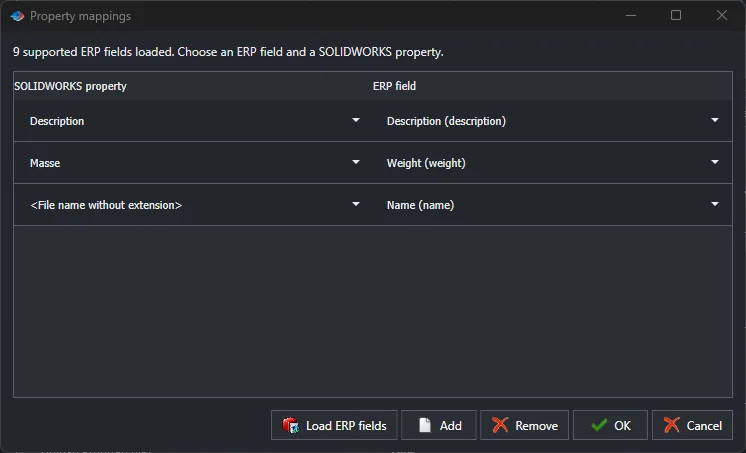
To map SOLIDWORKS custom properties to Odoo product fields, open the Odoo connector in PDMPublisher ERP Sync, click Property mappings, then Load ERP fields. PDMPublisher reads the list of fields from your Odoo database, and you pair each SOLIDWORKS property with the Odoo field it should fill. The mapping is saved with the connector and used on every push.
Mapping is the part of a SOLIDWORKS to Odoo integration that decides whether the data in Odoo is useful or a mess. Get it right once and every product arrives with the right description, weight and reference. This guide covers how to plan the mapping, which fields matter most and the mistakes we see on real projects. For the full connection setup, see our guide on syncing SOLIDWORKS BOMs to Odoo.
Start with the item code
Before any property, decide what identifies a product in both systems. In the connector settings, Item code column sets which value becomes the Odoo product reference. The file name without extension is a sensible default when your files are named by part number. If part numbers live in a custom property instead, use that property. Whatever you choose, it must never change, because it is how ERP Sync finds the same product on the next push.
A typical mapping
| SOLIDWORKS property | Odoo field | Notes |
|---|---|---|
| File name without extension | Name | Readable name in Odoo lists |
| Description | Description | Usually the most important field for purchasing |
| Weight or SW-Mass | Weight | Keep units consistent with your Odoo setup |
| Material | A custom field or description | Create a custom field in Odoo if you filter by material |
| Vendor or Manufacturer | A custom field | Useful for purchased parts |
| Revision | A custom field | Only if Odoo needs to show the engineering revision |
PDMPublisher only offers fields that your Odoo database actually has, so if you need a field such as material, create it in Odoo first, then click Load ERP fields again.
Custom or configuration properties?
SOLIDWORKS stores properties in two places: on the file, and per configuration. If different configurations become different Odoo products, map configuration specific properties so each product gets its own values. If one file is one product, file level custom properties are simpler. Check a few files before you decide, because mixed vaults are common.
Protect the data people enter in Odoo
Odoo is not only fed by engineering. Purchasing adds costs, vendors and lead times. Turn on Skip empty values so that a blank SOLIDWORKS property never wipes a value someone typed in Odoo. Only map a field from SOLIDWORKS when engineering owns it.
Test the mapping on one assembly
- Map two or three fields only: name, description and weight.
- Push a small assembly with Properties and Create items selected, and BOM turned off.
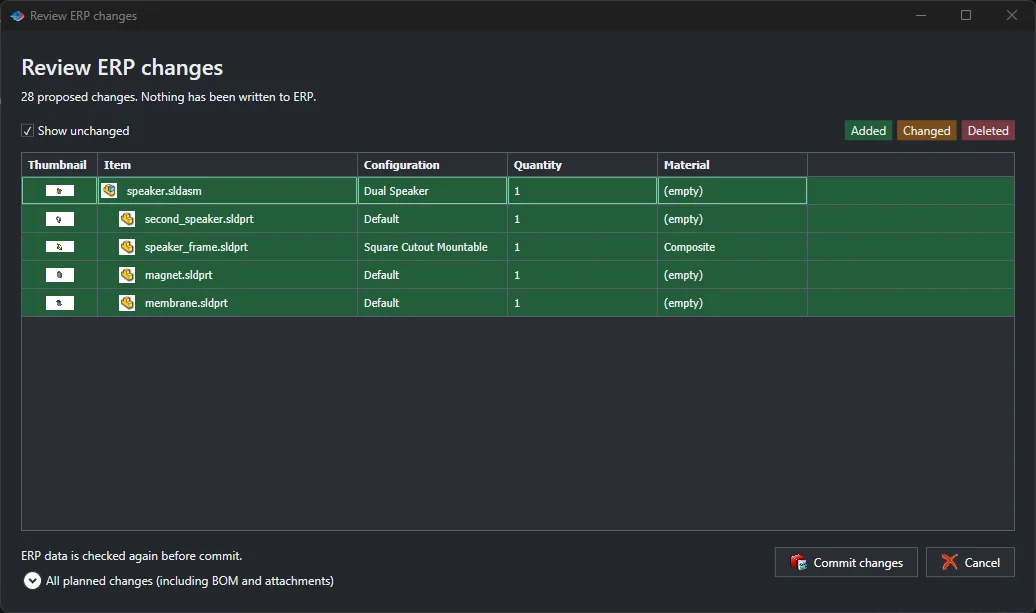
- Read the Review ERP changes list and check every field before you commit.
- Open the products in Odoo and confirm the values landed in the right place.
- Add the remaining fields, then turn on BOM.
Common mistakes
- Using an item code that changes, such as a description, which creates duplicate products.
- Mapping a property that is empty on most files, then wondering why Odoo is blank.
- Sending weight in grams to an Odoo database set up in kilograms.
- Mapping fields that purchasing maintains, and overwriting their work on every push.
Frequently asked questions
Can I map one SOLIDWORKS property to several Odoo fields?
Yes. Add a mapping row for each Odoo field.
Can I change the mapping later?
Yes. Edit the rows in Property mappings. The next push uses the new mapping, and the review shows exactly what will change.
Does it work in the free edition?
Yes. The Community Edition runs ERP Sync on up to 10 rows, enough to test your mapping on a small assembly.
See everything ERP Sync does, pricing and a cost comparison with a custom build on our SOLIDWORKS Odoo integration page.