
 USD
USD CAD
CAD EUR
EUR GBP
GBP AUD
AUD NZD
NZD CHF
CHF SEK
SEK NOK
NOK JPY
JPY CNY
CNY INR
INR SGD
SGD MXN
MXN BRL
BRL ZAR
ZAR KRW
KRW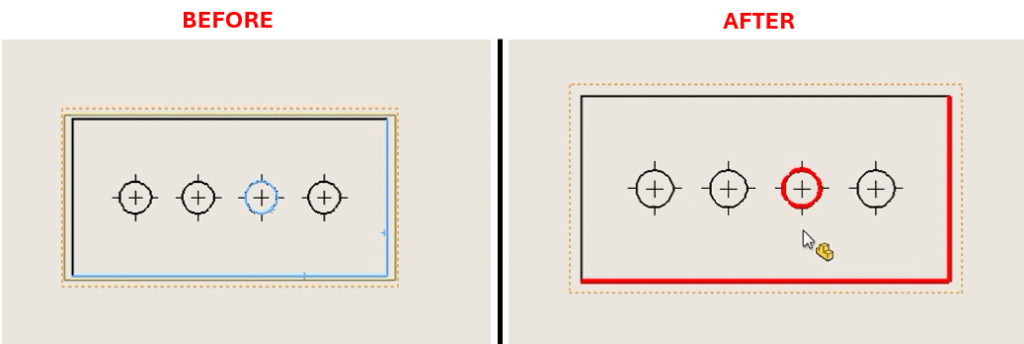

Description
This tool gives SOLIDWORKS engineers detailed visual control of their technical documents. The SolidWorks macro to apply custom color and width to drawing edges applies customized line properties (both color and width) to selected SOLIDWORKS drawing edges. This provides a visual distinction to certain edges, lines, or hidden elements of a view, because the macro immediately is able to adjust its properties based on previously defined properties.

This is very helpful when referring to certain critical dimensions, selecting particular features that need inspection, or even following unconventional drawing specifications that require emphasis on specific geometry through visual representation. The macro uses checks to ensure the active document is a drawing and that an edge has been selected before executing, to reduce run-time errors.
System Requirements
- SOLIDWORKS Version: SOLIDWORKS 2014 or newer
- Operating System: Windows 7 or later
Pre-requisites
- The active document has to be a SOLIDWORKS drawing file.
- The user needs to first select at least one edge (model edge, line, curve) in the drawing view before running the macro.
Results
- The selected edges in SOLIDWORKS drawing will have their line width and color changed according to whatever properties were specified in the macro (e.g. width = 0.7mm, color = Red by default).
- The macro will report back to the user with a success message if it runs correctly, or provide a clear error message if the document is not the right type or no items were selected.
Steps to Implement the Macro
- Choose the Edges: Open a SOLIDWORKS drawing, before selecting the specific edge(s) in a view that you want to modify.
- Load and Run the Macro:
- Load the macro into SOLIDWORKS through the VBA editor (Alt + F11)
- Run the macro in SOLIDWORKS by clicking Tools > Macro > Run and selecting the saved file.
VBA Macro Code
' Disclaimer:
' The code provided should be used at your own risk.
' Blue Byte Systems Inc. assumes no responsibility for any issues or damages that may arise from using or modifying this code.
' For more information, visit [Blue Byte Systems Inc.](https://bluebyte.biz).

Option Explicit

Sub main()

    ' Declare SolidWorks application object and initialize it
    Dim swApp As SldWorks.SldWorks
    Set swApp = Application.SldWorks

    ' Get the currently active document
    Dim swModel As SldWorks.ModelDoc2
    Set swModel = swApp.ActiveDoc

    ' Check if there is an active document
    If Not swModel Is Nothing Then
        ' Check if the active document is a drawing
        If swModel.GetType = swDocDRAWING Then
            ' Declare drawing document object and selection manager object
            Dim swDraw As SldWorks.DrawingDoc
            Set swDraw = swModel
            Dim swSelMgr As SldWorks.SelectionMgr
            Set swSelMgr = swModel.SelectionManager

            ' Check if any edge is selected in the drawing
            If swSelMgr.GetSelectedObjectCount2(-1) > 0 Then

                ' Specify custom line properties
                Dim edgeWidth As Double
                Dim edgeColor As Integer
                edgeWidth = 0.0007          ' Line width in meters (e.g., 0.0007m = 0.7mm)
                edgeColor = 255             ' Color in RGB (e.g., 255 = Red)

                ' Apply custom line width and color to the selected edge(s)
                swDraw.SetLineWidthCustom (edgeWidth)
                swDraw.SetLineColor edgeColor

                ' Notify the user of successful application
                MsgBox "Line width and color applied successfully to the selected edge(s).", vbInformation, "Success"
            Else
                ' Error message if no edge is selected
                MsgBox "Please select at least one edge in the drawing to apply the properties.", vbExclamation, "No Edge Selected"
            End If
        Else
            ' Error message if the active document is not a drawing
            MsgBox "The active document is not a drawing. Please open a drawing and select an edge.", vbExclamation, "Invalid Document Type"
        End If
    Else
        ' Error message if no document is open
        MsgBox "No active document found. Please open a drawing and select an edge.", vbExclamation, "No Active Document"
    End If

End Sub
Macro
You can download the macro from here.
Need help customizing the macro?
Our team of experts at Blue Byte Systems Inc. are experienced in the development of custom SOLIDWORKS macros and add-ins.