US$0.00
0

Category: SOLIDWORKS

SOLIDWORKS PDM Notifications Troubleshooting

If you’re missing notifications in SOLIDWORKS PDM, especially those typically delivered to your internal inbox in the PDM client, there’s a good chance the SOLIDWORKS PDM Database Service is not running on the server. This service is critical for processing and delivering notifications such as workflow state changes, transitions, and user actions, and it’s often the core issue behind SOLIDWORKS PDM notifications troubleshooting. If it’s not running, users may not receive notifications as expected. How to Resolve the Issue Follow these steps on the PDM server to restore notification functionality: 1. Open the Database Server Configuration 2. Verify SQL Connection 3. Check Windows Services 4. Start the Service 5. Open your Inbox Still not working? Contact Blue Byte Systems for expert PDM support

Read More »

SOLIDWORKS PDM 2024 / 2025: Datacard Preview Not Working? Quick Guide to Reset eDrawings

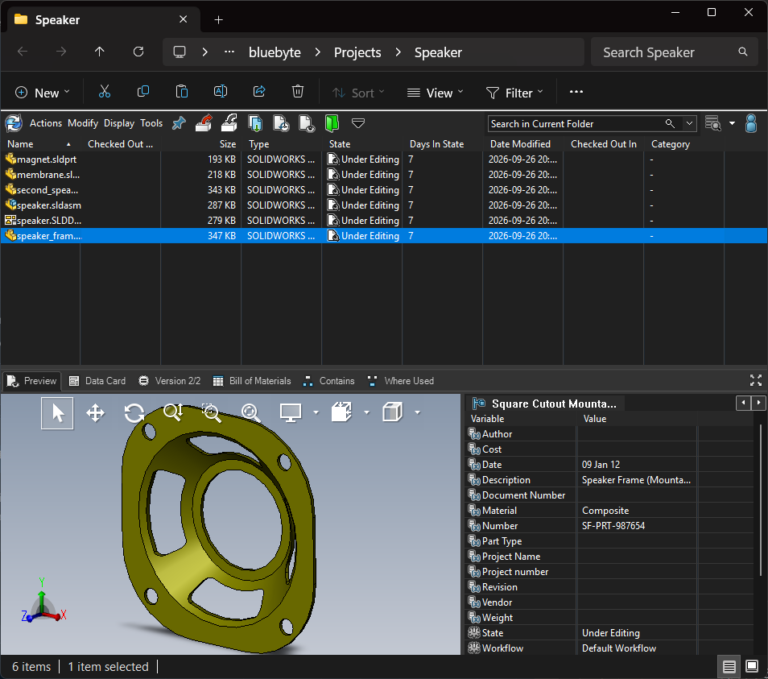
After a PDM upgrade, users may report that the preview pane never loads—just a spinning wheel where the model should appear after clicking on the Preview button (highlighted in red). In many cases, this issue shows up alongside datacard preview not working, making it look like PDM has suddenly lost its ability to display file previews at all. The files themselves open fine in eDrawings, but PDM’s embedded viewer can’t instantiate the eDrawings COM objects it relies on. The upgrade installed a new eDrawings build, but Windows kept pointing to the old registration entries, so PDM keeps making calls that land nowhere and the wheel spins forever. The fix is to re-register the viewer and its automation server: Open Command Prompt with Administrator rights and run these commands: This assumes that eDrawings is installed in the location “C:\Program Files\SOLIDWORKS Corp\eDrawings”. To open the command prompt as an admin, look for it in the search bar and click Run as administrator Reopen the vault, select a part, assembly, or drawing, and the spinning wheel should give way to a fully rendered preview within a second or two. Run the same script on any workstation or task host that still shows the spinner to bring every machine back in line after the upgrade. For repeatability, paste those lines into a text file named, for example, RepairPDMPreview.bat. Right-click the batch file and choose Run as administrator to execute it locally. If you manage multiple SOLIDWORKS PDM machines, distribute the same .bat through Quibld so every workstation or task host fixes its preview registration in a single push.

Read More »

PDMPublisher for SOLIDWORKS: Automate Your Drawing Exports Like Never Before

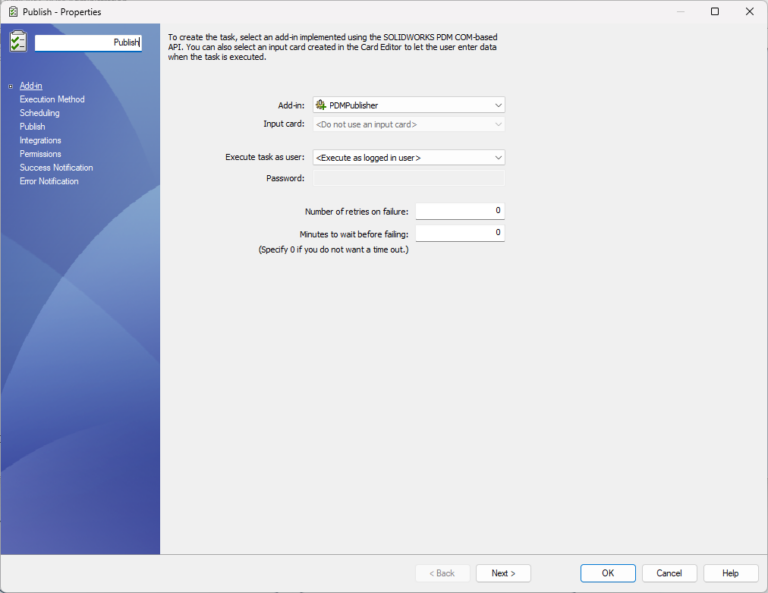
Preparing deliverables from SOLIDWORKS drawings often turns into a pile of repetitive steps. Exporting PDFs, generating DXFs, organizing files, and adding production notes can easily drain hours from an engineer’s day. PDMPublisher for SOLIDWORKS takes that grind out of the workflow by automating the entire export process, making it quicker, more consistent, and far less prone to mistakes. From PDM Success to SOLIDWORKS Integration PDMPublisher started as a task add-in for SOLIDWORKS PDM Professional, where it quickly gained traction among manufacturers who needed to publish clean, production-ready documents automatically during workflow transitions.Due to growing demand, we’ve now brought the same powerful automation to SOLIDWORKS as an add-in — no PDM required. Whether you’re working inside SOLIDWORKS or within a vault-managed environment, PDMPublisher gives you complete control over how your documents are exported, merged, and delivered. What Does PDMPublisher for SOLIDWORKS Do? PDMPublisher automates the generation and publishing of drawing deliverables. With a single click, you can export your SOLIDWORKS drawings to PDF, STEP, DXF, and other formats while inserting the data, notes, and quantities your production team needs. It also supports: Integration Highlights PDMPublisher for SOLIDWORKS doesn’t just automate export — it connects to your workflow: This flexibility ensures your deliverables land exactly where they’re needed — formatted correctly, and on time. Who Is It For? PDMPublisher is built for: Thousands of drawings are exported every day using PDMPublisher. Whether you’re an individual designer or part of a large engineering team, PDMPublisher helps you save time, reduce mistakes, and improve delivery consistency. 📥 Get PDMPublisher Pricing License Type Price (USD) Notes Perpetual License Contact us One-time fee, unlimited use Subscription – 1 user $1,499 / year For individuals Subscription – 2–3 users $999 / year per user Use coupon code: professional Subscription – 4+ users $799 / year per user Use coupon code: premium Free Version Free Limited features: up to 5 documents, basic export About BLUE BYTE SYSTEMS INC. Blue Byte Systems Inc. is a software company based in Vancouver, Canada, specializing in SOLIDWORKS and PDM automation. Our tools help engineering teams optimize their workflows, eliminate repetitive tasks, and scale their operations through smart automation.

Read More »

Reporting Progress for Long Operations in the SOLIDWORKS API

💡 Complete Code Example Available on GitHub:https://github.com/BlueByteSystemsInc/SW_API_Tips_Tricks/tree/master/ReportProgress When working with the SOLIDWORKS API, it’s common to encounter operations that take significant time—such as traversing large assemblies, analyzing complex parts, or batch processing files. Unlike some applications that allow multithreading for responsiveness, SOLIDWORKS operates primarily on a single-threaded model. This means traditional threading approaches aren’t ideal for providing user feedback on lengthy operations. However, reporting progress for long operations is still possible through SOLODWORKS’ built-in API features, which allow developers to display progress and offer cancellation options, ensuring your application remains responsive. Why Not Use Threads? While you might instinctively think about using separate threads to keep your user interface responsive, SOLIDWORKS is inherently single-threaded. Interacting with the SOLIDWORKS API from multiple threads can lead to instability and unpredictable behavior, including crashes. Hence, relying on SOLIDWORKS’ native progress reporting tools is strongly recommended. SOLIDWORKS’ Built-in Progress Reporting: UserProgressBar SOLIDWORKS provides a straightforward mechanism for reporting progress to users via the UserProgressBar interface. This built-in progress bar not only shows progress visually but also allows users to cancel ongoing tasks. The user can cancel an operation by pressing the Escape key. Here’s how you can implement it effectively in your SOLIDWORKS API programs. Example Implementation in C# Let’s illustrate with a practical example. The following snippet demonstrates a typical scenario: performing repetitive, time-consuming operations (like face analysis) and reporting progress clearly to users: Key Points in the Example: Benefits of Using SOLIDWORKS’ Progress Bar:

Read More »

Best Practices for SOLIDWORKS PDM Batch Plot and File Renaming: A Complete Guide!

Handling the realm of data management can be perplexing, especially when dealing with massive datasets in a solid system like SOLIDWORKS PDM. Renaming files is one of the most common, yet necessary, tasks. While SOLIDWORKS PDM does these operations admirably with its robust reference-tracking mechanism, a large-scale renaming project… hundreds or thousands of files… requires a methodical and concerted approach. By embracing these PDM best practices, you can avoid the pitfalls of corrupted references, data loss, or system crashes and make the process an error-free and smooth one from start to finish. This guidebook is meant for CAD engineers and PDM administrators who have to deal with executing a mass-renaming operation in their day-to-day lives. We’ll take you from the first validation of your data through to final procedure cleanup and reporting, so you’ll have everything you need to accomplish the task. 1. The Critical First Step: Data Validation and Verification Data validation is totally important before you ever think about scripting or acquiring a file. Skipping it is the primary reason for errors with any batch process. If you are scripting from a spreadsheet of filenames, take a few moments to clean up your spreadsheet carefully. Your spreadsheet will have columns for: This anticipation ensures that all of the files you are attempting to rename actually exist in your vault. It may seem like a tiny thing, but when you’ve got gigantic vaults with hundreds of thousands or even millions of files, it’s easy for a child to have old or outdated entries in your source list. After you’ve made sure that the source files are present, you will also need to confirm that the target filenames do not yet exist. This is especially true if your vault is configured to disallow duplicate filenames. If some or all of your proposed new names already occupy, you will be forced to edit those entries in order to prevent conflicts. 2. Strategic File Prioritization and Sorting Not all files are created equal when renaming. To minimize complications and potential mistakes in your SOLIDWORKS PDM batch plot or rename operation, sort your files in a strategic order. This is a key step in the SOLIDWORKS batch processor task, especially when using assemblies with heavy complexity. A sound sorting strategy is as follows: Also consider sorting your files by name length (longest first). This avoids issues when there is a longer new name that might overwrite a shorter file name if you’re not scripting this. Power users will love the SOLIDWORKS PDM API. You can create your own batch script that does everything for you, sorting it out, checking it, and running it with precision. 🔄 PDM DATA MIGRATION SERVICES:Need to move your SOLIDWORKS PDM data to a new system or reorganize your vault structure? Blue Byte Systems offers expert PDM data migration services tailored to your unique environment. Whether you’re upgrading, consolidating, or migrating from another system, we ensure your files, metadata, history, and references are preserved with precision. Trust our proven tools and deep knowledge of the PDM API to make your migration smooth, accurate, and fully validated. 3. Required Pre-Rename Vault Preparation Before proceeding with the renaming process, a few extremely critical steps must be performed in order to avoid interference and make sure that this process is clean. This is your foundational element of PDM best practices. Temporarily shut down all user logins. This is the dramatic part. Locking logins prevents anyone from checking a file in or out, or accessing the vault while renaming is underway, and causes the entire process to become corrupt. 4. Reporting after Rename and SOLIDWORKS PDM Reference Clean Up After completing the rename process, your job is not finished. The last, and just as crucial, step is to compile a comprehensive report to share the findings and work out any issues that are left. Your report is your audit trail and is worth its weight in gold to debug. Columns to include in your report: Having this report makes it easy to visually notice any renames that have not succeeded and correct them manually. It is also a crucial part of SOLIDWORKS PDM reference clean up since it enables you to find any other broken references or not yet updated files. Conclusion Performing a successful batch-renaming process in SOLIDWORKS PDM requires preparation, strict carefulness with data, and foresight. But don’t you worry. Apply the PDM best practices… from verifying your data to all the way up to structuring your files and composing a post-operation report. If you’ve done so, now you can be confident that your operation will proceed smoothly, precisely, and without any of the usual errors that can plague such massive operations. Success is less about tools, really, but how you operate them in a systemic and smart way. Frequently Asked Questions (FAQs) What Is The SOLIDWORKS PDM API? The SOLIDWORKS PDM API is an application programming interface by which you can automate tasks in your PDM vault. This powerful tool gives you programmatic access to file and folder properties, workflows, and user permissions, significantly improving the functionality of your PDM system beyond its standard interface. Why Should I Use SOLIDWORKS PDM API To Do Batch Renaming? As far as batch renaming is concerned, our PDM API offers an option to write a script that can rename hundreds or even thousands of files at once, with smarts to scan and sort, and process them without your intervention. It is much more efficient and less error-prone than doing it manually. Can The PDM Batch Processor Be Used To Rename Files? “Batch processor” is an umbrella term. While there are a few built-in utilities within SOLIDWORKS PDM for renaming in batch, a script utilizing the PDM API is typically the best way to go. Utilities like the SOLIDWORKS PDM batch plot are great at batching documents to plot, but for more heavy-duty data manipulation like renaming, a script tailored specifically is recommended. What Happens If I Don’t Check In A File Before

Read More »

Most Useful API Calls to Optimize SOLIDWORKS Performance

Writing SOLIDWORKS macros and add-ins is a wonderful thing to do in order to save repetitive work. But nothing spoils the experience more quickly than sluggish performance. A performance-intensive macro can negate any productivity gain and drive users bughouse. So, how do we make our SOLIDWORKS API macros and add-ins soar? This is where understanding useful API calls to optimize SOLIDWORKS performance becomes essential, helping you write faster and more efficient automation. The answer is in some special API calls and best practices that keep SOLIDWORKS from wasting time doing unnecessary work behind our backs. Let’s dive into the most precious SOLIDWORKS API optimization techniques and take your code flying! How to Speed Up and Optimize the SOLIDWORKS API When your attempts at optimizing SOLIDWORKS performance stop in their tracks, it is usually because your code is causing SOLIDWORKS to do things that are not necessarily required in order for the task to be executed. UI updates, feature tree updates, and screen redraws take even the most mundane macro forever to do. The below API calls are your weapon to combat this issue. 1. What is CommandInProgress? Think of CommandInProgress as telling SOLIDWORKS, “Hey, I’m busy doing something important, so don’t bother with UI updates or other background processes until I’m done.” Setting this property to True is one of the most effective ways to significantly improve macro execution speed, especially when performing complex tasks. Use it: Remember to set CommandInProgress to False once your operation is done. If you don’t, part of the SOLIDWORKS UI will be unusable, and you’ll need to manually restart SOLIDWORKS in order to fix it. 2. DoEvents This is an old VBA and VB.NET call that releases control to the operating system so it can respond to other events while your macro is executing. It’s great for making the UI responsive during lengthy operations so the user has a chance to click a cancel button or observe an updating progress bar. Use it with caution, though! Multiple calls to DoEvents will really slow down your macro. For optimum performance, in the majority of situations, don’t call DoEvents at all. Example: 3. AddToDB Manual creation of new sketch entities, SOLIDWORKS will usually try to snap them to nearby geometry or grid points to assist the user. Useful for manual sketching, but wasteful when creating programmatically. AddToDB allows you to avoid this snapping process and add entities directly into the database, which can result in a performance gain. Example: 4. DisplayWhenAdded Similar to AddToDB, this API call is a great way to speed up the generation of sketches. If you call DisplayWhenAdded with False, you prevent SOLIDWORKS from adding new sketch entities to the screen until you’ve specifically requested it to. This is a real time-saver when macros are creating a lot of sketch entities. Example: 5. EnableFeatureTree The FeatureManager Design Tree of SOLIDWORKS is a wonderful piece of work, but constant updating during the middle of a macro is a performance and efficiency killer. You can avoid the tree from being updated until you are done with your activities by using EnableFeatureTree = False. Example: 6. EnableConfigurationTree If the macro is manipulating configurations, you might be able to gain some speed by disabling the config tree updates using EnableConfigurationTree. Example: 7. EnableGraphicsUpdate This is a mandatory use for any macro that performs geometry-intensive actions. Setting EnableGraphicsUpdate to False stops the SOLIDWORKS graphics window from updating while your code makes its changes, resulting in an incredible performance gain. Make sure to set it back to True afterward, however, so the user can see the results! Example: 8. UserControlBackground To obtain the optimum speed boost, you can hide the full SOLIDWORKS application window through UserControlBackground. This is useful when you have a stand-alone application that is doing a very complex, non-visual task. Example: 9. Lock/Unlock Model The Lock API call will exclude the user from seeing the UI while your macro is running. This can be useful to get the user out of your hair so that user activity won’t interrupt your code. Be aware, however, that certain API calls, like InsertNote, will not function if the model is locked. Example: 10. Do not use Excel Interop dll If you’re writing a .NET add-in or desktop application and you’re reading from or writing to Excel, it is recommended that you use the services of a library called EPPlus instead of the Excel interop DLL. You will notice a far better performance outcome when you make the switch. By using these API calls wisely, the performance of SOLIDWORKS macros and add-ins can be significantly optimized. The conclusions in summary are:

Read More »
0
0
Your Cart
Your cart is emptyReturn to Shop