US$0.00
0

Author: Amen Jlili

PDMPublisher for SOLIDWORKS: Automate Your Drawing Exports Like Never Before

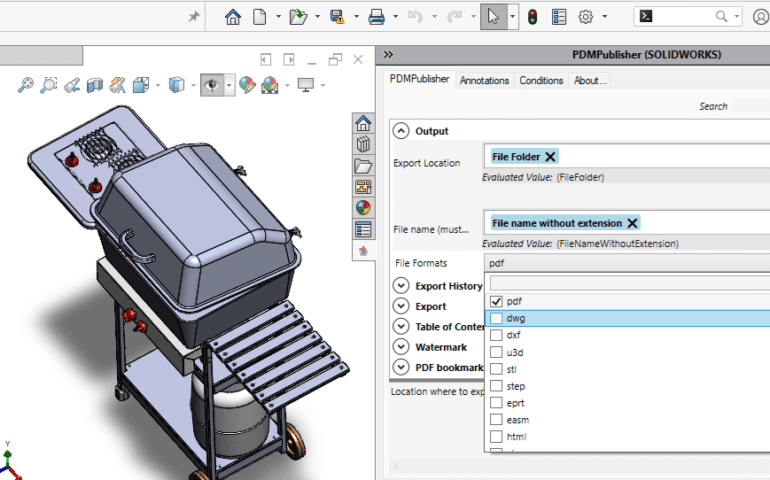
Preparing deliverables from SOLIDWORKS drawings often turns into a pile of repetitive steps. Exporting PDFs, generating DXFs, organizing files, and adding production notes can easily drain hours from an engineer’s day. PDMPublisher for SOLIDWORKS takes that grind out of the workflow by automating the entire export process, making it quicker, more consistent, and far less prone to mistakes. From PDM Success to SOLIDWORKS Integration PDMPublisher started as a task add-in for SOLIDWORKS PDM Professional, where it quickly gained traction among manufacturers who needed to publish clean, production-ready documents automatically during workflow transitions.Due to growing demand, we’ve now brought the same powerful automation to SOLIDWORKS as an add-in — no PDM required. Whether you’re working inside SOLIDWORKS or within a vault-managed environment, PDMPublisher gives you complete control over how your documents are exported, merged, and delivered. What Does PDMPublisher for SOLIDWORKS Do? PDMPublisher automates the generation and publishing of drawing deliverables. With a single click, you can export your SOLIDWORKS drawings to PDF, STEP, DXF, and other formats while inserting the data, notes, and quantities your production team needs. It also supports: Integration Highlights PDMPublisher for SOLIDWORKS doesn’t just automate export — it connects to your workflow: This flexibility ensures your deliverables land exactly where they’re needed — formatted correctly, and on time. Who Is It For? PDMPublisher is built for: Thousands of drawings are exported every day using PDMPublisher. Whether you’re an individual designer or part of a large engineering team, PDMPublisher helps you save time, reduce mistakes, and improve delivery consistency. 📥 Get PDMPublisher Pricing License Type Price (USD) Notes Perpetual License Contact us One-time fee, unlimited use Subscription – 1 user $1,499 / year For individuals Subscription – 2–3 users $999 / year per user Use coupon code: professional Subscription – 4+ users $799 / year per user Use coupon code: premium Free Version Free Limited features: up to 5 documents, basic export About BLUE BYTE SYSTEMS INC. Blue Byte Systems Inc. is a software company based in Vancouver, Canada, specializing in SOLIDWORKS and PDM automation. Our tools help engineering teams optimize their workflows, eliminate repetitive tasks, and scale their operations through smart automation.
Read More »

Automatically Refresh Drawing Sheet Formats in SOLIDWORKS with VBA

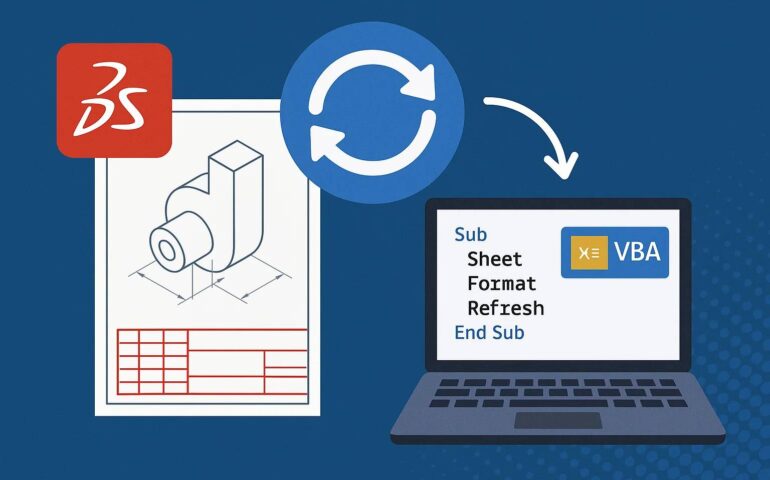
Managing large drawing sets in SOLIDWORKS often means working with inconsistent or outdated sheet formats. Whether due to legacy templates, changes in company standards, or imported files, it’s not uncommon to find drawing sheets that don’t match the expected formatting. This macro solves that by automatically refresh drawing sheet formats in SOLIDWORKS with VBA, ensuring every sheet stays aligned with the latest standards. What This Macro Does When Should You Use It?

Read More »

SOLIDWORKS PDM TIP: Creating Submenus in SOLIDWORKS PDM with IEdmCmdMgr5::AddCmd

If you’re developing custom add-ins or commands for SOLIDWORKS PDM, you may want to improve the user experience by organizing your commands into submenus. This approach is central to creating submenus in SOLIDWORKS PDM, ensuring a more professional and structured interface. As you add more commands, a cluttered context menu can quickly become overwhelming, so grouping related commands under a parent label keeps the interface clean and intuitive. How to Create a Submenu To create a submenu, use the double backslash (\\ in C# if not escaped) separator in the menu name when registering your command with AddCmd. Example poCmdMgr.AddCmd(15065, “ParentMenu\\ChildMenu”, 43, string.Empty, string.Empty, -1, 0); This code registers a new command under: Right-click > ParentMenu > ChildMenu Important Notes Need help building PDM tools or structuring your add-ins? Reach out to Blue Byte Systems Inc. — we specialize in SOLIDWORKS PDM automation and custom development.

Read More »

SOLIDWORKS PDM API Tip 16: Why IEdmFile5::IsLocked Requires a Call to Refresh()

When working with the SOLIDWORKS PDM API, it’s important to understand how the system handles state and caching. One frequently misunderstood property is IEdmFile5::IsLocked. Understanding why IEdmFile5::IsLocked requires a call to refresh() is crucial, as while it appears straightforward, it doesn’t behave like properties in reactive UI frameworks such as WPF, and this can lead to subtle but critical issues in automation and add-in development. Understanding CLR Properties in the PDM API In environments like WPF, dependency properties offer real-time synchronization with the underlying data model. Any change is automatically reflected in the property value. This is not the case with the PDM API. Properties like IEdmFile5::IsLocked are standard CLR properties. These properties do not auto-update when changes occur in the vault. Instead, they rely on cached data at the time the IEdmFile5 object was retrieved or last refreshed. What This Means for Developers IsLocked will not reflect the actual current lock state of a file if that state has changed since the last time the file object was refreshed. This commonly occurs in scenarios such as: In these cases, reading the IsLocked property without refreshing the object will return outdated information. Correct Usage To ensure you’re working with current data, always call IEdmFile5::Refresh() before accessing lock-related properties: This forces the object to synchronize with the current state of the vault, ensuring IsLocked reflects the latest status. When to Use Refresh() Besides IsLocked, other properties that depend on current vault state also benefit from a refresh call: In general, any time you suspect that external operations may have changed the state of a file, refreshing before reading is a safe and recommended approach. Conclusion The SOLIDWORKS PDM API does not use reactive or event-driven state tracking. It’s up to the developer to ensure that objects are up to date before relying on their state. Understanding why IEdmFile5::IsLocked requires a call to refresh() helps developers prevent inconsistent behavior and significantly reduce debugging time in complex workflows or automation scenarios.

Read More »

Reporting Progress for Long Operations in the SOLIDWORKS API

💡 Complete Code Example Available on GitHub:https://github.com/BlueByteSystemsInc/SW_API_Tips_Tricks/tree/master/ReportProgress When working with the SOLIDWORKS API, it’s common to encounter operations that take significant time—such as traversing large assemblies, analyzing complex parts, or batch processing files. Unlike some applications that allow multithreading for responsiveness, SOLIDWORKS operates primarily on a single-threaded model. This means traditional threading approaches aren’t ideal for providing user feedback on lengthy operations. However, reporting progress for long operations is still possible through SOLODWORKS’ built-in API features, which allow developers to display progress and offer cancellation options, ensuring your application remains responsive. Why Not Use Threads? While you might instinctively think about using separate threads to keep your user interface responsive, SOLIDWORKS is inherently single-threaded. Interacting with the SOLIDWORKS API from multiple threads can lead to instability and unpredictable behavior, including crashes. Hence, relying on SOLIDWORKS’ native progress reporting tools is strongly recommended. SOLIDWORKS’ Built-in Progress Reporting: UserProgressBar SOLIDWORKS provides a straightforward mechanism for reporting progress to users via the UserProgressBar interface. This built-in progress bar not only shows progress visually but also allows users to cancel ongoing tasks. The user can cancel an operation by pressing the Escape key. Here’s how you can implement it effectively in your SOLIDWORKS API programs. Example Implementation in C# Let’s illustrate with a practical example. The following snippet demonstrates a typical scenario: performing repetitive, time-consuming operations (like face analysis) and reporting progress clearly to users: Key Points in the Example: Benefits of Using SOLIDWORKS’ Progress Bar:

Read More »

Best Practices for SOLIDWORKS PDM Batch Plot and File Renaming: A Complete Guide!

Handling the realm of data management can be perplexing, especially when dealing with massive datasets in a solid system like SOLIDWORKS PDM. Renaming files is one of the most common, yet necessary, tasks. While SOLIDWORKS PDM does these operations admirably with its robust reference-tracking mechanism, a large-scale renaming project… hundreds or thousands of files… requires a methodical and concerted approach. By embracing these PDM best practices, you can avoid the pitfalls of corrupted references, data loss, or system crashes and make the process an error-free and smooth one from start to finish. This guidebook is meant for CAD engineers and PDM administrators who have to deal with executing a mass-renaming operation in their day-to-day lives. We’ll take you from the first validation of your data through to final procedure cleanup and reporting, so you’ll have everything you need to accomplish the task. 1. The Critical First Step: Data Validation and Verification Data validation is totally important before you ever think about scripting or acquiring a file. Skipping it is the primary reason for errors with any batch process. If you are scripting from a spreadsheet of filenames, take a few moments to clean up your spreadsheet carefully. Your spreadsheet will have columns for: This anticipation ensures that all of the files you are attempting to rename actually exist in your vault. It may seem like a tiny thing, but when you’ve got gigantic vaults with hundreds of thousands or even millions of files, it’s easy for a child to have old or outdated entries in your source list. After you’ve made sure that the source files are present, you will also need to confirm that the target filenames do not yet exist. This is especially true if your vault is configured to disallow duplicate filenames. If some or all of your proposed new names already occupy, you will be forced to edit those entries in order to prevent conflicts. 2. Strategic File Prioritization and Sorting Not all files are created equal when renaming. To minimize complications and potential mistakes in your SOLIDWORKS PDM batch plot or rename operation, sort your files in a strategic order. This is a key step in the SOLIDWORKS batch processor task, especially when using assemblies with heavy complexity. A sound sorting strategy is as follows: Also consider sorting your files by name length (longest first). This avoids issues when there is a longer new name that might overwrite a shorter file name if you’re not scripting this. Power users will love the SOLIDWORKS PDM API. You can create your own batch script that does everything for you, sorting it out, checking it, and running it with precision. 🔄 PDM DATA MIGRATION SERVICES:Need to move your SOLIDWORKS PDM data to a new system or reorganize your vault structure? Blue Byte Systems offers expert PDM data migration services tailored to your unique environment. Whether you’re upgrading, consolidating, or migrating from another system, we ensure your files, metadata, history, and references are preserved with precision. Trust our proven tools and deep knowledge of the PDM API to make your migration smooth, accurate, and fully validated. 3. Required Pre-Rename Vault Preparation Before proceeding with the renaming process, a few extremely critical steps must be performed in order to avoid interference and make sure that this process is clean. This is your foundational element of PDM best practices. Temporarily shut down all user logins. This is the dramatic part. Locking logins prevents anyone from checking a file in or out, or accessing the vault while renaming is underway, and causes the entire process to become corrupt. 4. Reporting after Rename and SOLIDWORKS PDM Reference Clean Up After completing the rename process, your job is not finished. The last, and just as crucial, step is to compile a comprehensive report to share the findings and work out any issues that are left. Your report is your audit trail and is worth its weight in gold to debug. Columns to include in your report: Having this report makes it easy to visually notice any renames that have not succeeded and correct them manually. It is also a crucial part of SOLIDWORKS PDM reference clean up since it enables you to find any other broken references or not yet updated files. Conclusion Performing a successful batch-renaming process in SOLIDWORKS PDM requires preparation, strict carefulness with data, and foresight. But don’t you worry. Apply the PDM best practices… from verifying your data to all the way up to structuring your files and composing a post-operation report. If you’ve done so, now you can be confident that your operation will proceed smoothly, precisely, and without any of the usual errors that can plague such massive operations. Success is less about tools, really, but how you operate them in a systemic and smart way. Frequently Asked Questions (FAQs) What Is The SOLIDWORKS PDM API? The SOLIDWORKS PDM API is an application programming interface by which you can automate tasks in your PDM vault. This powerful tool gives you programmatic access to file and folder properties, workflows, and user permissions, significantly improving the functionality of your PDM system beyond its standard interface. Why Should I Use SOLIDWORKS PDM API To Do Batch Renaming? As far as batch renaming is concerned, our PDM API offers an option to write a script that can rename hundreds or even thousands of files at once, with smarts to scan and sort, and process them without your intervention. It is much more efficient and less error-prone than doing it manually. Can The PDM Batch Processor Be Used To Rename Files? “Batch processor” is an umbrella term. While there are a few built-in utilities within SOLIDWORKS PDM for renaming in batch, a script utilizing the PDM API is typically the best way to go. Utilities like the SOLIDWORKS PDM batch plot are great at batching documents to plot, but for more heavy-duty data manipulation like renaming, a script tailored specifically is recommended. What Happens If I Don’t Check In A File Before

Read More »
0
    0
    Your Cart
    Your cart is emptyReturn to Shop
    0
      0
      Your Cart
      Your cart is emptyReturn to Shop