
 USD
USD CAD
CAD EUR
EUR GBP
GBP AUD
AUD NZD
NZD CHF
CHF SEK
SEK NOK
NOK JPY
JPY CNY
CNY INR
INR SGD
SGD MXN
MXN BRL
BRL ZAR
ZAR KRW
KRW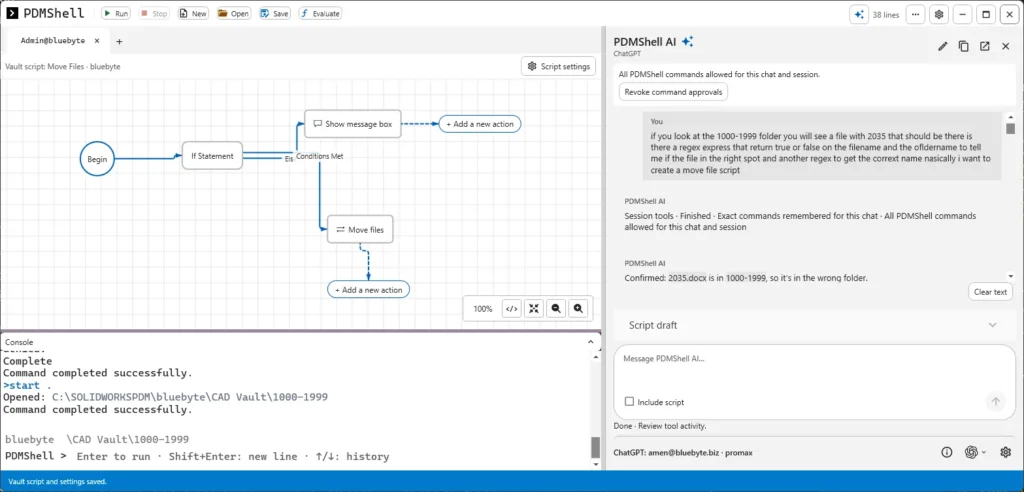

A SOLIDWORKS PDM folder structure built on part number ranges, such as 1000-1999 and 2000-2999, only works if every file lands in the folder its number belongs to. When someone saves part 2035 into 1000-1999, PDMShell can catch it and fix it: a short vault script checks the path against the file name with a regex and moves the file to the right range folder in one click.
We built the folder structure itself in an earlier post on creating SOLIDWORKS PDM folder structures automatically with PDMShell AI. This one is about keeping it clean once people start using it, which is the harder part.
Why part number range folders work
If your company numbers parts sequentially, a range layout is about the simplest structure you can give a vault. One parent folder, here called CAD Vault, and one subfolder per thousand numbers: 1000-1999, 2000-2999, all the way to 10000-10999 and beyond. Part 1500 goes in 1000-1999. Part 2035 goes in 2000-2999. There is nothing to decide and nothing to look up.
The benefits are practical. No single folder grows to tens of thousands of files, so File Explorer stays fast to browse. Anyone can find a part by number without searching. And the rule is simple enough that a script can check it, which is what the rest of this post is about.
How files end up in the wrong range folder
Nobody puts a file in the wrong folder on purpose. It happens in a handful of very ordinary ways:
- Save As remembers the last folder. An engineer works on 1987, then starts 2035, and SOLIDWORKS offers 1000-1999 because that is where the last save went. Click Save without looking and the file is in the wrong range.
- Drag and drop in File Explorer. A batch of files dragged from the desktop gets dropped one folder too high or one folder over.
- Copy Tree and Pack and Go. Copying an assembly to a new number keeps the original destination unless someone changes it.
- Number boundaries. Parts near the edge of a range, like 1999 and 2000, are the easiest to misfile because the previous folder is still open.
- New users. Someone in their first week does not know the rule yet.
The cost is not dramatic, but it adds up. Searching still finds the file, so the problem stays hidden until someone browses for it and gives up. Folder based permissions and workflow conditions can behave differently than expected. And once a few files are out of place, people stop trusting the structure and start searching for everything, which defeats the point of having one.
Building the fix with PDMShell AI
We had a test file, 2035.docx, sitting in 1000-1999. We asked PDMShell AI to look at that folder, tell us whether the file was in the right spot, and write a move file script. In plain terms, we wanted one regex that returns true or false from the file name and folder name, and another that works out the correct folder.
The AI confirmed that 2035.docx was in the wrong folder, then produced the vault script below. PDMShell shows it in the visual editor as a small flow: Begin, an If Statement, and two branches. When the conditions are met it runs Move files. Otherwise it shows a message box.

The complete script

If ${len(${regex($localPath, "(?:^|[\\\\/])(?<n>[1-9][0-9]*)000-\\k<n>999[\\\\/]\\k<n>[0-9]{3}(?![0-9])[^\\\\/]*$", "n")})} = 0 GoTo IfHandler_1701a374f437
msgbox -value "This action cannot be performed on $fileNameWithoutExtension. File is in the correct location." -icon "Information"
GoTo End_IfHandler_1701a374f437
IfHandler_1701a374f437:
move -directory "$vaultRootFolder\CAD Vault\${regex($fileNameWithoutExtension, "^([0-9]+)[0-9]{3}(?![0-9])", 1)}000-${regex($fileNameWithoutExtension, "^([0-9]+)[0-9]{3}(?![0-9])", 1)}999" -source "$localPath"
GoTo End_IfHandler_1701a374f437
End_IfHandler_1701a374f437:
Seven lines, and most of them are labels. The work happens in line 1 and line 5. Here is what each part does.
How the script works, line by line
Line 1: is the file in the right folder?
If ${len(${regex($localPath, "(?:^|[\\\\/])(?<n>[1-9][0-9]*)000-\\k<n>999[\\\\/]\\k<n>[0-9]{3}(?![0-9])[^\\\\/]*$", "n")})} = 0 GoTo IfHandler_1701a374f437This line runs a regex against $localPath, the full local path of the selected file, for example C:\SOLIDWORKSPDM\bluebyte\CAD Vault\1000-1999\2035.docx. Written without the extra escaping, the pattern is:
(?:^|[\\/])(?<n>[1-9][0-9]*)000-\k<n>999[\\/]\k<n>[0-9]{3}(?![0-9])[^\\/]*$Reading it from left to right:
- (?:^|[\\/]) starts the match at a folder boundary, so it only looks at whole folder names.
- (?<n>[1-9][0-9]*)000 captures the leading digits of the range folder into a group called n. For 1000-1999 that is 1, for 10000-10999 it is 10.
- -\k<n>999 requires the second half of the folder name to use the same digits, so 1000-1999 matches but a stray folder named 1000-2999 does not.
- [\\/] is the separator between the range folder and the file.
- \k<n>[0-9]{3}(?![0-9]) is the important part. The file name has to start with the same leading digits followed by exactly three more. 1500 in 1000-1999 passes. 2035 in 1000-1999 fails, because 2 is not 1.
- [^\\/]*$ allows anything after the number, like a revision suffix or the extension, but no further folders.
The last argument, n, tells regex to return the value of that named group. If the file is in the right place you get the digits back, and if it is not you get an empty string. Wrapping it in len gives a number, so the If line reads: if the length is 0, the file is in the wrong place, jump to the move.
You may notice every backslash in the pattern is doubled in the script. That is because the pattern sits inside a PDMShell string, and the string needs its own escaping before the regex engine sees it. Of all the parts of this script, the escaping is where a hand-written version usually goes wrong, and it is a good reason to let the AI draft the first version.
Lines 2 and 3: the file is already correct
If line 1 does not jump, the file passed the check. The msgbox command shows an information message that names the file using $fileNameWithoutExtension, then GoTo skips to the end. Nothing is moved. Telling the user explicitly is better than doing nothing silently, because otherwise people click the menu item twice and wonder if it worked.
Line 5: move it to the right range folder
move -directory "$vaultRootFolder\CAD Vault\${regex($fileNameWithoutExtension, "^([0-9]+)[0-9]{3}(?![0-9])", 1)}000-${regex($fileNameWithoutExtension, "^([0-9]+)[0-9]{3}(?![0-9])", 1)}999" -source "$localPath"The destination is built from the file name. The regex ^([0-9]+)[0-9]{3}(?![0-9]) takes the number at the start of the name and returns everything except the last three digits. For 2035 that is 2, so the folder becomes 2000-2999. For 10500 it is 10, giving 10000-10999. The same expression appears twice, once for each half of the folder name.
$vaultRootFolder is the local root of the vault view, so the script works on any machine regardless of where the vault is cached. The move command takes the destination with -directory and the file with -source, and PDM records the move like any other move, so history and references are handled by the vault rather than by the script.
Lines 4, 6 and 7: labels
IfHandler and End_IfHandler are jump targets created by the visual editor when you add an If Statement. The long suffix just keeps them unique if the script grows more branches later. You never need to edit them by hand.
Vault script settings
Saved as a vault script, the same code becomes a command your users can run from inside SOLIDWORKS PDM File Explorer. The settings panel has four tabs: General, Triggers, Access and Handling.
General

- Script name: Move Files.
- Enable this script: on.
- Show progress: on, so the user sees that something happened.
- Allow cancellation: off. A single file move is quick, and you do not want it interrupted halfway.
These settings apply when the script runs from the vault menu or from an event. Run in the main PDMShell toolbar still uses your active session, which is handy for testing.
Triggers

- Show in the PDM menu: on, with the menu path PDMShell\Move File To Correct Location. Users right click a file and pick it from the PDMShell submenu.
- Run on PDM events: left empty for now. The script only runs when someone chooses it from the menu.
- Conditions: empty, so the menu item is available on any file. Edit conditions lets you narrow that down.
- Show condition test messages: off. Turn it on while you are testing conditions to see why the item does or does not appear.
Starting with a manual menu command is deliberate. Moving files is a visible change, and it is better to let users see the script work a few times before it runs on its own. Once you trust it, expand Run on PDM events and pick the vault events it should react to, so misplaced files are corrected automatically.
Two edge cases to handle before rolling it out
We ran both regex patterns against a set of sample names and paths to see where they break. The core cases behave exactly as intended, but two are worth knowing about.
- Files whose names do not start with a number, such as bracket.sldprt, fail the check in line 1, and the second regex returns nothing, so the destination would be a folder called 000-999. Add a condition on the Triggers tab so the menu item only appears for files whose name starts with at least four digits, or add a second If before the move.
- Files in a subfolder under the right range, such as 1000-1999\Fixtures\1500.sldprt, are flagged as misplaced because the pattern expects the file directly inside the range folder. If your vault uses subfolders inside ranges, relax the end of the pattern or exclude those folders with a condition.
Neither is a reason not to use the script. They are the kind of rule you would want to decide on anyway, and the script makes the decision explicit.
Going further
The same pattern works for a whole folder, not just one file. Point the script at every file in CAD Vault and it becomes an audit: list the misplaced files first, review the list, then run the move. Our guide to finding duplicate file names in a SOLIDWORKS PDM vault uses the same approach for another common clean up job.
Frequently asked questions
Does the move keep file history and references?
Yes. The script uses the PDMShell move command, which performs a normal PDM move. History stays with the file and the vault handles references, the same as moving it by hand in File Explorer.
Can I use a different range size, such as 500?
Yes, but both regex patterns assume thousands, because the last three digits are treated as the position inside the range. Describe the new scheme to PDMShell AI and ask it to rewrite both expressions, then test on a copy of a folder first.
What do I need to run vault scripts?
Vault scripts need a PDMShell license and SOLIDWORKS PDM Professional. The PDMShell AI panel works with ChatGPT, Claude or a local Ollama model, as described in our PDMShell AI overview.
Need help with SOLIDWORKS PDM automation?
If your vault has a folder structure that people keep drifting away from, we can help you write the rules down and enforce them with PDMShell. Contact us and we can build the scripts and roll them out with your team.