
 USD
USD CAD
CAD EUR
EUR GBP
GBP AUD
AUD NZD
NZD CHF
CHF SEK
SEK NOK
NOK JPY
JPY CNY
CNY INR
INR SGD
SGD MXN
MXN BRL
BRL ZAR
ZAR KRW
KRW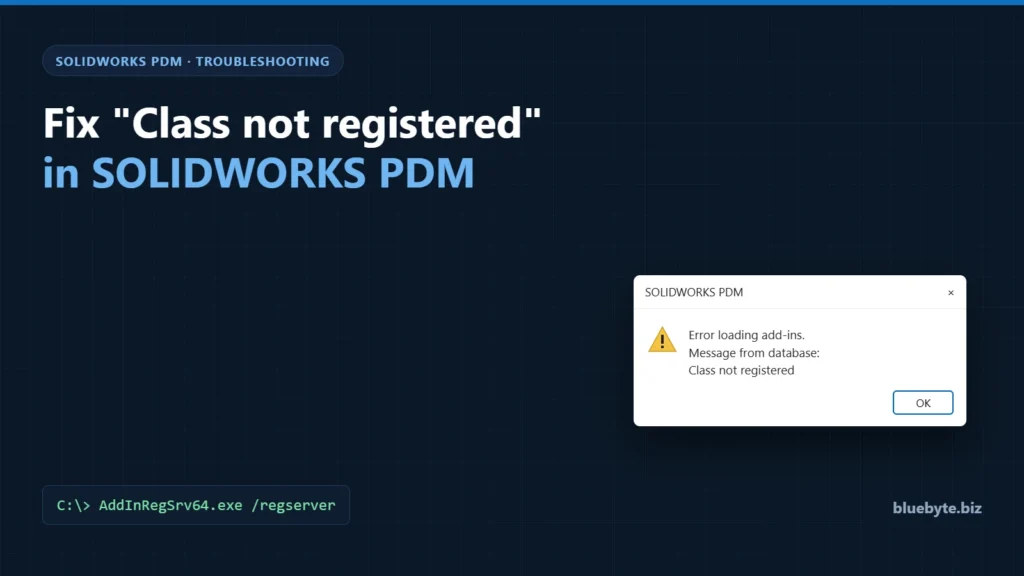

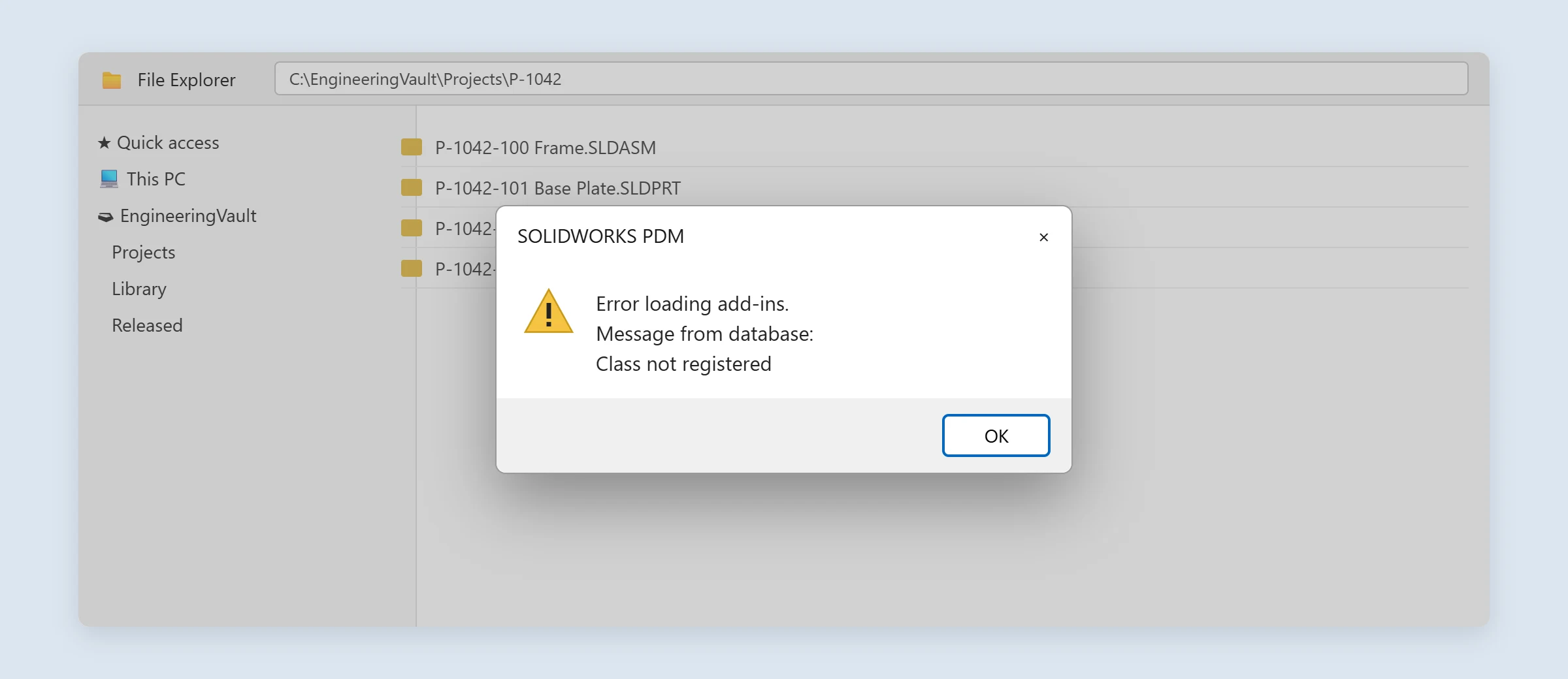
You have just installed or upgraded the SOLIDWORKS PDM client, and now every time you open a folder in the vault a message pops up: Error loading add-ins. Message from database: Class not registered. You click OK, it comes back on the next folder, and add-ins such as Dispatch, custom PDM tasks or third-party tools stop working.
The good news is that nothing is wrong with the vault or the database. The problem is on that one Windows computer, and it takes about five minutes to fix without reinstalling anything.
What the error actually means
The PDM client folder contains a small helper program, AddInRegSrv64.exe, that PDM uses when it sets up the vault add-ins on a 64-bit computer. Windows finds this helper through a COM class registration. If that registration is missing, Windows replies with the generic COM message “Class not registered”, and PDM shows it to you as an add-in error.
The registration is written by the installer. It can be skipped when an upgrade is interrupted, when the installer runs without full administrator rights, when security software blocks the registration step, or when an older version is removed after the new one is registered. The fix is to register the helper again, together with EdmInterface.dll, the PDM API library that add-ins use to talk to the vault.
Before you start
- You need local administrator rights on the affected computer.
- Close SOLIDWORKS, any PDM tools and all File Explorer windows that show the vault.
- Only computers that show the error need the fix. Nothing changes on the archive or database server.
Option 1: run the repair script
If you look after several workstations, this script does the whole job. It reads the PDM install folder from the registry, so it works whether PDM is installed in the default location or somewhere else. Paste it into Notepad, save it as fix-pdm-class-not-registered.cmd, then right-click the file and choose Run as administrator.
@echo off
:: Re-registers the SOLIDWORKS PDM add-in components on this computer.
:: Right-click this file and choose "Run as administrator".

net session >nul 2>&1 || (echo Run this file as administrator. & pause & exit /b 1)

for /f "tokens=2,*" %%A in ('reg query "HKLM\SOFTWARE\SolidWorks\Applications\PDMWorks Enterprise" /v Location 2^>nul ^| find "Location"') do set "PDMDIR=%%B"
if not defined PDMDIR (echo The SOLIDWORKS PDM client was not found in the registry. & pause & exit /b 1)

echo SOLIDWORKS PDM folder: %PDMDIR%
cd /d "%PDMDIR%" || (echo That folder does not exist. & pause & exit /b 1)

regsvr32 /s /u EdmInterface.dll
regsvr32 /s EdmInterface.dll || echo EdmInterface.dll could not be registered.
AddInRegSrv64.exe /unregserver
AddInRegSrv64.exe /regserver

echo.
echo Finished. Restart the computer, then open the vault again.
pause
Restart the computer when it finishes. Because the script needs no input, IT can also push it through your software deployment tool after each PDM client upgrade.
Option 2: fix it by hand
Step 1. Find the PDM client folder
Open the Registry Editor (regedit) and go to HKEY_LOCAL_MACHINE\SOFTWARE\SolidWorks\Applications\PDMWorks Enterprise. The Location value is the folder you need. On most computers it is C:\Program Files\SOLIDWORKS PDM\.
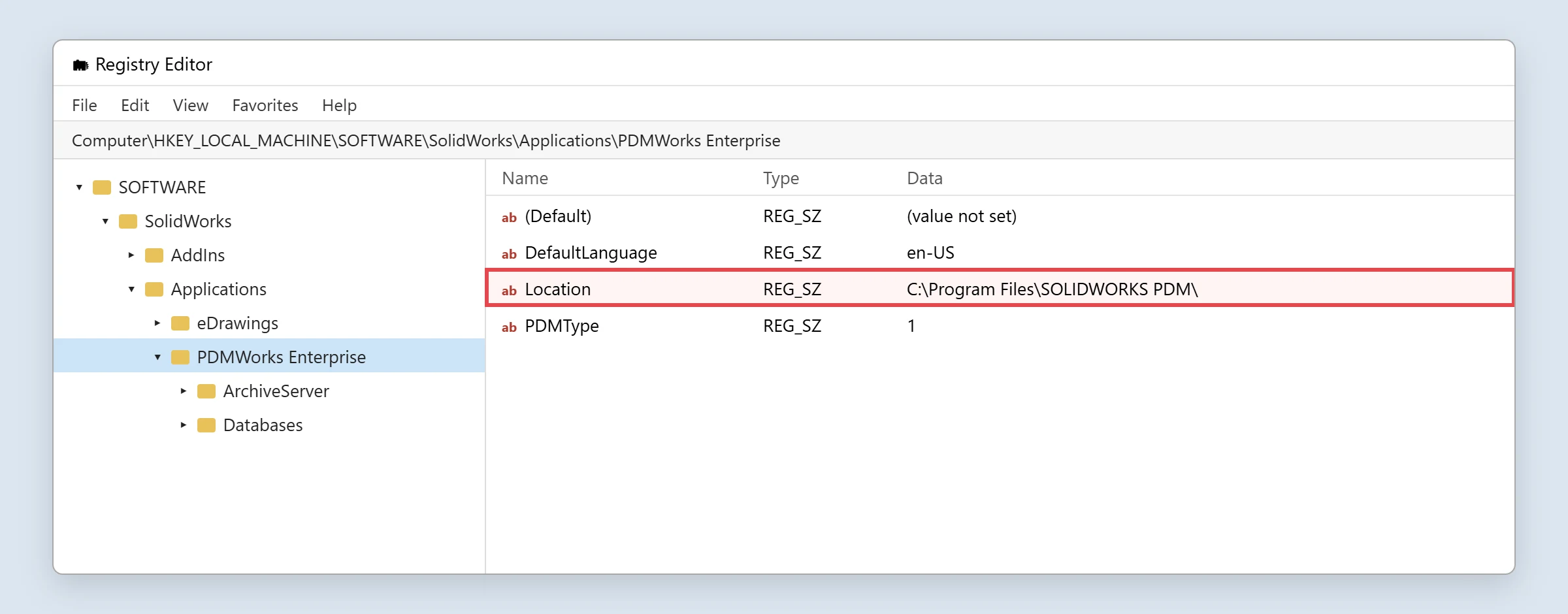
You can also read it from a command prompt without opening the Registry Editor:
reg query "HKLM\SOFTWARE\SolidWorks\Applications\PDMWorks Enterprise" /v LocationStep 2. Open an elevated Command Prompt
Click Start, type cmd, right-click Command Prompt and choose Run as administrator. The window title should start with “Administrator”. Without it, the registration commands fail with an access denied error.
Step 3. Re-register the two components
Change to the folder from step 1, then unregister and register each component. Use the /d switch so the command also works if PDM is on a different drive.
cd /d "C:\Program Files\SOLIDWORKS PDM"

regsvr32 /u EdmInterface.dll
regsvr32 EdmInterface.dll

AddInRegSrv64.exe /unregserver
AddInRegSrv64.exe /regserver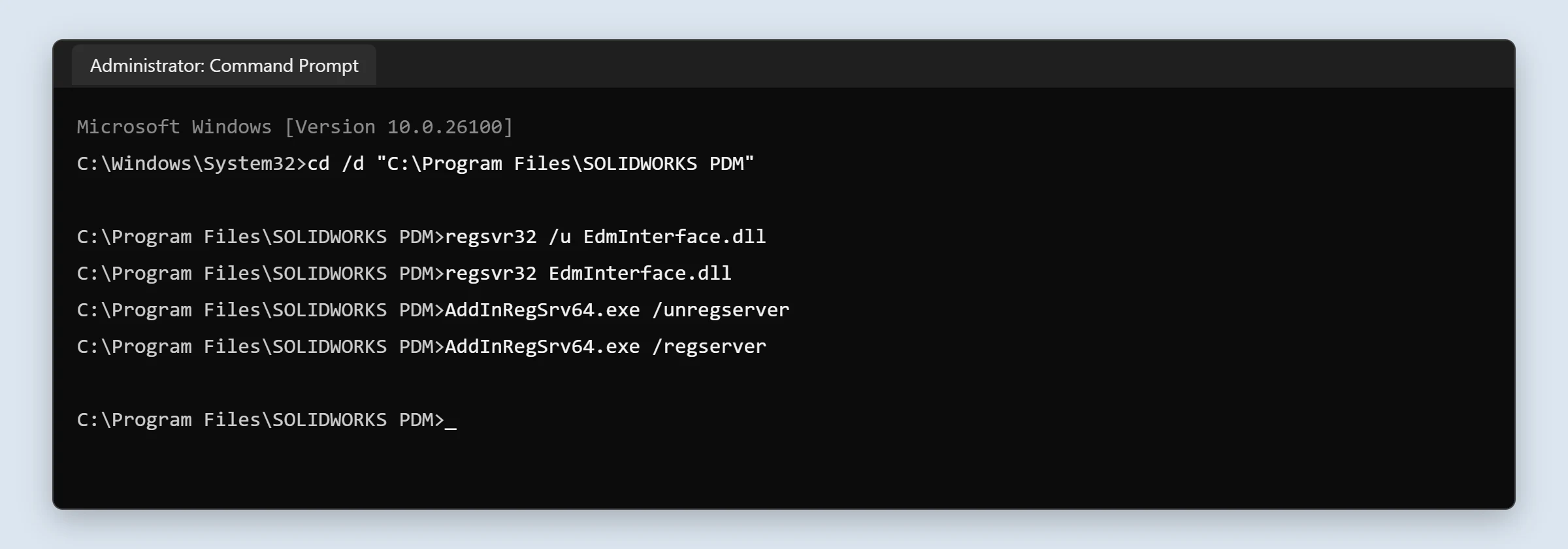
Each regsvr32 command shows a small confirmation dialog; click OK. The two AddInRegSrv64.exe commands finish without any message, which is normal.
Step 4. Restart and test
Restart the computer, log in to the vault and open a few folders. The message should be gone, and add-in menu commands and PDM tasks should be back.
Still seeing the error?
- Reinstall the Visual C++ runtimes. The PDM client depends on several Microsoft Visual C++ redistributables. On your SOLIDWORKS installation media, open the
PreReqsfolder and run the installer inside eachVCRedistsubfolder, then repeat the steps above. - Repair the PDM client. Run the repair option for the SOLIDWORKS PDM client from Windows Installed apps, or run the client installer again and choose Repair.
- Check security software. Endpoint protection or application control can block
regsvr32or the add-in helper. Ask IT whether anything was blocked on that computer and add an exception for the PDM client folder. - Look at the vault add-ins. If the error only appears in one vault, a specific add-in may be the cause, for example one built for an older PDM version. In the Administration tool, check the add-ins listed under that vault and update or remove the one that fails.
- Match client and server versions. Upgrade clients to the same major version as the PDM server. A mismatch after a partial upgrade can show up as add-in errors.
FAQ
Do I need to reinstall SOLIDWORKS PDM?
Usually not. Re-registering the two components fixes most cases. Try a repair or reinstall only if the steps above do not help.
Can this affect my vault data?
No. The commands only update the Windows registration on that one computer. Files, data cards and the database are not touched.
Do I need to run this on the server?
Only on the client computers that show the message. If the archive server also has the PDM client installed and shows the error, fix it the same way.
Why did it start right after an upgrade?
Upgrades unregister the old components and register the new ones. If that step is interrupted or blocked, the new add-in helper is installed but never registered, which is exactly what this error reports.
Need help with this?
We support SOLIDWORKS PDM environments and build PDM add-ins every day. If the error persists or you are planning a client rollout across many computers, contact us and we will help you get every workstation working. If you automate PDM with scripts, see PDMShell.
