
 USD
USD CAD
CAD EUR
EUR GBP
GBP AUD
AUD NZD
NZD CHF
CHF SEK
SEK NOK
NOK JPY
JPY CNY
CNY INR
INR SGD
SGD MXN
MXN BRL
BRL ZAR
ZAR KRW
KRW

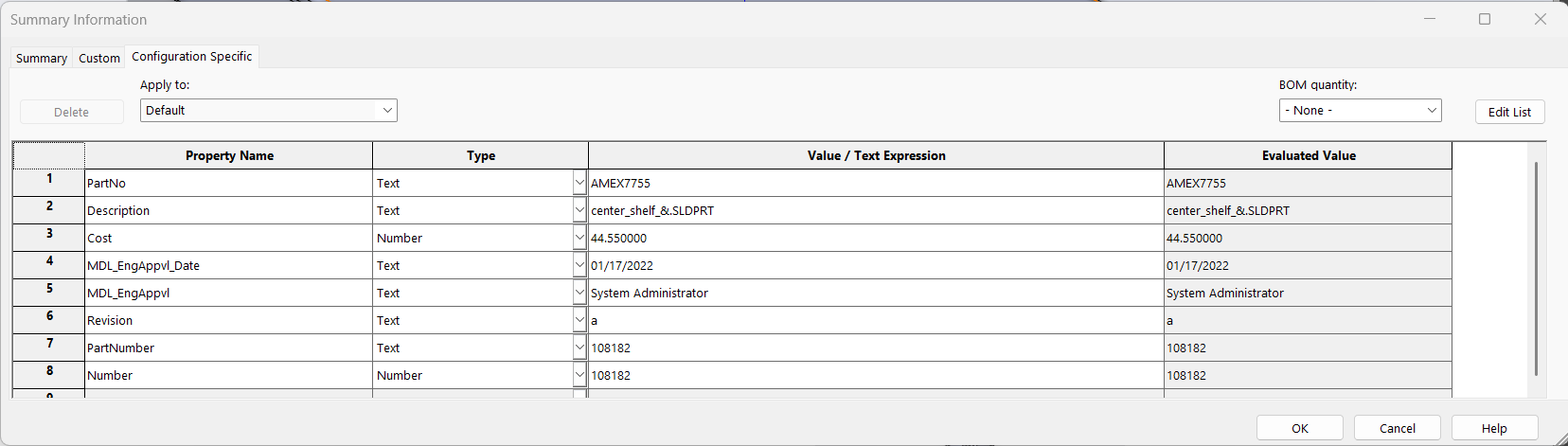
Open an older part in a current version of SOLIDWORKS, go to File > Properties, and you may see a dialog called Summary Information with a Configuration Specific tab and an Apply to list. That is the sign of a file that still stores its custom properties the old way. PDMPublisher now upgrades those files for you with a single setting, Upgrade legacy custom properties, available in every PDMPublisher function.
Some background: what SOLIDWORKS changed
SOLIDWORKS 2022 introduced a new architecture for custom properties. New parts and assemblies use it automatically, and the properties dialog was redesigned around it:
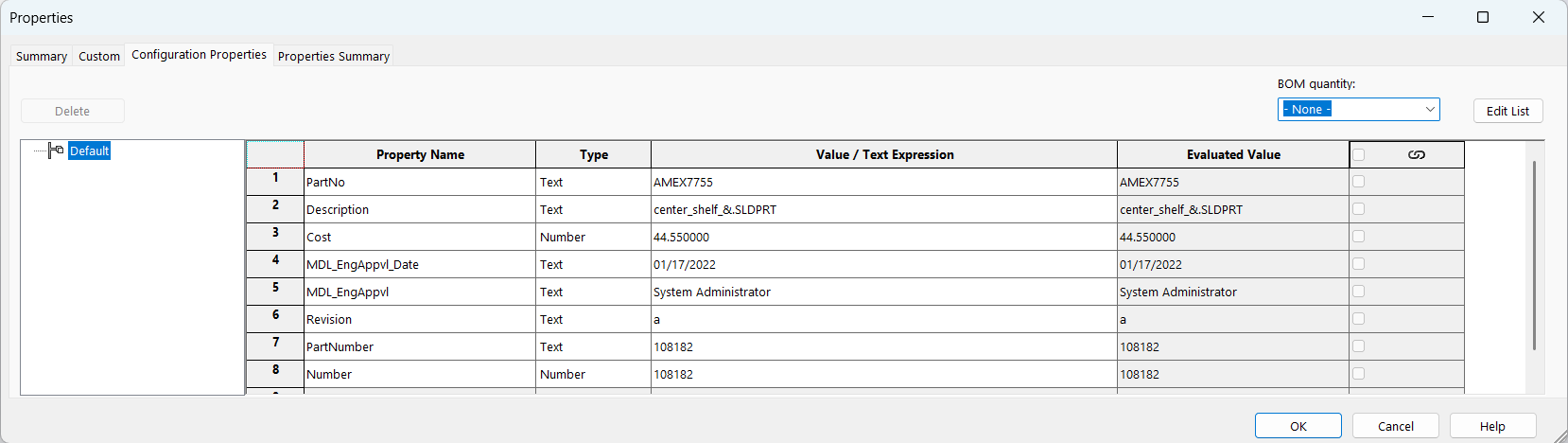
- Configuration Properties replaces the old Configuration Specific tab. Instead of picking one configuration from the Apply to list, you get a configuration tree on the left and the properties on the right.
- Linked properties. A new link column lets one property value apply to all configurations, or to the ones you choose, instead of typing it into each configuration.
- Properties Summary is a new tab that shows every property across every configuration in one grid, so a missing value stands out at a glance.
The catch: older files do not upgrade on their own
Files created in older versions keep the legacy format, even after you open and save them in SOLIDWORKS 2022 or later. SOLIDWORKS leaves the upgrade to you: right-click the file name at the top of the FeatureManager design tree and upgrade its custom properties, one file at a time. For an assembly you can choose to upgrade just the top level or the components too.
That is fine for a handful of files. It is not fine for a vault with years of history, where legacy and upgraded files sit side by side. Your team ends up switching between two different properties dialogs, and anything that reads or writes properties in bulk has to cope with both.
How PDMPublisher handles it
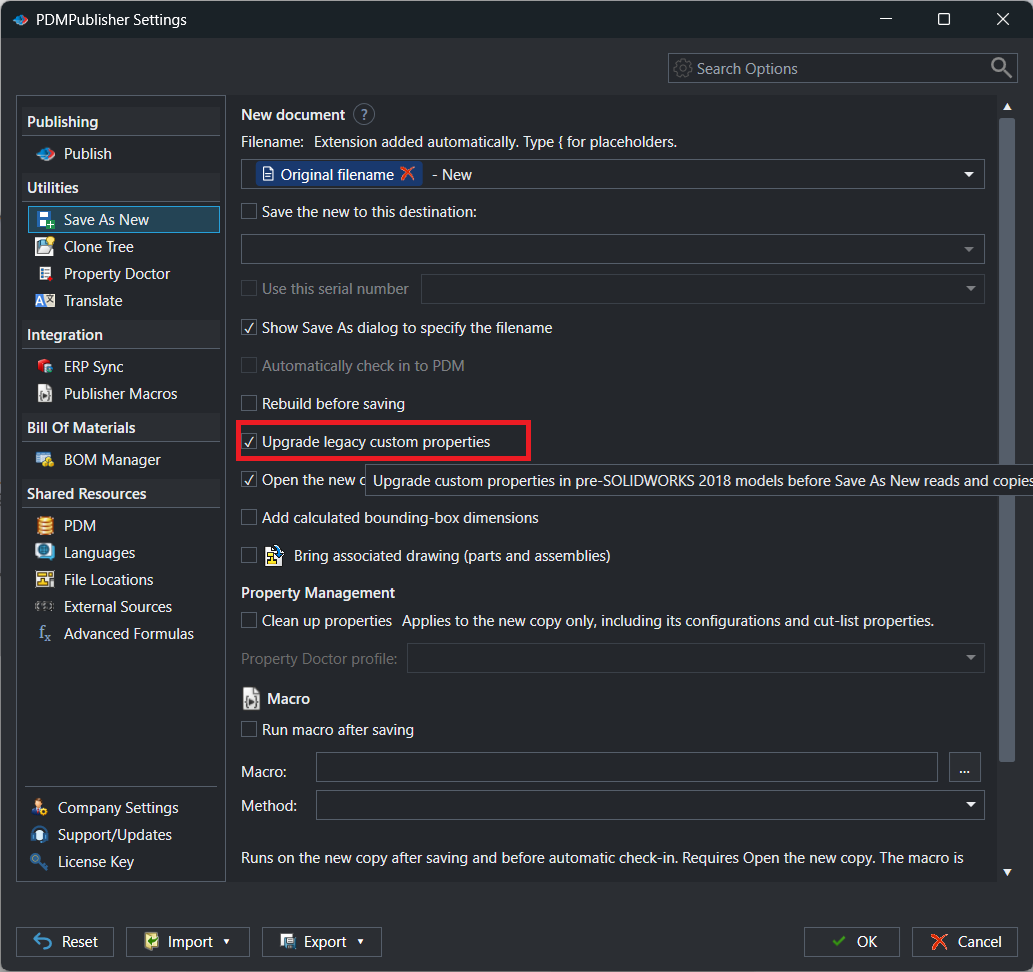
Turn on Upgrade legacy custom properties and PDMPublisher checks each model before it reads or copies its properties. If the model still uses the legacy format, PDMPublisher upgrades it first. Files that are already on the new format are left as they are.
The setting is available in every PDMPublisher function, so the upgrade happens as part of the work you are already doing:
- Publish reads up-to-date properties for file names, stamps and annotations on your PDF, DWG and STEP outputs.
- Save As New and Clone Tree copy properties into new files that open in the new Properties dialog from day one.
- Property Doctor, Translate and ERP Sync clean up, translate and sync properties on a consistent format across old and new files.
Turn it on
- On the PDMPublisher tab in SOLIDWORKS, click Settings.
- Pick the function you use, for example Save As New or Publish.
- Check Upgrade legacy custom properties and click OK.
Good to know
- The upgrade is permanent. SOLIDWORKS does not offer a way to go back to the legacy format, so try it on a copy or a test vault first.
- The model is marked as changed. Save it, and check it in to PDM, to keep the upgrade.
- Check what depends on it. SOLIDWORKS notes that derived parts, annotations and BOMs that reference an upgraded file can be affected, so review them after a large upgrade.
- You need SOLIDWORKS 2022 or later. The new properties format does not exist in earlier versions.
Try it on your own files
Upgrade legacy custom properties is included in the latest PDMPublisher for SOLIDWORKS. Start a free 7-day trial, see plans and pricing, or book a short demo and we will show it working on files like yours.