
 USD
USD CAD
CAD EUR
EUR GBP
GBP AUD
AUD NZD
NZD CHF
CHF SEK
SEK NOK
NOK JPY
JPY CNY
CNY INR
INR SGD
SGD MXN
MXN BRL
BRL ZAR
ZAR KRW
KRW
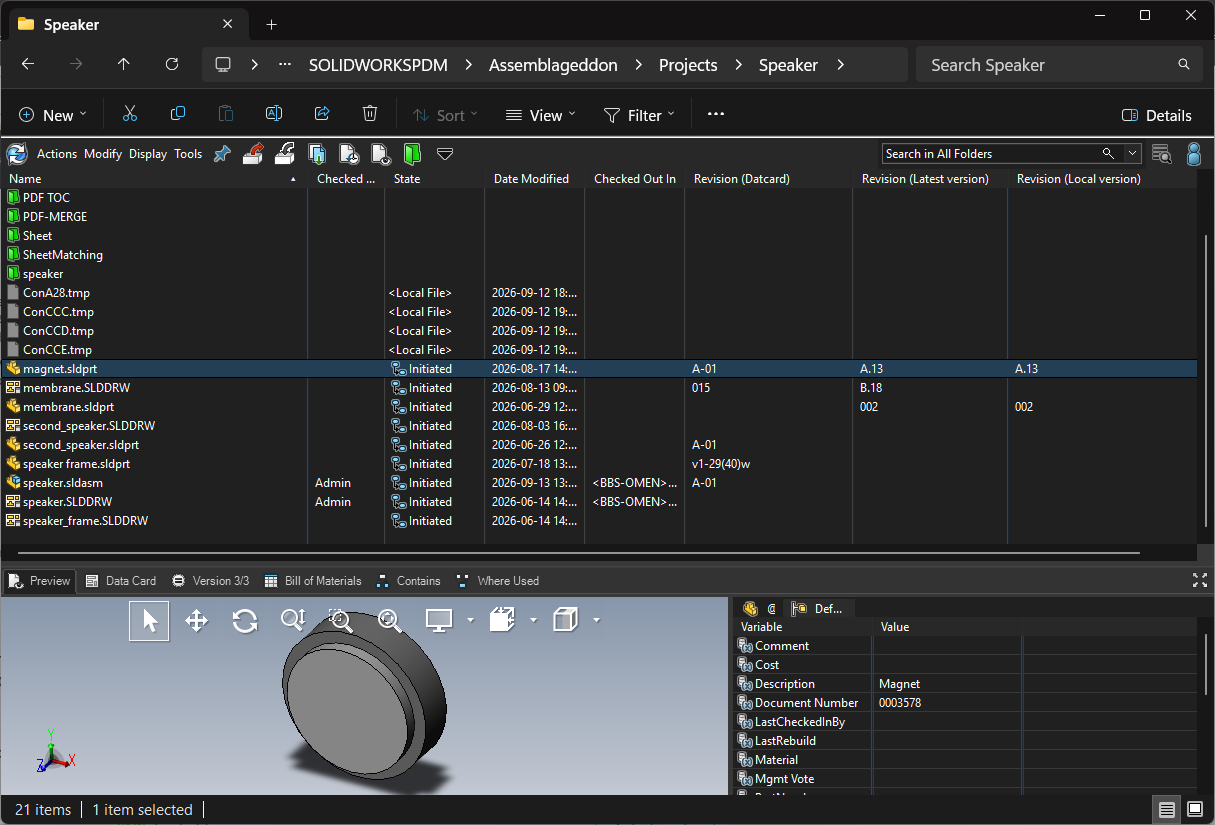
Dark mode for SOLIDWORKS PDM Explorer
ConisioDark brings a consistent dark theme to SOLIDWORKS PDM Explorer, from your file list to your assembly details. Familiar tools, a calmer workspace, and less glare during long days in the vault.
Activation guide
Licensing is managed per vault by a PDM administrator. Each license key provides one seat. Follow these steps once per vault, then each user can turn dark mode on from PDM Explorer.
Before you start
- SOLIDWORKS PDM Professional 2024 SP0 or later, with access to the PDM Administration tool
- Windows Dark Mode enabled on each client computer
- Windows clocks synchronized on the client computers, because seats are borrowed and released on a timer
- Your license keys: they are sent in your Completed order email and listed on the order in your account. Keys start with
ConisioDark.
Step 1. Add ConisioDark to your vault
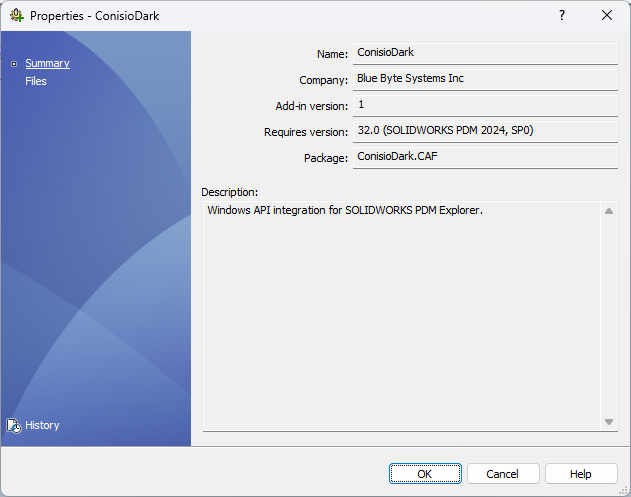
In the Administration tool, log in to the vault, right-click Add-ins and add the ConisioDark.CAF package. Once added, ConisioDark appears in the add-ins list for the vault.
Step 2. Open Manage licenses
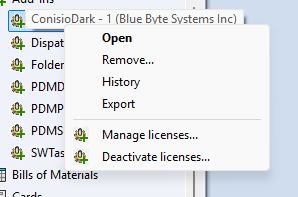
Right-click the ConisioDark add-in and choose Manage licenses.
Step 3. Activate your keys
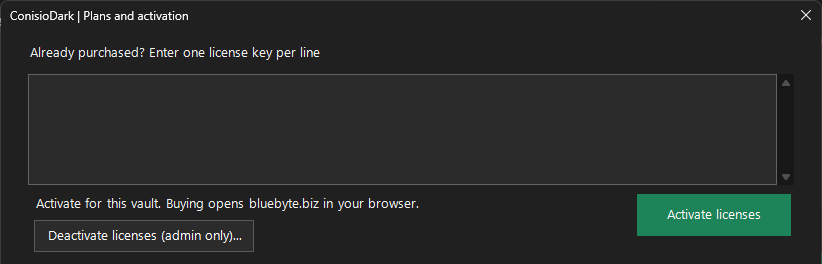
In Manage licenses, click Activate licenses. The Plans and activation window opens. Under Already purchased?, enter your license keys, one key per line, and click Activate licenses. Each key adds one concurrent seat to this vault, so a five user order gives five seats.
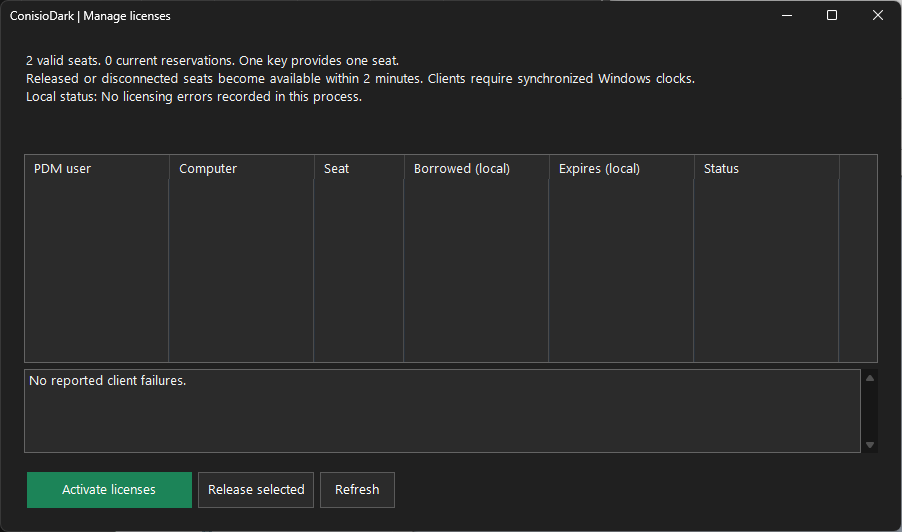
Back in Manage licenses, the summary at the top shows the number of valid seats and current reservations.
Step 4. Users turn on dark mode
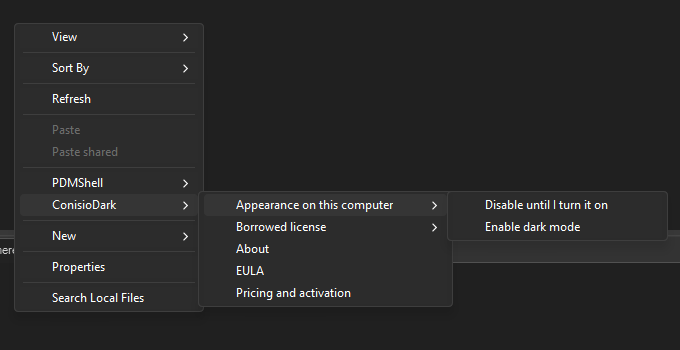
On each client computer, the user right-clicks in PDM Explorer, opens the ConisioDark menu and chooses Appearance on this computer, then Enable dark mode. A seat is borrowed for that user and computer. To switch the theme off on a computer, choose Disable until I turn it on.
The same menu shows the Borrowed license for this computer, About, the EULA, and Pricing and activation, which opens the same Plans and activation window to buy more seats or enter keys.
Step 5. Monitor and release seats
Back in Manage licenses, the table lists every seat in use with the PDM user, Computer, Seat, when it was Borrowed, when it Expires and its Status. Any problems reported by client computers appear in the panel below the table.
- To free a seat, select it and click Release selected.
- Released or disconnected seats become available again within two minutes.
- Click Refresh to update the list.
Step 6. Move or retire keys
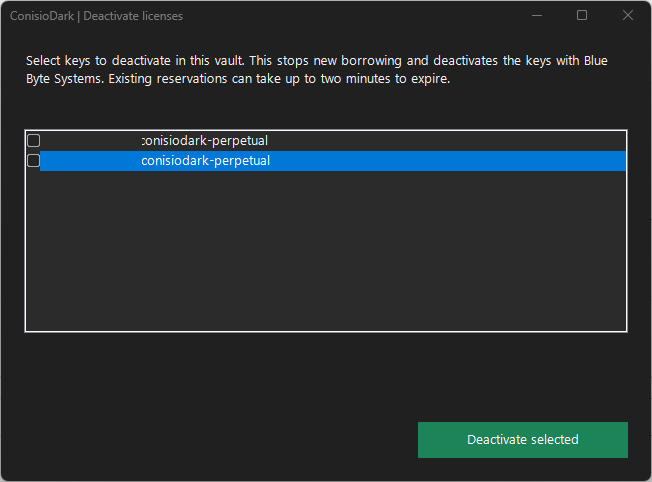
To move licenses to another vault, or to retire them, right-click the add-in and choose Deactivate licenses. Select the keys saved in this vault and click Deactivate selected. This stops new borrowing and deactivates the keys with Blue Byte Systems, so they can be activated in another vault. Existing reservations can take up to two minutes to expire.
Troubleshooting
- No valid seats: check that the keys were activated in this vault from Manage licenses, and that they have not expired.
- All seats in use: release seats that are no longer needed, or add more licenses. Disconnected seats free up within two minutes.
- Seat errors on a client: make sure the client’s Windows clock is synchronized, then check the client failures panel in Manage licenses.
- Theme does not change: confirm Windows Dark Mode is enabled and that dark mode is enabled for that computer from the ConisioDark menu.
Need help? Contact Blue Byte Systems.
Requirements
- SOLIDWORKS PDM Professional 2024 SP0 or later
- Windows Dark Mode enabled
- Installed as a PDM add-in (ConisioDark.CAF)
Licensing
Perpetual, one-time purchase per user. Set the quantity to the number of users: each user license includes one key, which provides one seat in your vault, valid through 2099.
More from
 PDMPublisherA SOLIDWORKS PDM Professional task that publishes PDF, DXF, STEP and more on every release, with names, merges…US$1,499.00 for 1 yearView product
 PDMShellCommand line and workflow automation for SOLIDWORKS PDM Professional, with an MCP server for Claude and Codex.US$999.00 / yearView productPDMPublisher (SOLIDWORKS)A SOLIDWORKS add-in that publishes, copies, fixes properties and syncs BOMs from one CommandManager tab. No PDM required.US$799.00 for 1 yearView product