
 USD
 CAD
 EUR
 GBP
 AUD
 NZD
 CHF
 SEK
 NOK
 JPY
 CNY
 INR
 SGD
 MXN
 BRL
 ZAR
 KRW
We convert your SOLIDWORKS PDM Dispatch scripts to PDMShell
Send us your Dispatch actions. We rebuild them as PDMShell scripts on the same menus and transitions, as part of your free PDMShell trial.
Export the actions from the Administration tool and attach them to the email.
From Dispatch to PDMShell: a real example
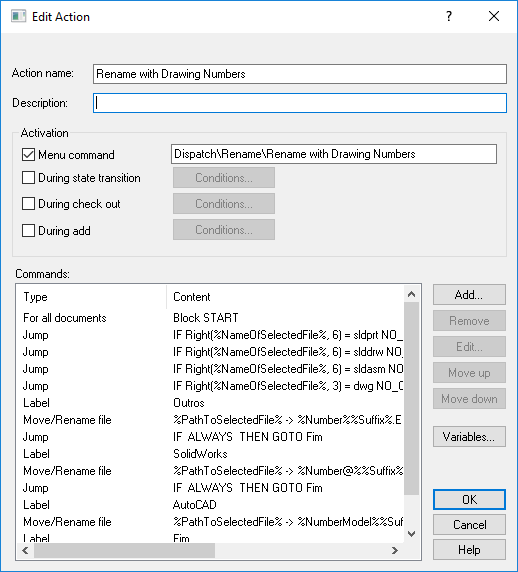
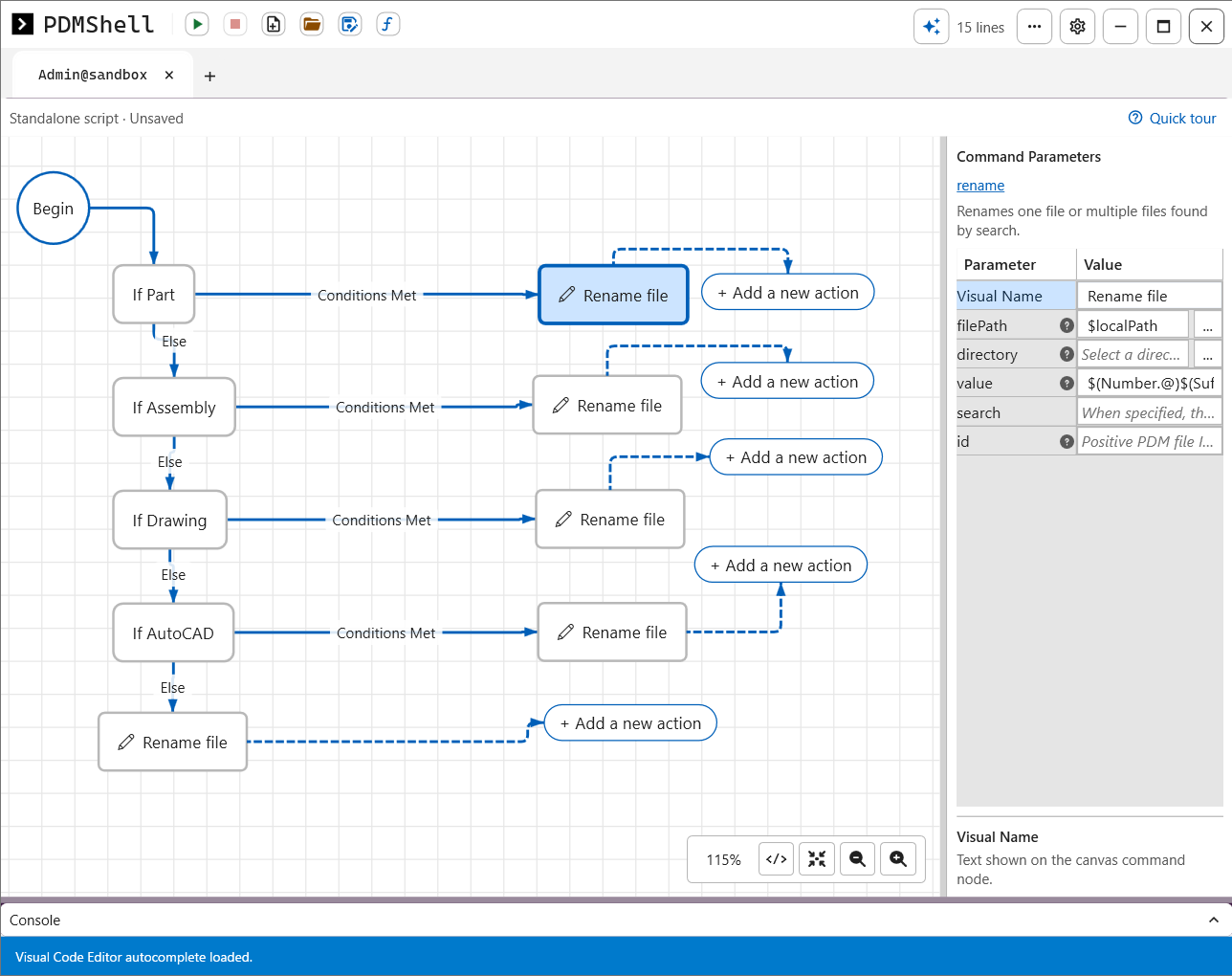
A Dispatch menu command that renames files to their drawing number, and the same action in PDMShell.
The script, line by line
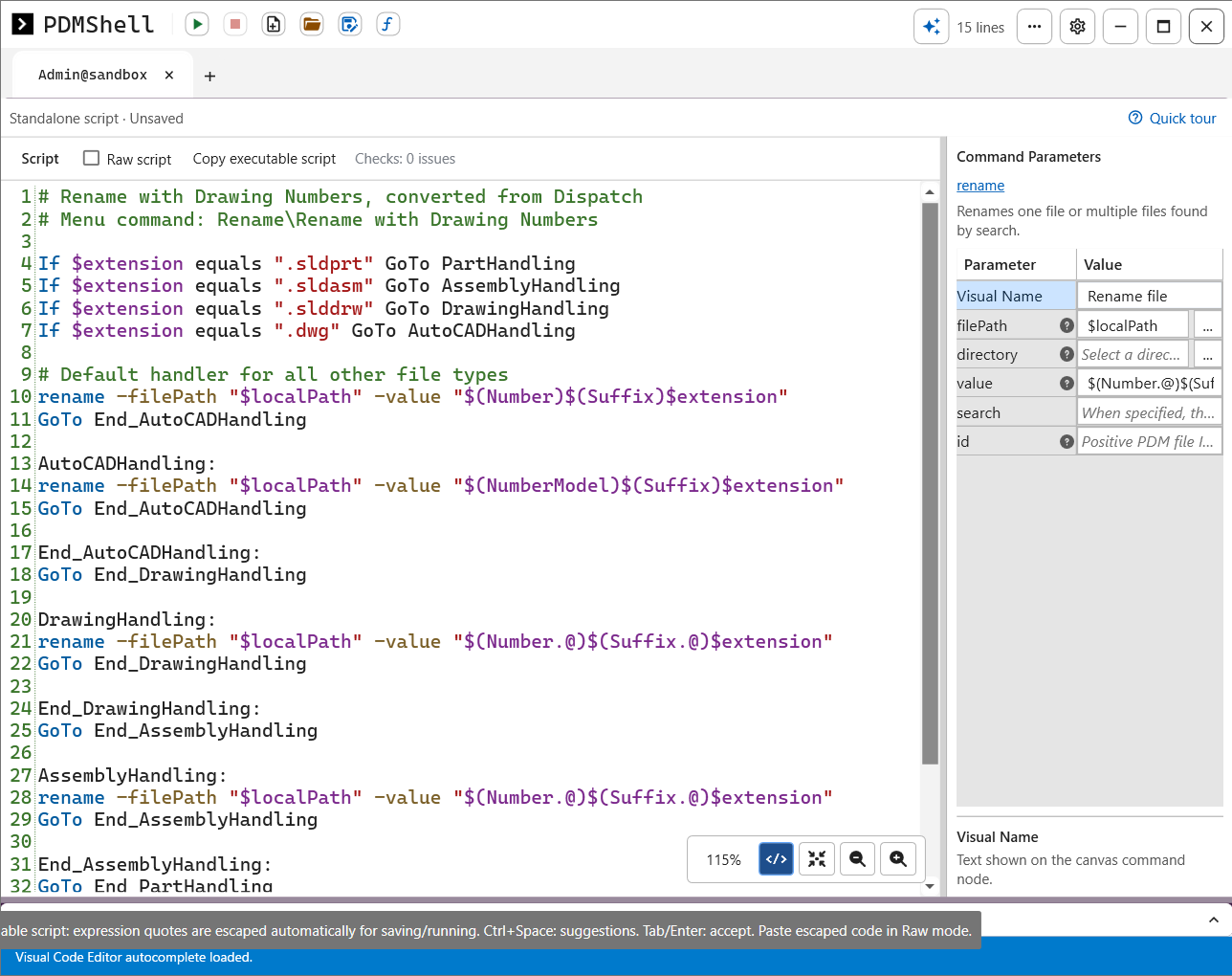
This is the code view of the converted action, with the same line numbers and colors as the PDMShell editor.
1# Rename with Drawing Numbers, converted from Dispatch
2# Menu command: Rename\Rename with Drawing Numbers
Comments
Lines that start with # are comments. PDMShell skips them, so you can note where the script came from and which menu command runs it. Dispatch had no place for notes like these.
4If $extension equals ".sldprt" GoTo PartHandling
5If $extension equals ".sldasm" GoTo AssemblyHandling
6If $extension equals ".slddrw" GoTo DrawingHandling
7If $extension equals ".dwg" GoTo AutoCADHandling
One If per file type
$extension is the extension of the file being renamed, dot included. Each line compares it with one file type and, when it matches, jumps to the label after GoTo. These four lines replace the four Jump rows that checked Right(%NameOfSelectedFile%, 6) in Dispatch.
9# Default handler for all other file types
10rename -filePath "$localPath" -value "$(Number)$(Suffix)$extension"
11GoTo End_AutoCADHandling
The default rename
No If matched, so this is a file type with no special rule. rename renames the file at $localPath, the file the user right-clicked. The new name is built from the data card: $(Number) and $(Suffix) are the values of the Number and Suffix variables, and $extension keeps the original extension. GoTo then skips the other handlers.
13AutoCADHandling:
14rename -filePath "$localPath" -value "$(NumberModel)$(Suffix)$extension"
15GoTo End_AutoCADHandling
AutoCAD files
Same rename, but AutoCAD drawings take their number from the NumberModel variable instead of Number.
17End_AutoCADHandling:
18GoTo End_DrawingHandling
Closing labels
The visual editor gives every branch a closing label, and each closing label jumps to the next one. Whichever branch ran, the script ends up at the last label and stops. This is the job the IF ALWAYS THEN GOTO Fim rows did in Dispatch.
20DrawingHandling:
21rename -filePath "$localPath" -value "$(Number.@)$(Suffix.@)$extension"
22GoTo End_DrawingHandling
SOLIDWORKS drawings
$(Number.@) and $(Suffix.@) read the variables from the @ configuration, the file level data card tab where SOLIDWORKS files keep their number. Other file types have no configurations, which is why the default rename reads $(Number) without one.
27AssemblyHandling:
28rename -filePath "$localPath" -value "$(Number.@)$(Suffix.@)$extension"
29GoTo End_AssemblyHandling
Assemblies
The same rule as drawings, kept as its own branch so it can change on its own later, for example to add a revision to assembly names only.
34PartHandling:
35rename -filePath "$localPath" -value "$(Number.@)$(Suffix.@)$extension"
36GoTo End_PartHandling
37
38End_PartHandling:
Parts, and the end
Parts get the same rename. End_PartHandling is the last label in the script, so every branch finishes here and PDMShell moves on to the next selected file.
Where your converted scripts run
Each one is set up the way it works best for your team.

Right-click menu and transitions
Most Dispatch actions come back as vault scripts run by the PDMShell add-in, on the File Explorer right-click menu or on a workflow transition, just like before.

PDM task
Heavy jobs such as batch renames or exports can run as a SOLIDWORKS PDM task on your task host, so the work happens in the background instead of on the user’s computer.

Standalone script
One-off clean-ups and scheduled jobs become scripts you run from the PDMShell app, by hand or with Windows Task Scheduler.
How the conversion works
Start a free trial
Try every PDMShell Premium feature for seven days, no credit card.
Send your Dispatch actions
Export them from the Administration tool and email them to us.
We convert and set them up
Same menu labels, triggers and permissions, tested with you on a few files.
Switch one action at a time
Dispatch and PDMShell run side by side, so nothing stops.
Questions
Is the conversion really part of the trial?
Yes. Send us your Dispatch actions while you try PDMShell and we convert them for you.
Can Dispatch and PDMShell run in the same vault?
Yes. Keep Dispatch running and switch off each action once its PDMShell version is approved.
Do our users have to learn anything new?
No. Commands keep their names on the right-click menu and their triggers on the workflow.
Read next
Send us your Dispatch actions
Start your free trial, email us the exported actions, and we convert them for you.