US$0.00
0

Category: BOM

Understanding the Flattened BOM View in SOLIDWORKS PDM 2024

Managing complex assemblies and tracking part usage across multiple levels of a product structure can be time-consuming. To simplify this, the new flattened BOM view in SOLIDWORKS PDM 2024 introduces a powerful way to display all components in a single consolidated list directly within the bill of materials tab in the PDM file explorer. What is the Flattened BOM View? The Flattened BOM view displays your product structure as a simple list of components, without indentation. Unlike indented or structured BOMs, this view focuses on showing each component only once, regardless of how many times or at what levels it appears in the assembly. Key Benefits Still Using an Older Version of PDM (Older than 2024)? If you’re working with older versions of SOLIDWORKS PDM that don’t support the Flattened BOM view, you can still achieve similar results using the PDM2Excel add-in. PDM2Excel: Flattened BOMs for Everyone PDM2Excel allows you to export a Flattened BOM with rolled-up quantities, even if your vault is running a pre-2024 version of SOLIDWORKS PDM. This makes it a valuable tool for teams that need up-to-date BOM exports without upgrading their entire PDM infrastructure. With PDM2Excel, you can: Whether you’re using the built-in tools in SOLIDWORKS PDM 2024 or leveraging PDM2Excel in earlier versions, Flattened BOMs can significantly improve how you analyze and share your bill of materials. For more information about PDM2Excel or help with upgrading your vault, reach out to Blue Byte Systems Inc.
Read More »

Don’t Export BOMs to CSV Files – SOLIDWORKS PDM

Say goodbye to the limitations and frustrations of exporting Bill of Materials (BOM) as plain CSV files from SOLIDWORKS PDM. With the powerful PDM2Excel, you can now export your BOMs directly into Excel using your own customized templates, complete with your company header and even thumbnails. This solution not only enhances the visual appeal of your BOM exports but also streamlines your workflow with greater flexibility and professionalism. Why Avoid Exporting BOMs to CSV Files? Don’t export BOMs to CSV files if you want to maintain a professional and visually structured document. CSV files, while simple and widely supported, often lead to a bland and unformatted presentation of your BOM data. They lack the ability to retain company branding, structured headers, or any graphical elements like thumbnails, which are essential for clear communication and professional documentation. Exporting BOMs as CSV files can result in extra manual work to reformat and organize the data in Excel, which is time-consuming and prone to errors. Export BOMs with Your Own Excel Template PDM2Excel is a task add-in for SOLIDWORKS PDM that enables you to export BOMs using a customized Excel template stored within your PDM vault. This means you can define your own headers, layout, and design, ensuring consistency with your company’s branding and documentation standards. How It Works Step-by-Step Guide to Exporting BOM to Excel Using PDM2Excel Stop settling for hideous CSV exports and elevate your BOM documentation with PDM2Excel. If you want a live demonstration or have questions about integrating this powerful tool into your workflow, feel free to reach out to BLUE BYTE SYSTEMS INC. through their website or LinkedIn. They offer personalized demos to help you get the most out of your SOLIDWORKS PDM experience: For more information and to schedule a demo, visit: PDM2Excel Demo and Q&A
Read More »

How to Configure the SOLIDWORKS PDM Bill of Materials for PDM2Excel

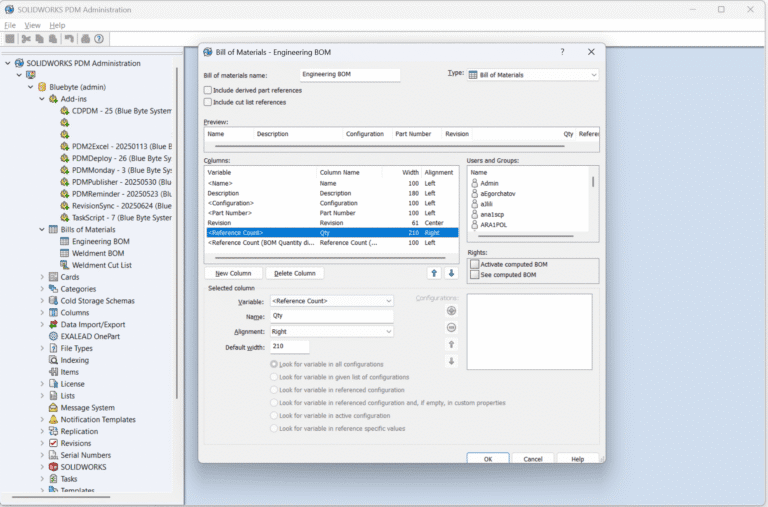
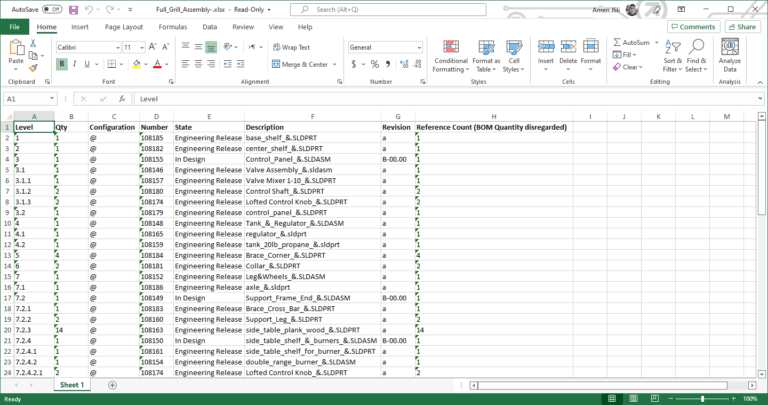
PDM2Excel is a task add-in for SOLIDWORKS PDM that allows you to automatically export Bills of Materials (BOMs) from PDM into formatted Excel files. It can be triggered manually or as part of a workflow, and it supports custom templates and computed columns. This guide explains how to configure the SOLIDWORKS PDM bill of materials for PDM2Excel so your BOM template works perfectly with the task. The goal is to ensure that the exported excel contains accurate quantities and expected metadata. Step 1: Create or Edit the BOM Template Open the SOLIDWORKS PDM Administration Tool and expand the “Bills of Materials” section. Double-click an existing BOM template, or right-click and select “New Bill of Materials” to create one. Name the BOM template appropriately (for example: Engineering BOM) and set the type to “Bill of Materials”. Ensure the following columns are included: Step 2: Use <Reference Count> for Quantity It is critical that the column used for quantity is <Reference Count>. This field shows the actual number of times a component is referenced in an assembly. Do not use “<Reference Count (BOM Quantity disregarded)>”, as that is meant for weldment cut lists and does not behave correctly in standard BOM exports. Step 3: Configure the Template in the PDM2Excel Task When creating or editing a PDM2Excel task in the Administration Tool, go to the Options tab and set the Template field to the BOM template you configured (e.g., Engineering BOM). This step is required. If no template is selected, the task will fail: Output In the output example below, we created a Parts Only Bill Of Materials with two quantity columns, one using <Reference Count> and the other using <Reference Count BOM Quantity disgarded> to illustrate the difference. Notice that <Reference Count> has the quantities rolled from the parent assemblies. For questions or assistance, contact Blue Byte Systems Inc. at amen@bluebyte.biz
Read More »

Top 5 reasons to start using PDM2Excel to start exporting PDM BOMs to Excel

Are you using SOLIDWORKS PDM Professional to manage your product’s CAD data, but still missing an essential part of your release process? While your vault tracks changes and updates the Bill of Materials (BOM) for every part, automating the export of that BOM to an Excel (.xlsx) file might still be a challenge. And of you are finally ready to start exporting PDM BOMs to Excel in a reliable, automated way, this approach can streamline the task and make it heppen automatically, without any extra steps. Automating SOLIDWORKS BOM to Excel Export with PDM Imagine being able to automatically export a customized Bill of Materials for a top-level assembly directly to a network drive—ready for your purchasing department or anyone else who needs it—right when you release that assembly. No manual exports, no extra clicks, just a seamless process from design to procurement. With the right tool, like PDM2Excel, you can automate the export of BOM data in a clean, professional Excel format that fits your workflow. Key Features Why Excel Exports Matter for Your SOLIDWORKS PDM Workflow Automatically exporting the BOM to an Excel format helps streamline communication between departments. For example, your purchasing team will always have access to the latest parts-only BOM, ensuring smooth procurement processes without the risk of outdated information. Additionally, automating this task means fewer manual steps in your release process, reducing errors and speeding up workflow. This level of automation is essential for teams that manage large product data sets and want to stay agile in their operations. Optimize Your Workflow with Thumbnails Another feature to consider in your workflow optimization is the use of thumbnails within your exported BOM. Including part thumbnails in your BOM files can help visualize components, improving clarity for teams unfamiliar with the design. This is especially beneficial for non-engineering departments, like procurement, that may need a quick reference for visual identification of parts. Supercharge Your SOLIDWORKS PDM Experience Whether you’re looking to automate the export of SOLIDWORKS BOMs, customize your Excel files, or integrate thumbnails for better clarity, PDM2Excel is the solution that makes it all happen. With PDM2Excel, you can: Take control of your SOLIDWORKS PDM process, reduce manual tasks, and ensure your Bill of Materials is always accurate, complete, and accessible. Optimize your workflow today with PDM2Excel.

Read More »
0
0
Your Cart
Your cart is emptyReturn to Shop