SolidWorks Programming Language: A Beginner’s Guide to C#, VBA & VB.NET
SOLIDWORKS API programming languages comparison – VBA, VB.NET and C#
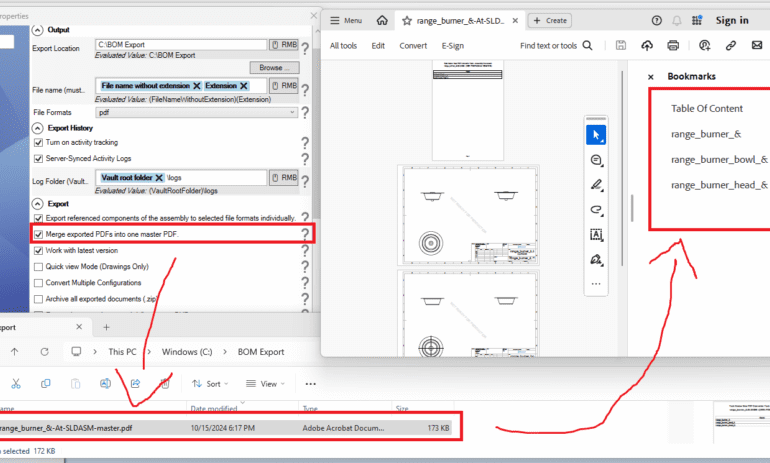
When utilizing PDMPublisher to merge PDFs from your PDM system, one standout feature of merging PDFs with PDMPublisher is the automatic addition of bookmarks to the merged document. These bookmarks act as quick links to each component inside the merged PDF, making navigation and overall usability far better for the end user. Unlike the default PDM Convert Task, which does not provide this bookmarking capability, PDMPublisher enhances your workflow by ensuring that users can easily access specific sections of the document without having to scroll through numerous pages. This functionality not only streamlines document management but also boosts efficiency, making PDM Publisher an invaluable tool for anyone working with large assemblies or detailed drawings.
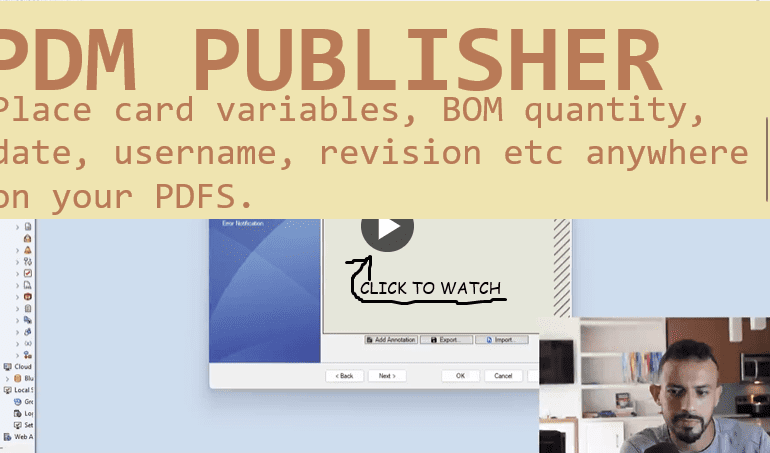
PDMPublisher is a powerful SOLIDWORKS PDM add-in that revolutionizes how you manage and print documents from your assemblies. One standout feature of PDM Publisher is its Annotations capability, which allows users to insert notes at specific locations in the printed PDFs. This functionality enhances the utility of the printed documents and provides a level of customization that is invaluable for engineers and designers. Enhancing PDF output with annotations and dynamic folder creation in PDMPublisher gives users even more control, ensuring printed files are organized and detailed exactly the way the project demands. Customizing Annotations With the Annotation feature, you can seamlessly mix static text with dynamic variables that evaluate to specific values from your PDM files. This means that your notes can contain real-time data, making your PDFs more informative and relevant. For example, you can include variables such as part names, revision numbers, and other essential details directly within the notes. This is particularly useful in collaborative environments where updated information is crucial. Evaluation Function Explained The evaluation process utilizes a dedicated method that parses a specified pattern and replaces designated placeholders with actual values. Here’s a breakdown of how it works: Available Options for Dynamic Variables The evaluation function supports several options that can be used in the annotation text: These options give you the flexibility to customize your annotations extensively, ensuring that all pertinent information is captured in your printed documents. Dynamic Output Path Creation In addition to annotations, PDM Publisher allows users to utilize special variables as part of the output path for saved documents. If the specified directory does not exist, PDM Publisher will automatically create it. This feature can be leveraged to organize your files systematically by using dynamic variables such as: By implementing these features, PDM Publisher enhances document management and workflow efficiency, providing a robust solution for engineering teams.
Exporting SOLIDWORKS parts and assemblies to the IGES (.igs) format is a common necessity for engineers and designers who need to share 3D models with clients, manufacturers, or collaborators using different CAD systems. However, many users encounter challenges when attempting to export to IGES using the built-in PDM Convert Task. In this article, we’ll explore why the PDM Convert Task falls short and how you can batch export SolidWorks assemblies to IGES using PDMPublisher as the optimal solution for exporting all sub-assemblies and parts, along with their configurations, in a seamless batch process. Why Export to IGES Format? The Initial Graphics Exchange Specification (IGES) is a widely accepted, neutral file format that facilitates the exchange of information among different CAD systems. Exporting to IGES ensures compatibility and preserves the integrity of your 3D models. Benefits of IGES Format Limitations of the PDM Convert Task The SOLIDWORKS PDM Convert Task is designed to automate file conversions, but it has significant limitations when exporting to IGES format. Key Limitations Impact on Productivity These limitations can significantly hinder productivity, forcing users to perform manual exports or seek alternative solutions, which may not be efficient for large projects. Introducing PDMPublisher: The Optimal Solution PDMPublisher is a powerful add-in for SOLIDWORKS PDM that overcomes the limitations of the standard Convert Task. It provides enhanced export capabilities, allowing you to export parts and assemblies to IGES format efficiently. Key Features of PDMPublisher Benefits of Using PDMPublisher for IGES Exports 1. Streamlined Workflow 2. Enhanced Compatibility 3. Improved Productivity 4. Seamless Integration How to Export to IGES Format Using PDMPublisher Step 1: Install PDMPublisher Step 2: Configure Export Settings Step 3: Select Files for Export Step 4: Initiate the Export Process Step 5: Verify Exported Files Conclusion Exporting SOLIDWORKS parts and assemblies to IGES format is essential for cross-platform collaboration and manufacturing processes. The limitations of the PDM Convert Task can hinder productivity and workflow efficiency. PDMPublisher simplifies this by allowing users to batch export SolidWorks assemblies to IGES using PDMPublisher, ensuring all sub-assemblies and configurations are accurately exported. By integrating PDMPublisher into your workflow, you can enhance productivity, reduce errors, and ensure seamless collaboration with partners and clients.
Tables are a powerful feature in SOLIDWORKS, allowing you to efficiently organize and display essential information such as Bill of Materials (BOMs), revision histories, hole data, and more. In this guide, we’ll explore the most commonly used SOLIDWORKS table types and how they can streamline your design workflow for better accuracy and productivity. What are SOLIDWORKS Tables? SOLIDWORKS tables are built-in features that allow users to manage, organize, and display design data in an easy-to-read format. They help with documenting product details, managing configurations, and reducing errors in the manufacturing process. Here’s a breakdown of the most popular table types in SOLIDWORKS and how they can enhance your design workflow. 1. Bill of Materials (BOM) Table The Bill of Materials (BOM) table is one of the most essential tools for assembly management in SOLIDWORKS. It lists all components, part numbers, quantities, and descriptions for a specific assembly. A well-organized BOM ensures all required parts are accounted for during the manufacturing process. Key Benefits 2. Revision Table Tracking changes is critical, especially in collaborative environments. A Revision Table helps you manage design updates by displaying details like revision number, date, and description of changes. This table ensures everyone is aware of the latest modifications, reducing the risk of miscommunication or outdated designs. Key Benefits: 3. General Table The General Table in SOLIDWORKS is highly customizable and can be used for any type of data you need to track or present. Unlike predefined tables like BOMs or revision tables, general tables allow you to structure and manage custom data efficiently. Key Benefits 4. Hole Table A Hole Table in SOLIDWORKS is a must-have for managing and documenting hole data in parts and assemblies. It provides detailed information such as hole size, type, and location, helping manufacturers accurately produce the part. Key Benefits: 5. Weldment Cut List Table For managing weldments, the Weldment Cut List Table is indispensable. It provides details such as material, length, and quantity for each structural member in a weldment. This table ensures accurate cutting and assembly, making it easier to manufacture complex structures. Key Benefits 6. Bend Table The Bend Table is specifically designed for sheet metal parts in SOLIDWORKS, helping you track and document bends. It includes important details like bend allowance, bend radius, and direction, ensuring precision during sheet metal fabrication. Key Benefits 7. Punch Table The Punch Table is another valuable tool for sheet metal parts. It lists all punch features along with their locations and dimensions, helping manufacturers ensure that punches are accurately placed during fabrication. Key Benefits 8. Weld Table The Weld Table documents all the welds in your design, providing critical information like bead size, length, and material. This table is essential for communicating welding requirements to fabricators. Key Benefits 9. Hole Callout Table The Hole Callout Table is specifically designed for providing clear, detailed callouts of hole features in a part or assembly. It ensures accurate communication of hole specifications to manufacturers. Key Benefits All of these SOLIDWORKS table types, including Bill of Materials (BOM), Revision Tables, and Design Tables, can be automated using the SOLIDWORKS API. By automating table creation and management, you can save time, reduce errors, and streamline your design process. If you’re looking to implement SOLIDWORKS table automation or need custom solutions for your design workflow, feel free to contact us at Blue Byte Systems Inc. Our team of experts is here to help you maximize the potential of the SOLIDWORKS API.