


US$0.00
0

Tag: bill of materials

What’s New in PDM2Excel 2025

PDM2Excel has become the go-to tool for companies looking to automate the export of Bills of Materials (BOMs) from SOLIDWORKS PDM into Excel spreadsheets. It streamlines workflows by reducing manual work, ensuring consistency across teams, and giving businesses a reliable way to format and distribute engineering data. With the 2025 release, and especially with the focus on what’s new in PDM2Excel 2025, the tool introduces several highly-requested improvements, simplifying setup, expanding export capabilities, and improving output customization. Key Features in 2025 1. No Need for a Document Manager API Key In earlier versions, administrators had to configure the Document Manager API license key before using PDM2Excel. 2. Create New Display States and Export in One Spreadsheet Engineers often need BOMs with different views or display states in one place. 3. Background Color Customization Presentation and readability matter when sharing BOMs with management or suppliers. 4. Weldment Quantity Aggregation For companies using weldments, handling quantities in BOMs has always been a challenge. Why These Updates Matter These changes aren’t just incremental — they reflect feedback from real-world engineering teams: PDM2Excel continues to evolve as the standard for PDM-to-Excel BOM automation, ensuring teams can spend less time exporting data and more time building products.

Read More »

Don’t Export BOMs to CSV Files – SOLIDWORKS PDM

Say goodbye to the limitations and frustrations of exporting Bill of Materials (BOM) as plain CSV files from SOLIDWORKS PDM. With the powerful PDM2Excel, you can now export your BOMs directly into Excel using your own customized templates, complete with your company header and even thumbnails. This solution not only enhances the visual appeal of your BOM exports but also streamlines your workflow with greater flexibility and professionalism. Why Avoid Exporting BOMs to CSV Files? Don’t export BOMs to CSV files if you want to maintain a professional and visually structured document. CSV files, while simple and widely supported, often lead to a bland and unformatted presentation of your BOM data. They lack the ability to retain company branding, structured headers, or any graphical elements like thumbnails, which are essential for clear communication and professional documentation. Exporting BOMs as CSV files can result in extra manual work to reformat and organize the data in Excel, which is time-consuming and prone to errors. Export BOMs with Your Own Excel Template PDM2Excel is a task add-in for SOLIDWORKS PDM that enables you to export BOMs using a customized Excel template stored within your PDM vault. This means you can define your own headers, layout, and design, ensuring consistency with your company’s branding and documentation standards. How It Works Step-by-Step Guide to Exporting BOM to Excel Using PDM2Excel Stop settling for hideous CSV exports and elevate your BOM documentation with PDM2Excel. If you want a live demonstration or have questions about integrating this powerful tool into your workflow, feel free to reach out to BLUE BYTE SYSTEMS INC. through their website or LinkedIn. They offer personalized demos to help you get the most out of your SOLIDWORKS PDM experience: For more information and to schedule a demo, visit: PDM2Excel Demo and Q&A
Read More »

How to Configure the SOLIDWORKS PDM Bill of Materials for PDM2Excel

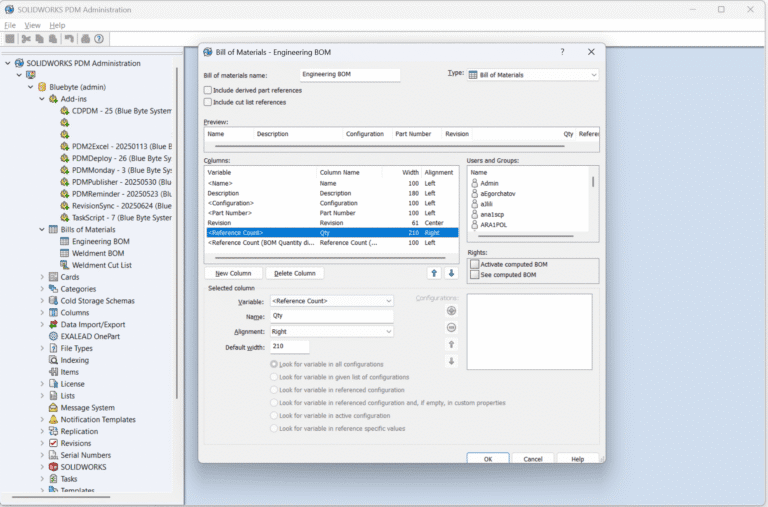
PDM2Excel is a task add-in for SOLIDWORKS PDM that allows you to automatically export Bills of Materials (BOMs) from PDM into formatted Excel files. It can be triggered manually or as part of a workflow, and it supports custom templates and computed columns. This guide explains how to configure the SOLIDWORKS PDM bill of materials for PDM2Excel so your BOM template works perfectly with the task. The goal is to ensure that the exported excel contains accurate quantities and expected metadata. Step 1: Create or Edit the BOM Template Open the SOLIDWORKS PDM Administration Tool and expand the “Bills of Materials” section. Double-click an existing BOM template, or right-click and select “New Bill of Materials” to create one. Name the BOM template appropriately (for example: Engineering BOM) and set the type to “Bill of Materials”. Ensure the following columns are included: Step 2: Use <Reference Count> for Quantity It is critical that the column used for quantity is <Reference Count>. This field shows the actual number of times a component is referenced in an assembly. Do not use “<Reference Count (BOM Quantity disregarded)>”, as that is meant for weldment cut lists and does not behave correctly in standard BOM exports. Step 3: Configure the Template in the PDM2Excel Task When creating or editing a PDM2Excel task in the Administration Tool, go to the Options tab and set the Template field to the BOM template you configured (e.g., Engineering BOM). This step is required. If no template is selected, the task will fail: Output In the output example below, we created a Parts Only Bill Of Materials with two quantity columns, one using <Reference Count> and the other using <Reference Count BOM Quantity disgarded> to illustrate the difference. Notice that <Reference Count> has the quantities rolled from the parent assemblies. For questions or assistance, contact Blue Byte Systems Inc. at amen@bluebyte.biz

Read More »
0
    0
    Your Cart
    Your cart is emptyReturn to Shop