
 USD
USD CAD
CAD EUR
EUR GBP
GBP AUD
AUD NZD
NZD CHF
CHF SEK
SEK NOK
NOK JPY
JPY CNY
CNY INR
INR SGD
SGD MXN
MXN BRL
BRL ZAR
ZAR KRW
KRWA darker workspace
Browse your folders and files against dark surfaces, with clear labels and distinct selections.
Meet ConisioDark. Bring a consistent dark theme to PDM Explorer, from your file list to your assembly details. Familiar tools. A calmer workspace.
30 day free trial, then from US$50 per user · ConisioDark.CAF · PDM 2024 SP0+
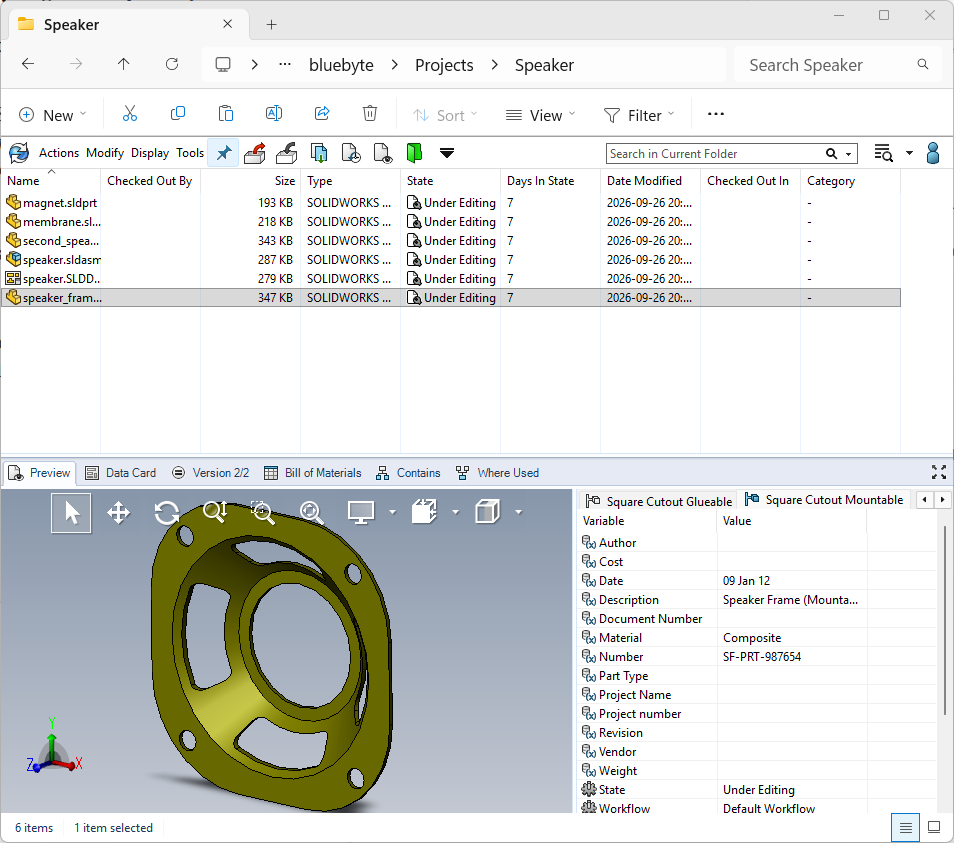
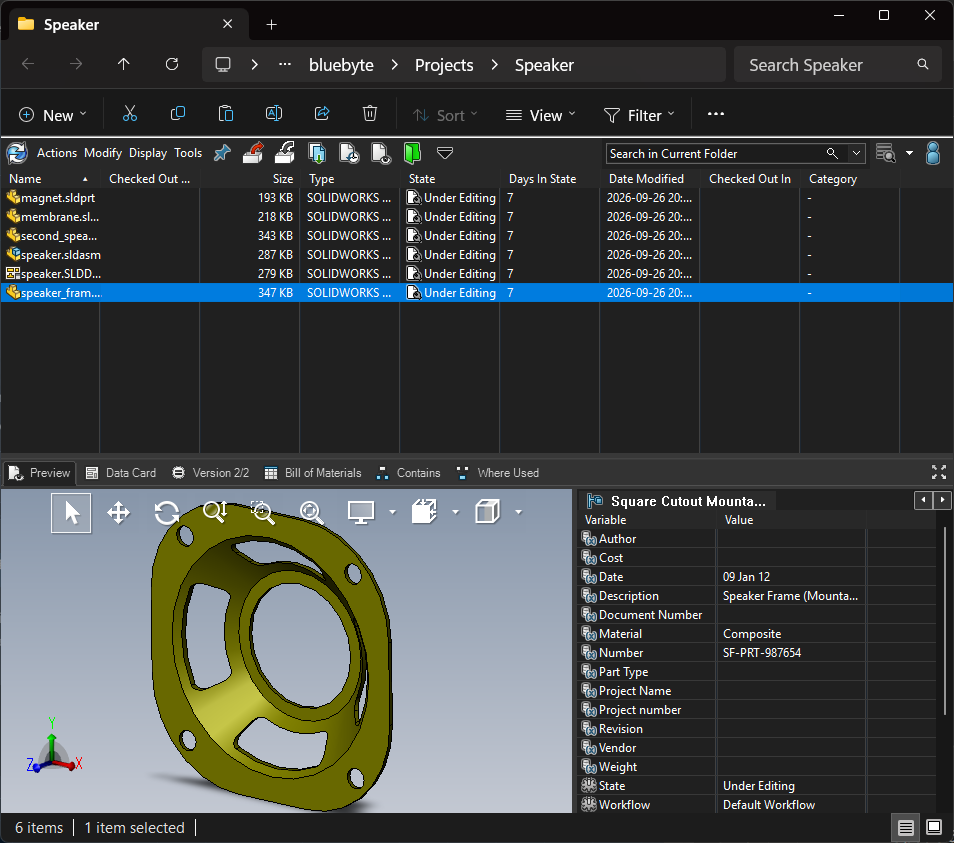
Drag the slider to compare
Keep the interface you know, with a dark appearance that brings your vault views together.
Browse your folders and files against dark surfaces, with clear labels and distinct selections.
Review file versions, bills of materials and assembly references in a consistent dark interface.
Move through familiar PDM Explorer views with the same files and information at your fingertips.
Take a closer look at ConisioDark in action. Select a view to explore the actual interface.
01 / 04
Browse your vault files, inspect a 3D preview and review file variables in the same PDM Explorer window.
Actual SOLIDWORKS PDM Explorer screenshots supplied by Blue Byte Systems. Click an image to enlarge.
Start with a 30 day free trial. When you are ready, buy one license per user as a yearly subscription or a perpetual license. Each license includes one key, and each key provides one seat in your vault.
Prices are shown in your selected currency. Applicable taxes are added at checkout. Set the quantity in the cart to the number of users.
Install the add-in, try it free for 30 days, then activate a license key for each user. Licenses are managed per vault from the PDM Administration tool.
Request the download below and add ConisioDark.CAF to your vault as a PDM add-in in the Administration tool. If your vault is managed by a PDM administrator, coordinate the installation with them.
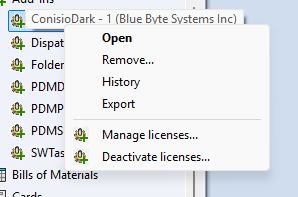
Each user right-clicks in PDM Explorer and opens the ConisioDark menu. Under Appearance on this computer, choose Enable dark mode, or Disable until I turn it on to switch it off.
The same menu shows the borrowed license, About, the EULA, and Pricing and activation.
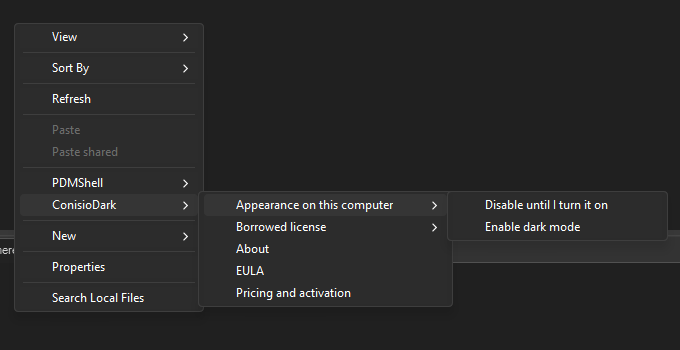
When your trial ends, buy one license per user. A PDM administrator right-clicks the ConisioDark add-in in the Administration tool, chooses Manage licenses and clicks Activate licenses. In the Plans and activation window, enter your keys under Already purchased?, one key per line, and click Activate licenses.
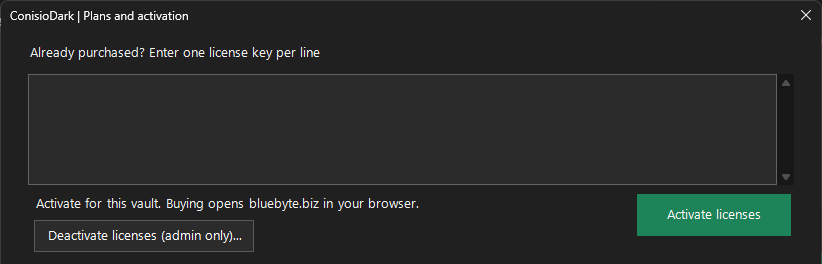
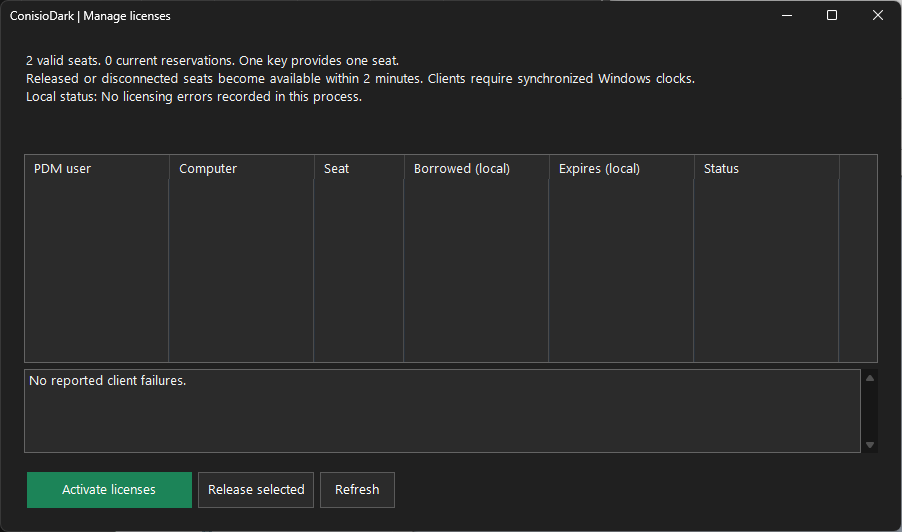
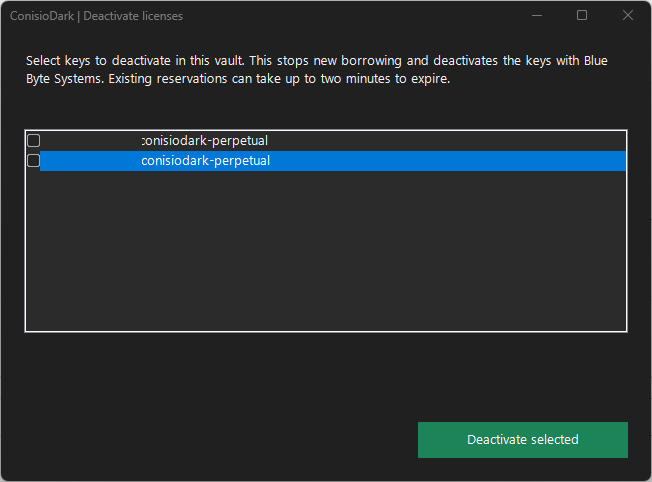
To move licenses to another vault or retire them, choose Deactivate licenses from the add-in menu in the Administration tool and select the keys. This stops new borrowing and deactivates the keys with Blue Byte Systems. Existing reservations can take up to two minutes to expire.
Get ConisioDark for SOLIDWORKS PDM Explorer and bring a new look to your everyday workspace.
Download ConisioDarkEnter your email below to receive the download link.
ConisioDark is a dark-theme add-in from Blue Byte Systems for SOLIDWORKS PDM Explorer, the interface used to browse and review files in your PDM vault.
ConisioDark is built for SOLIDWORKS PDM Explorer. The screenshots on this page show the vault interface where you browse files, view previews and review file information.
The add-in lists SOLIDWORKS PDM 2024 SP0 as its minimum required version. Check your installed PDM version before downloading.
You can try ConisioDark free for 30 days. After the trial, buy one license per user as a yearly subscription or a perpetual license, and activate the keys from Manage licenses in the PDM Administration tool.
Licenses are sold per user. Each license key provides one seat in your vault, and seats are managed from the ConisioDark add-in in the Administration tool. See the documentation above for activation and deactivation.
Use the form below to request the download link for the ConisioDark.CAF add-in package. If your vault is managed by a PDM administrator, coordinate installation with them.
Enter your email to receive the ConisioDark download link.
Where should we send your download link?
