


US$0.00
0

Category: SOLIDWORKSPDM

How to Safely Delete a Vault in SOLIDWORKS PDM (Step-by-Step)

Deleting a vault in SOLIDWORKS PDM is a destructive and irreversible operation. It removes the vault definition from the archive server and permanently deletes the associated database. This post walks through the correct order of operations, common prompts you’ll see, and the most frequent error that blocks vault removal.
Read More »

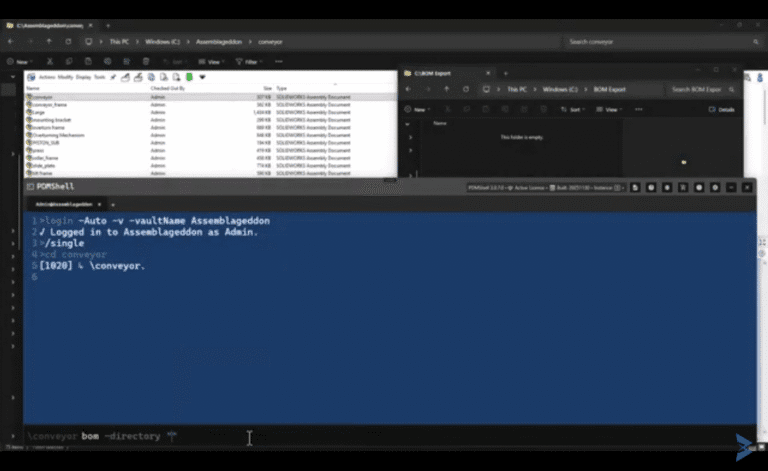
Automating Bill of Materials Extraction in SOLIDWORKS PDM Using the PDMShell BOM Command

Ride of the Valkyries Alert 🎼 — Don’t listen if you don’t enjoy Wagner. When you are managing complex assemblies inside SOLIDWORKS PDM, generating a bill of materials (BOM) is a routine task, but i’s also one of the most repetitive. This is exactly where the PDMShell BOM command becomes invaluable, eliminating manual exports and saving your from those small tasks quitely eat away engineering hours across large teams. PDMShell solves this problem with a simple but extremely powerful tool: the BOMCommand. The BOMCommand extracts a Bill of Materials directly from a SOLIDWORKS file in the PDM vault and exports it as a clean CSV file. It removes all manual steps by providing a scriptable way to generate BOMs using batch jobs, scheduled tasks, or command-line workflows. If you’ve ever needed fully automated downstream manufacturing data, ERP integrations, or repeatable export pipelines, this command is designed for exactly that.

Read More »

PowerShell PDMShell Search Command: Complete Guide for SOLIDWORKS PDM Administrators

PDMShell gives SOLIDWORKS PDM administrators the ability to run precise, scriptable, and automated operations across large sets of files, and the PowerShell PDMShell search command is at the center of that capability. One of its most powerful features is the unified search syntax unlocks a completely different level of control over your PDM vault. Consider the following search command: At first glance, it may appear complicated, but every element serves a clear purpose and is easy to understand once broken down. Name=%.sldprt This filter targets all part files (SLDPRT) using a wildcard pattern.The use of % allows flexible pattern matching, returning any file that ends with .sldprt regardless of prefix or naming convention. Recursive=true This instructs PDMShell to search not only the current folder, but all subfolders beneath it.This is especially important for large vaults, deep project structures, or multi-level assemblies. @Document Number~143 This uses a variable-based search.PDMShell looks up the PDM variable named “Document Number” and applies a contains (~) comparison against the value 143. Variable search supports all standard comparison operators, including equals, greater than, less than, contains, and more. What makes this system so powerful is that the same search filter can be passed into a wide range of PDMShell commands. You write the search once, and then apply it to whatever action you need to perform. Below are the PDMShell commands that fully support the -search parameter, along with direct documentation links: Version Control frogleap (increment, decrement, or manage versions)https://pdmshell.com/src/FROGLEAP.html Bulk Variable Updates setvar (update PDM variables in bulk)https://pdmshell.com/src/SETVAR.html File Removal delete (soft-delete matching files)https://pdmshell.com/src/DELETE.htmldestroy (permanently remove matching files)https://pdmshell.com/src/DESTORY.html Local Cache Retrieval get (retrieve files to local cache)https://pdmshell.com/src/GET.html Publishing and Exporting export (PDF, DXF, STEP, and custom publishing)https://pdmshell.com/src/export.html SOLIDWORKS Automation runswmacro (open SOLIDWORKS and execute a macro on each file)https://pdmshell.com/src/runswmacro.html File State Management checkouthttps://pdmshell.com/src/CHECKOUT.htmlcheckinhttps://pdmshell.com/src/CHECKIN.html If you would like more examples, additional documentation, or help building automated workflows, reach out anytime.

Read More »

A Practical Guide to the SOLIDWORKS PDM API in 2026

The SOLIDWORKS PDM API is one of the most capable developer tools in the SOLIDWORKS ecosystem. It is built as a Windows COM object library. This architecture provides very deep access to the vault, workflows, variables, and the entire PDM client environment. Many developers expect a modern HTTP interface similar to typical cloud APIs. The PDM API works differently. It is stateful, local, and tightly integrated with the Windows process that runs the PDM client. A good place to start with the SOLIDWORKS PDM API is the official documentation. Most API calls have examples in C#, VB.NET and VBA. A COM Object Model, Not a REST API Since the PDM API is COM-based, your application (If it is a .NET application) interacts with DLLs that are registered in Windows: From the context of VBA macros, the references are slightly different. When you install the PDM client, a reference called PDMWorks Enterprise XXXX Type Library is installed for you: There are no HTTP requests, no token-based authentication, no JSON data formats, and no web callbacks. You communicate directly with PDM using COM interfaces such as: IEdmVault5IEdmFile5IEdmFolder5 This gives developers immediate, high-performance access to metadata, folders, variables, references, and workflow information. Because the calls happen inside the PDM client session, they can respond instantly to events such as check-in, state change, add file, add folder, or card interactions. Which Programming Languages Work With the SOLIDWORKS PDM API Any language that supports COM interop can be used. The most common today are: Python can also be used, but only through external COM wrappers. Simple VBA Macro to Log Into a Vault Below is a simple VBA example that connects to a PDM Professional vault. This can be used inside a SOLIDWORKS macro or Excel macro. This is the most basic example but it shows how COM objects are created and used. PDM Convert Task PDM ships with the SOLIDWORKS Task Add-in. This add-in can be used to create tasks (Scripts that run on the user’s machine or delegated to other computers on the network). These tasks have scripting pages where administrators can add/edit the VBA logic of the task. These types of scripts are commonly used in PDM tasks that generate PDF, DXF, or STEP documents. Developing With C# in .NET Most modern PDM development is done in C#. To use the PDM API, reference the assemblies mentioned above. A simple C# example to log into a vault looks like this: From there, developers typically work with interfaces like: IEdmFolder5IEdmFile5IEdmBatchGetIEdmBatchUpdateIEdmEnumeratorVariable5 These provide almost complete access to files, references, variables, and metadata. Types of Applications You Can Build Developers use the PDM API to create many types of solutions. The most common categories are shown below. PDM Add InsRuns directly inside the PDM client. Best for deep automations like revision control logic, approval logic, or multi-file processing. A great example of this is our free column set customizer.PDM TasksAutomate file conversion, data extraction, printing, publishing, or scripted actions. Tasks run inside a controlled environment and support COM, .NET, and native add-ins. PDMPublisher, a Blue Byte Systems Inc product, is another example.Desktop UtilitiesStandalone EXE tools that use IEdmVault5 to log in and perform batch actions such as metadata cleanup or migration. Check out PDMShell: our data management solution inside of SOLIDWORKS PDM. Learn the PDM API in Three Days With Blue Byte Systems If you want to master the PDM API quickly, Blue Byte Systems offers a hands-on three-day training course that covers the full API stack. You learn how to build real add-ins, tasks, macros, workflow hooks, batch tools, and event-driven automations. The course walks you through live examples and real vault scenarios so you can apply everything immediately in your environment. If you or your team would like details, you can reach out directly at amen@bluebyte.biz

Read More »

Why “Class Not Registered” Happens When Loading SOLIDWORKS PDM Add-ins

If you have ever tried loading a PDM add-in and hit a confusing startup error, understanding why “class not registered” happens when loading SOLIDWORKS PDM add-ins is the first step to fixing it. This issue usually points to a broken or incomplete COM registration, often caused by mismatched permissions or missing system components. When a SOLIDWORKS PDM add-in fails to load with the message: Failed to load add-inReason: Class not registered the cause often isn’t the add-in code or COM registration itself: It’s the elevation context in which the host application runs. Windows isolates COM registrations between two different scopes: COM Registration Scope Registry Location Accessible When Per-User HKEY_CURRENT_USER\Software\Classes\CLSID The process runs non-elevated (normal user context). Per-Machine HKEY_LOCAL_MACHINE\Software\Classes\CLSID The process runs elevated (as Administrator) or system-wide. When you register your SOLIDWORKS PDM add-in (e.g. CardSync.dll) using regasm or the PDM Administration tool, it is normally stored under the current user’s profile (HKCU). However, if the host process like File Explorer, PDM Explorer, or even your test harness (Orca.Tests.exe – At Blue Byte Systems, we have developed our very own unit testing framework for add-ins), runs as Administrator, Windows will block access to any COM object registered per user. That’s exactly what the “Class not registered” dialog means. SOLIDWORKS PDM Explorer itself is not designed to run elevated. When your own executable or service is launched as Administrator, it now operates in a different COM security boundary and cannot see the user-level registration of your add-in. In the example of the screenshot above, I’m debugging inside Visual Studio (ADMIN) and launching my process from there. The moment Visual Studio is elevated, every child process (including your test harness) inherits that elevation, and therefore loses access to the per-user COM registry hive. Microsoft’s Official Explanation Applications that are run-elevated (whether manifested as RequireAdministrator or selected via Run as Administrator), as well as applications run from an Administrator account where UAC is disabled, cannot access any COM objects configured per-user. (Source: MSDN – “Manifestation” and Stack Overflow discussion) How to Fix or Avoid It Our Practical Advice If your application interacts with SOLIDWORKS PDM’s COM APIs, never run it as Administrator unless the add-in is registered per-machine.

Read More »

What’s New in PDM2Excel 2025

PDM2Excel has become the go-to tool for companies looking to automate the export of Bills of Materials (BOMs) from SOLIDWORKS PDM into Excel spreadsheets. It streamlines workflows by reducing manual work, ensuring consistency across teams, and giving businesses a reliable way to format and distribute engineering data. With the 2025 release, and especially with the focus on what’s new in PDM2Excel 2025, the tool introduces several highly-requested improvements, simplifying setup, expanding export capabilities, and improving output customization. Key Features in 2025 1. No Need for a Document Manager API Key In earlier versions, administrators had to configure the Document Manager API license key before using PDM2Excel. 2. Create New Display States and Export in One Spreadsheet Engineers often need BOMs with different views or display states in one place. 3. Background Color Customization Presentation and readability matter when sharing BOMs with management or suppliers. 4. Weldment Quantity Aggregation For companies using weldments, handling quantities in BOMs has always been a challenge. Why These Updates Matter These changes aren’t just incremental — they reflect feedback from real-world engineering teams: PDM2Excel continues to evolve as the standard for PDM-to-Excel BOM automation, ensuring teams can spend less time exporting data and more time building products.

Read More »
0
0
Your Cart
Your cart is emptyReturn to Shop