SOLIDWORKS task-pane add-in
Publish deliverables directly from SOLIDWORKS
PDMPublisher for SOLIDWORKS gives designers and engineers publishing and document utilities directly inside SOLIDWORKS. Open a drawing, part, or assembly, choose a reusable profile, and publish the deliverables your team needs without rebuilding the export steps by hand.
This version is built for interactive publishing from the active SOLIDWORKS session. Profiles store output locations, filename rules, formats, reference handling, drawing sheet behavior, annotations, conditions, and other publishing options.

Best fit
Use PDMPublisher for SOLIDWORKS when publishing should start from the document currently open in SOLIDWORKS and be controlled from the SOLIDWORKS CommandManager or Tools menu.
Different from the PDM task product
This version stores settings as reusable profiles. If publishing should be launched by SOLIDWORKS PDM Professional as a task, workflow action, or schedule, use the PDM task version instead.
Feature highlights
Reusable profiles
Create publishing profiles for customers, departments, release packages, supplier exports, or internal review workflows.
Feature guideActive-document publishing
Publish the open SOLIDWORKS drawing, part, or assembly and optionally process resolved references using the selected profile.
Feature guideBuilt-in logs
Use the Logs window to review publishing steps, generated files, warnings, and errors without leaving the SOLIDWORKS add-in.
Feature guideSave As New
Create a controlled copy of the active SOLIDWORKS document with reusable filename, destination, property, drawing, PDM, and post-save macro settings.
Feature guideClone Tree
Copy an assembly tree with per-file names and destinations, optional companion formats, PDM revision handling, Property Doctor processing, and ZIP output.
Feature guideProperty Doctor
Review and update document, configuration, and cut-list properties across the active document and its resolved references.
Feature guideBOM Manager
Configure default BOM columns, display type, grouping expressions, and condition-based component exclusions.
Feature guideERP Sync
Review and synchronize products, mapped properties, attachments, and manufacturing BOMs with ERPNext, Odoo, or a custom connector.
Feature guidePublisher Macros
Run supported PDMPublisher commands from SOLIDWORKS VBA macros using editable examples and saved utility profiles.
Feature guide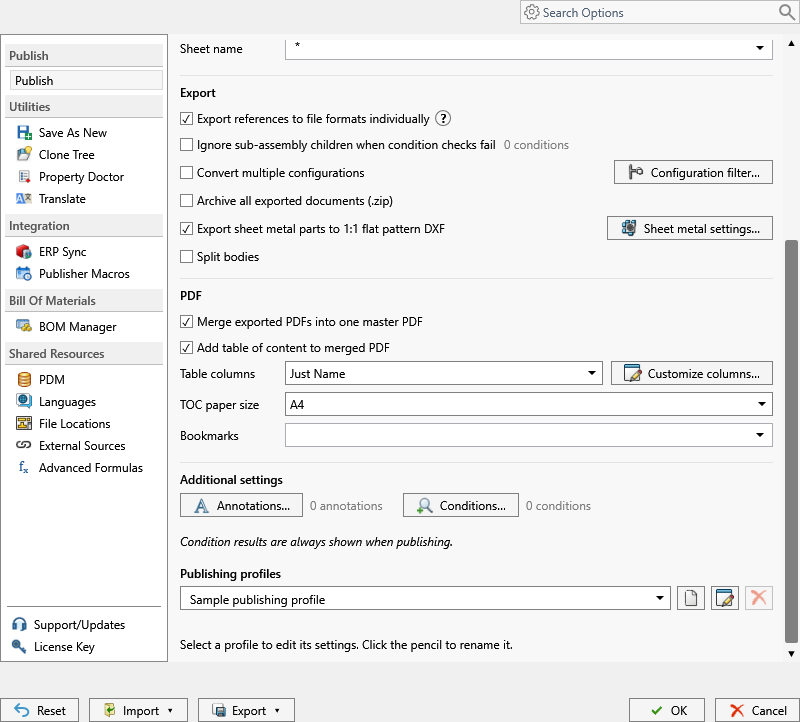
Profiles and presets
Save, load, edit, and share profile sections so common publishing jobs stay consistent across users.
Feature guide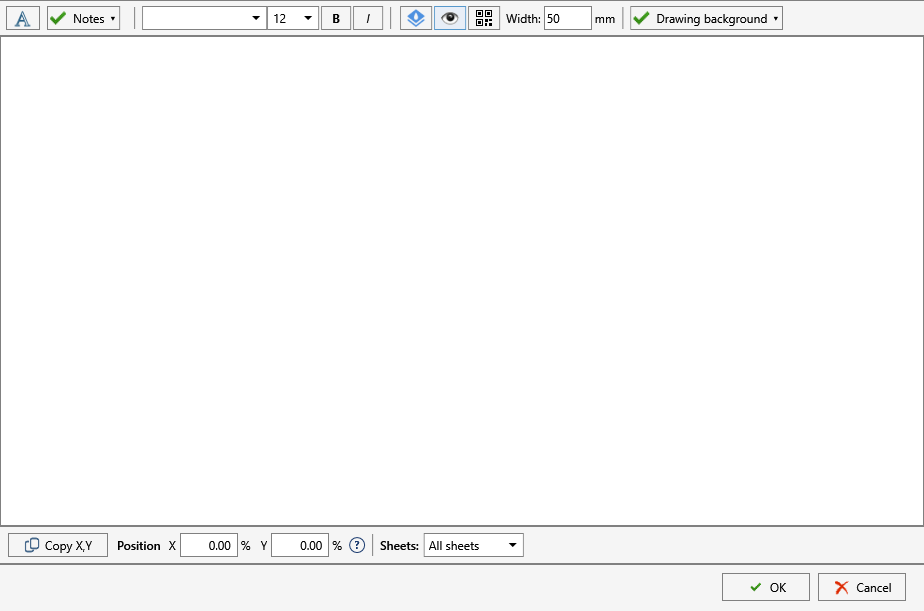
Annotations and output control
Add watermarks, QR codes, custom properties, formatted text, and controlled drawing sheet output to published deliverables.
Feature guide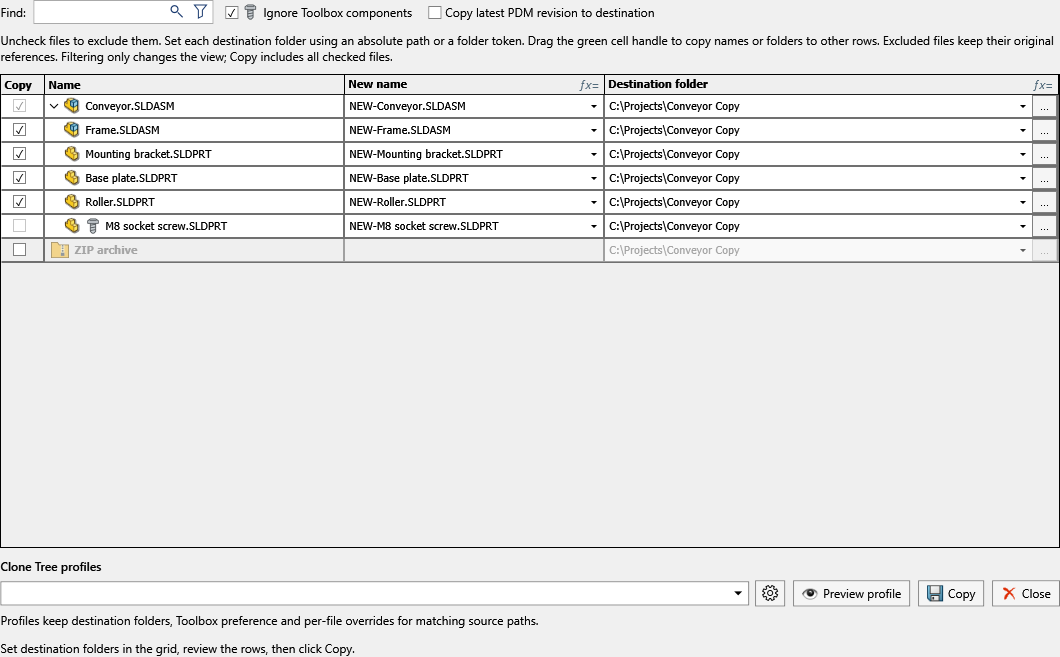
Clone complete document trees
Plan names and destinations for every included file before copying, while keeping SOLIDWORKS references connected to the new documents.
Feature guide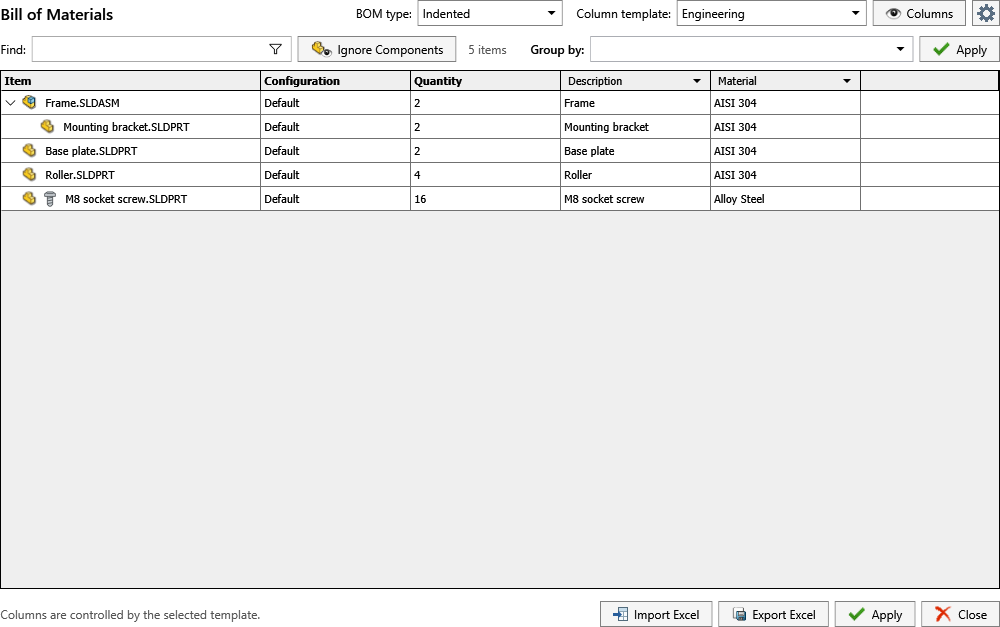
Review and standardize BOM data
Review the assembly hierarchy and quantities, choose property columns, find and group rows, ignore components, and exchange BOM data with Excel.
Feature guideMain add-in workflows
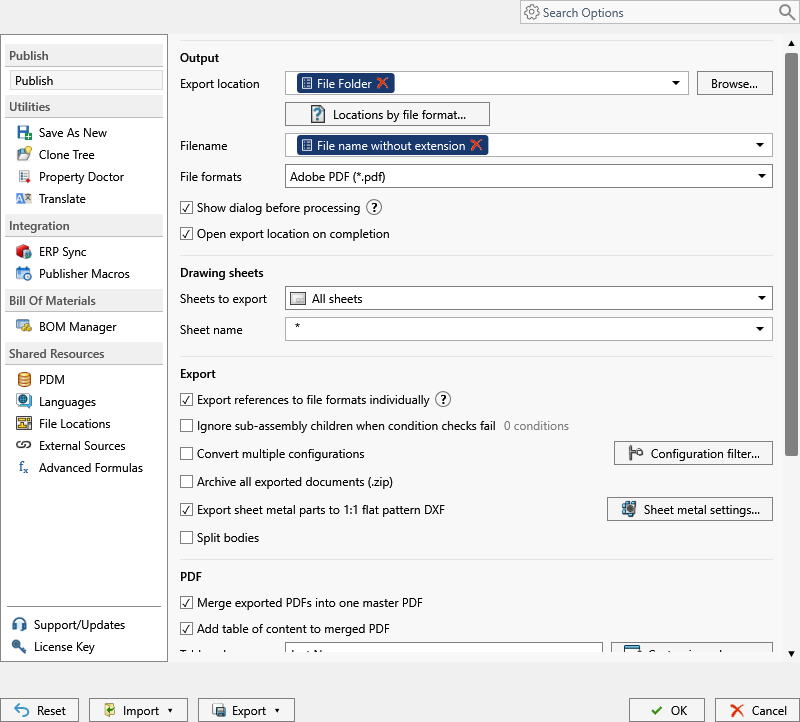
Configure the publish job
Set formats, export locations, filename rules, reference processing, drawing sheet behavior, configurations, flat patterns, merged PDFs, bookmarks, and package options.
Open tab guide
Add production-ready marks
Apply formatted text, custom properties, watermarks, QR codes, and repeatable annotation layouts to exported drawings and PDFs.
Open tab guide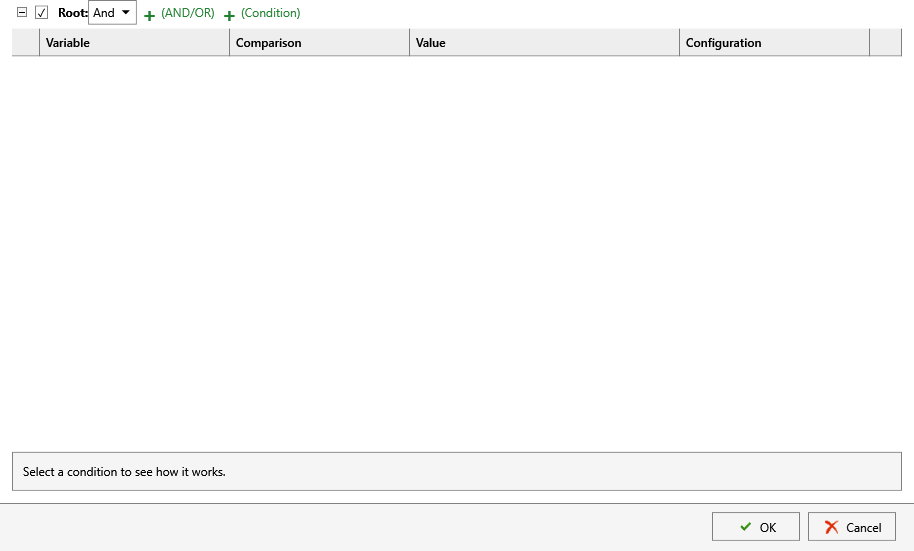
Control what gets included
Build property-based rules with groups and logic so the active document and references are included, skipped, or reviewed before export.
Open tab guide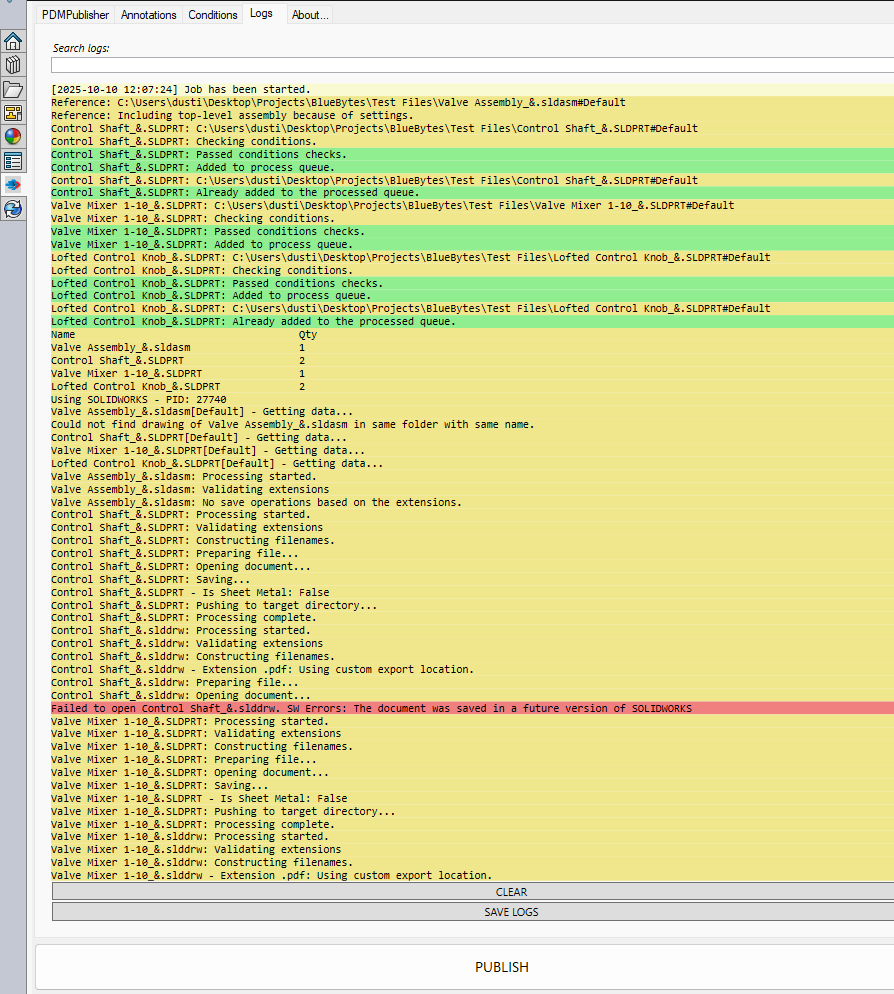
Review every publish result
Check generated files, skipped items, warnings, errors, condition decisions, and processing details from the current SOLIDWORKS session.
Open tab guide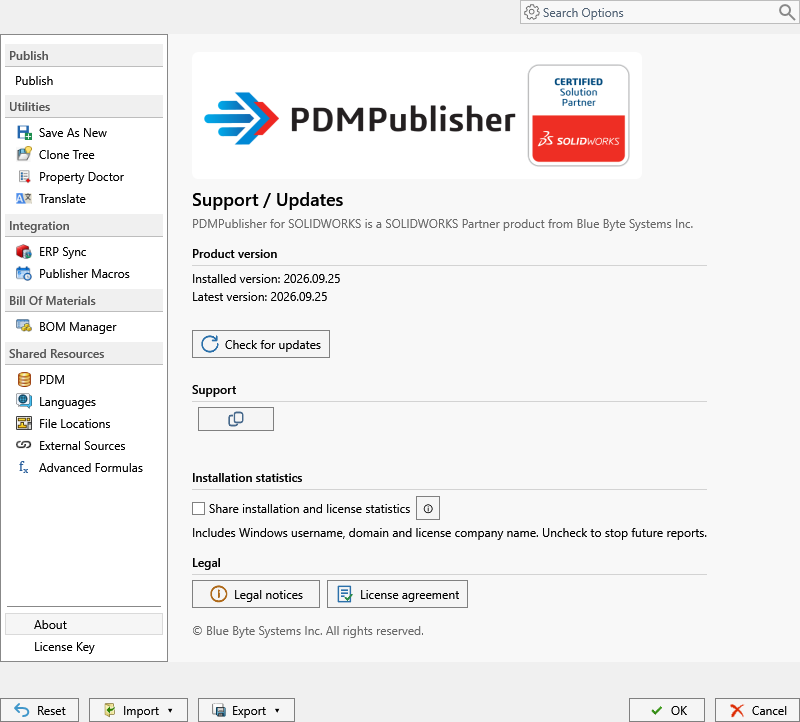
Manage version and appearance
See the installed version, licensing and update links, and appearance options for working comfortably inside SOLIDWORKS.
Open tab guideCapabilities included
Profile-based publishing
Save complete publishing setups for different jobs, customers, departments, suppliers, and release package types.
Feature guideBuilt-in starter presets
Start from common DXF, STEP, or PDF and STEP profiles, then customize the setup for your own standards.
Feature guideProfile sharing
Share selected profile sections with other users by file transfer or PIN-based profile sharing where available.
Feature guideMany export formats
Create PDF, 3D PDF, DXF, DWG, STEP, IGES, STL, Parasolid, ACIS, eDrawings, images, and other supported outputs.
Feature guideDrawing sheet control
Export all sheets or only sheets matching naming patterns, with controlled sheet-name output for published files.
Feature guideConfiguration export
Publish multiple part and assembly configurations, include configuration names in filenames, and filter configurations by pattern.
Feature guideReference processing
Process the active assembly and its resolved references so model packages can include the files downstream teams expect.
Feature guideFlat-pattern DXF
Export 1:1 sheet-metal flat patterns with bend lines, sketches, bounding boxes, forming tools, and filename collision protection.
Feature guideSplit-body output
Support manufacturing workflows that need separate outputs for bodies, configurations, or derived model deliverables.
Feature guidePDF packages
Merge exported PDFs, add a table of contents, include PDF bookmarks, and prepare cleaner review or release packages.
Feature guideAnnotations and watermarks
Add custom text, SOLIDWORKS properties, watermarks, QR codes, and formatted annotations to drawings and PDFs.
Feature guideConditional publishing
Use condition groups to include or skip files based on properties and publishing rules before outputs are created.
Feature guideCustom filenames
Build file names from document properties, configuration names, sheet names, revisions, dates, and other placeholders.
Feature guideFlexible export locations
Publish to local folders, network paths, PDM folders, or format-specific destinations for PDFs, DXFs, STEP files, and more.
Feature guideZIP archives
Create a single ZIP package of exported documents for suppliers, review workflows, release bundles, or customer handoff.
Feature guideOpen export folder
Jump directly to the generated output folder after publishing so users can review, send, or package files faster.
Feature guideDetailed job logs
Review successful exports, warnings, errors, skipped files, and processing details from the built-in Logs window.
Feature guideCommon publishing workflows
- Create a supplier package with PDF drawings, STEP models, and a ZIP archive from the active assembly.
- Export manufacturing DXFs from sheet-metal parts using 1:1 flat patterns, bend lines, and controlled file names.
- Publish drawing PDFs with watermarks, QR codes, custom properties, selected sheets, bookmarks, and a table of contents.
- Generate separate deliverables for multiple configurations while filtering out configurations that should not be released.
- Maintain separate profiles for prototype, released, customer, fabrication, and purchasing output packages.
- Create a renamed copy of a part, assembly, or drawing with Save As New while carrying its associated drawing and applying property cleanup.
- Clone a complete assembly tree into a new project structure and optionally package companion PDF, DXF, or STEP files in a ZIP archive.
- Review and normalize custom properties across an assembly with Property Doctor before publishing or copying it.
- Standardize BOM columns, hierarchy, grouping, and component exclusions with BOM Manager.
- Push reviewed products, mapped properties, attachments, and manufacturing BOMs to ERPNext or Odoo, and review proposed property changes before Pull writes to SOLIDWORKS.
- Automate supported Save As New, Property Doctor, Clone Tree, and ERP Sync workflows through Publisher Macros.
Integrations, automation, and shared resources
PDMPublisher extends beyond file export with reviewed ERP synchronization, macro automation, reusable formulas, shared data sources, drawing discovery, PDM-aware operations, and portable settings.
ERPNext connector
Configure an official connector for reviewed item, property, file, and manufacturing BOM synchronization with ERPNext.
Connector guideOdoo connector
Connect through an Odoo API key, map SOLIDWORKS properties, upload files, and synchronize reviewed products and manufacturing BOMs.
Connector guideCustom ERP connectors
Build a .NET connector with PDMPublisher.ERPExtension.dll, implement the connector interfaces, package it, and test it in ERP Sync.
Developer guidePublisher Macros
Edit and run VBA examples that obtain the add-in through GetAddInObject and call supported commands with saved profiles.
Automation guidePDM-aware operations
Select a local PDM vault view for serial numbers, vault-root placeholders, automatic check-in, and supported PDM-aware tools.
Settings guideDrawing discovery
Search configured drawing folders, subfolders, and SOLIDWORKS referenced-document locations for matching drawings used by document utilities.
Settings guideExternal SQL sources
Define reusable SQL Server connections and queries for supported dropdowns, tests, formulas, and property-driven workflows.
Settings guideAdvanced formulas
Create named formulas once and reuse them for filenames, folders, properties, and other supported PDMPublisher values.
Formula guideImport, export, and reset
Move supported settings between computers, preserve reusable configurations, or reset a section when rebuilding a setup.
Settings guideLanguage and regional formatting
Select the shared display language and Canadian regional formatting used by PDMPublisher on the current computer.
Settings guideCommunity and Premium editions
Review the included Community capabilities and the limits or additional workflows unlocked by a Premium license.
Compare editionsLicense management
Activate, review, and manage the license used by the SOLIDWORKS Add-in, with direct access to support and update resources.
License guideTranslate appears in the interface as a planned feature and is not presented here as an available production capability.
Why teams use it
Engineering teams often need the same outputs again and again: a PDF for review, a DXF for sheet metal, a STEP file for a supplier, or a drawing package for manufacturing. PDMPublisher for SOLIDWORKS turns those repeated export routines into profile-based actions that are easier to run and easier to standardize.
The result is less manual saving, fewer missed configurations or sheets, and a cleaner handoff from design work to the teams that depend on accurate published files.
Need automated publishing from SOLIDWORKS PDM Professional instead? See PDMPublisher for SOLIDWORKS PDM.