USD
USD CAD
CAD EUR
EUR GBP
GBP AUD
AUD NZD
NZD CHF
CHF SEK
SEK NOK
NOK JPY
JPY CNY
CNY INR
INR SGD
SGD MXN
MXN BRL
BRL ZAR
ZAR KRW
KRW
Need to start SOLIDWORKS in a specific set of behaviors or modes? Well… You can with the SOLIDWORKS command line arguments via the sldworks.exe program. Use the arguments as special instructions you pass to SOLIDWORKS just before it launches, telling it exactly how you’d like for it to behave.
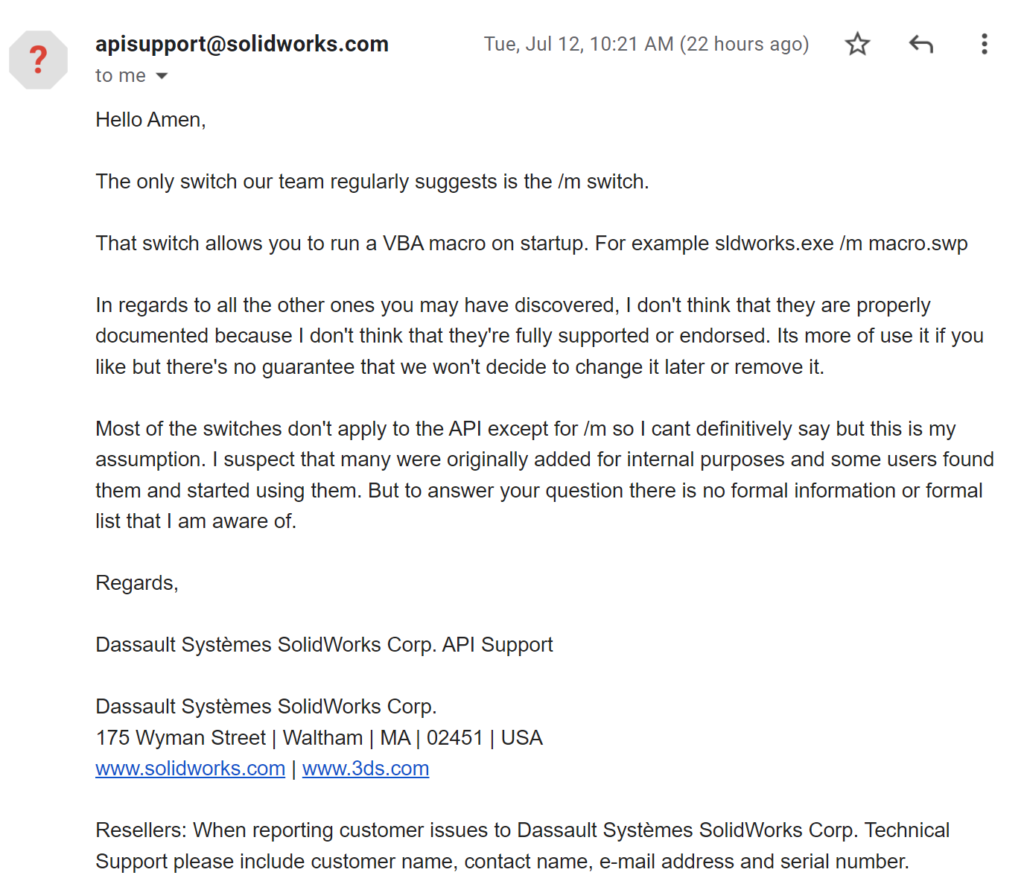
These arguments don’t always get properly documented, but a decent spot to search for them is in this cadoverflow thread. Warning: they are case-sensitive, so make sure to use the exact capitalization provided.
How to Launch SOLIDWORKS with Arguments?
It’s quite straightforward. Here are the step-by-step instructions:
- Open the Command Prompt (CMD).
- Navigate to the SOLIDWORKS installation folder. This is done by typing CD followed by the path in double quotes, like this: CD “C:\Program Files\SOLIDWORKS Corp\SOLIDWORKS”.
- Type the sldworks.exe command followed by the desired argument. For example, to use the /r argument, type: sldworks.exe /r.
sldworks.exe /rUseful SOLIDWORKS Command Line Arguments
Over the years, several of these arguments have proven to be quite handy. Here are some of them:
/r
This is a good case for hiding some dialog boxes, especially the ones of the MsgBox type. It can eliminate intrusive pop-ups caused by SldWorks.SendToMsgToUser2 and SldWorks.SendToMsgUser, like the journal warning you get when you have more than one running. This keeps the workflow flowing smoothly without interruption.

/m
Used to run a macro (.swp). A great feature is that it loads the application without the splash screen, which makes the startup faster.
/b
This switch runs SOLIDWORKS in batch mode. It’s convenient for some tasks, but be careful because it opens in a very small window. That can be inconvenient for API calls that require a user interface, like ZoomToFit2, so use it only when those specific features aren’t required.
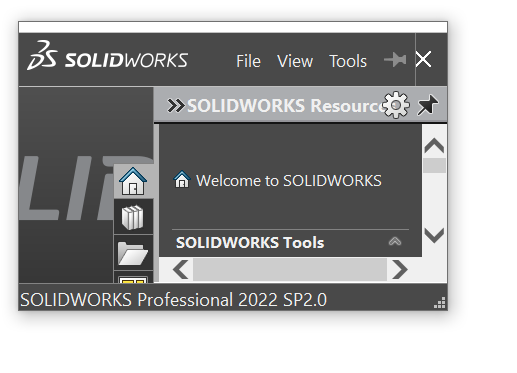
/d
Programmers will want this argument to begin SOLIDWORKS in developer mode and add an additional menu with additional features.
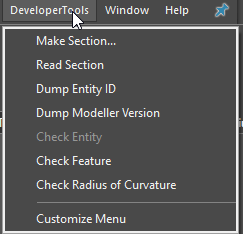
/swlite
Do not have to open a model in order to view it? This argument opens SOLIDWORKS in read-only mode. It comes in handy when you are viewing a model and do not want to accidentally change it. Just note that the close window icon (x) is not available with this argument.
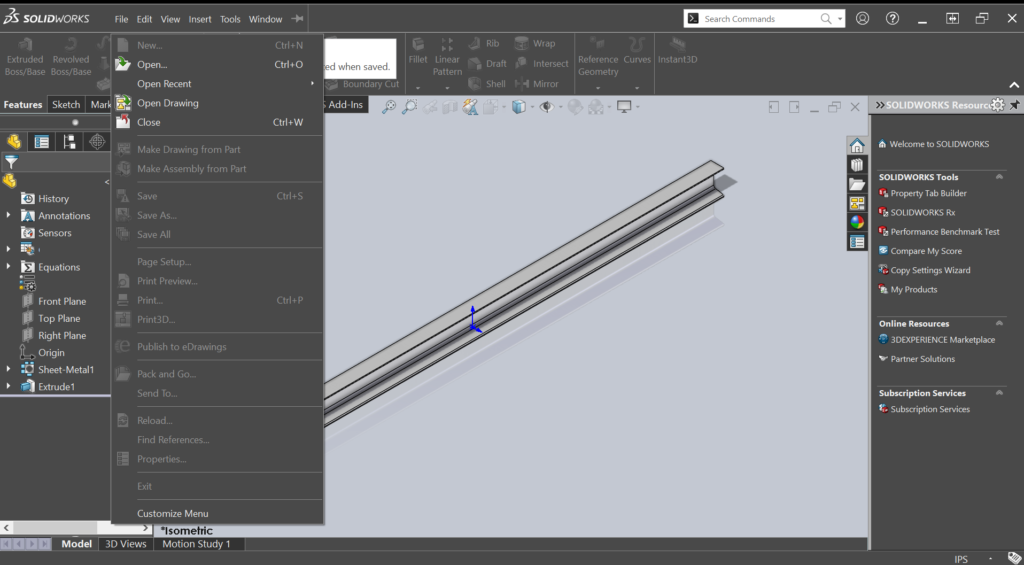
/SWGenericMainWinTitle
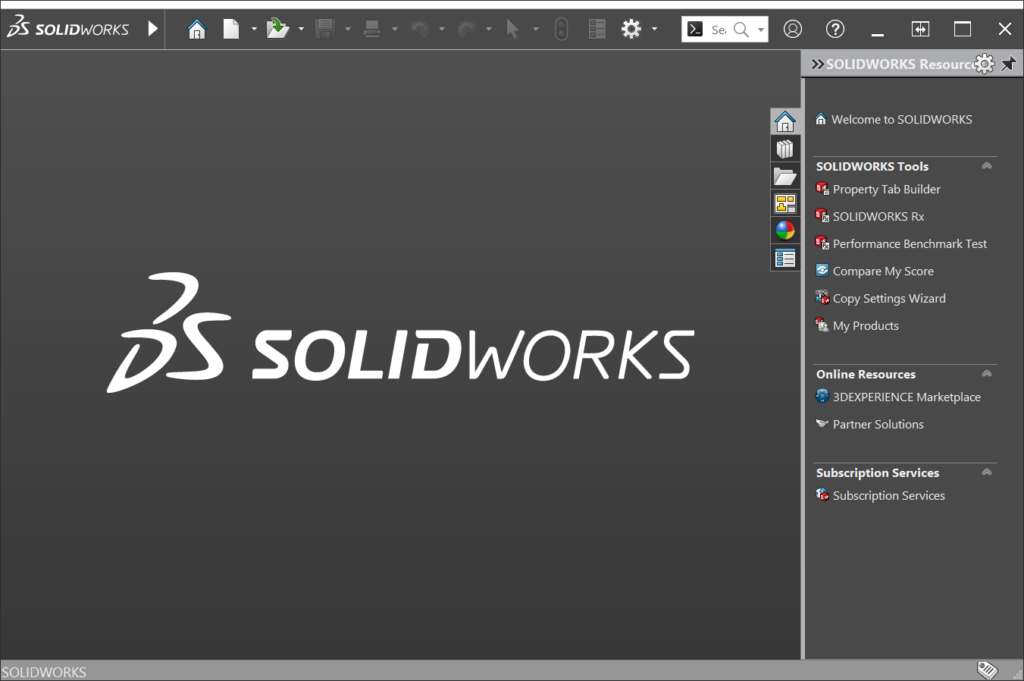
This is a cosmetic tweak and is useful. It does not place the year in the DS SOLIDWORKS logo in the sldworks.exe process, which makes it look more generic.
/SWDisableExitApp
This command can be used to avoid the crash window. It is useful when debugging, and you do not want the crash report pop-up window to interrupt your work.
A fair heads up: These are not officially documented or approved by the SOLIDWORKS API team, so use with caution.
Finally, even though the SOLIDWORKS command line arguments are not supported officially, they offer a potent way to customize how you launch the application. With the sldworks.exe file and these commands, you can streamline your workflow, automate tasks, and access undocumented functions. Fiddling around with these arguments can help you unlock a more streamlined and customized SOLIDWORKS experience.