


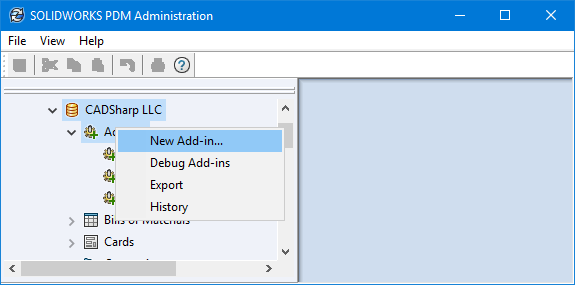
If you’re deploying a SolidWorks add-in to a PDM Professional vault, it’d be natural to run into some common errors. Solution? You’re at the right spot! This is a compiled list of the most common SolidWorks PDM errors you may encounter while deploying add-ins to a SolidWorks PDM Professional vault. And, you’ll also find proposed solutions for each of these errors.
Error 1: The DLL is not a COM module
This error is quite straightforward. The class that implements the IEdmAddIn5 interface must be COM visible. The best way to expose a .NET class as COM visible is as follows:

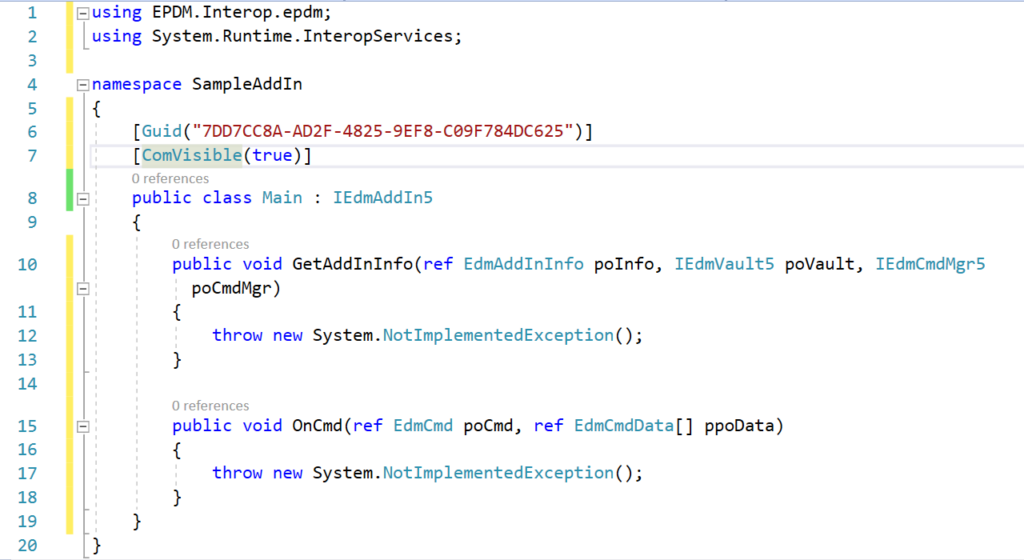
Making a .NET Class COM Visible in Visual Studio
You can achieve the same result without using the ComVisible attribute and instead right-clicking on the active project > Properties > Application > Assembly Information… and then checking the box to make the assembly COM-Visible. However, this approach has the unintended consequence of making all public classes COM-Visible, which is not recommended for larger projects.

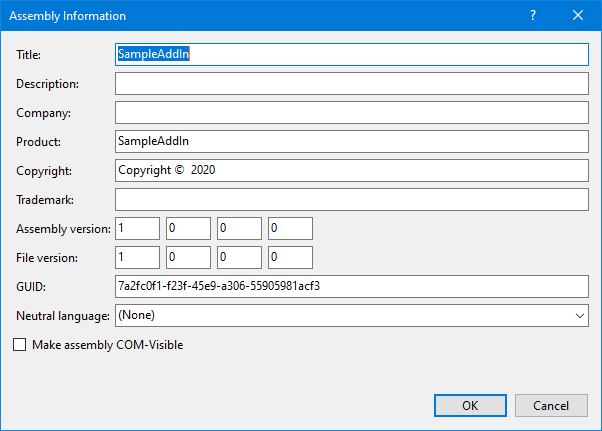
Error 2: Please select at least one DLL implementing the IEdmAddIn5 Interface
Every add-in must have a class that implements the IEdmAddIn5 interface. When your vault fails to find a class that implements IEdmAddIn5, this error message is displayed to the user.
Since the IEdmAddIn5::GetAddInInfo method gets invoked when you add the SolidWorks add-in to the vault, this error is unfortunately an umbrella for any unhandled exceptions thrown within the scope of IEdmAddIn5::GetAddInInfo.
Best Practice: As a rule of thumb, always wrap the implementation of IEdmAddIn5::GetAddInInfo in a try-catch block. Handle thrown exceptions properly by logging them and/or showing a message box to the user installing the add-in.
When logging exceptions, use Exception.InnerException to log all inner exceptions. The innermost exception can sometimes provide a more meaningful explanation of the root cause of the outermost exception.

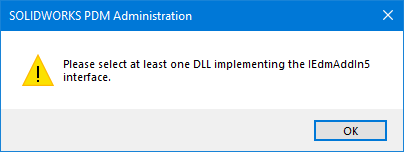
As a rule of thumb, always wrap IEdmAddIn5::GetAddInInfo‘s implementation in a try-catch block and handle thrown exceptions properly by logging them and/or showing a message box to the user installing the add-in.
Error 3: The add-in ‘<Path>’ cannot be installed since it returned an invalid required version SOLIDWORKS PDM version from its GetAddInInfo Method
This error is already a self-explanatory one. The specified version in the EdmAddInInfo parameter of the IEdmAddInInfo::GetAddInInfo method has a major and/or minor version that is lower than the hosting SOLIDWORKS PDM Professional vault’s version. The only way to fix this is to make sure that the minimum version specified in your code is either equal to or higher than that of the target PDM vault. This is a crucial step to remember in any SOLIDWORKS PDM upgrade guide.
Error 4: The archive server could not open the Windows Registry

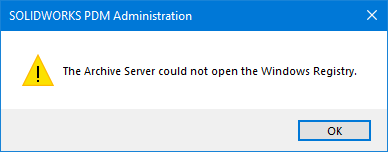
You might encounter this error if you’ve copied or downloaded the API add-in DLL files from another computer. The Windows security policy might “block” the DLLs for security purposes on some systems. In that scenario, you’ll find-
Error Message: “The archive server could not open the Windows Registry”
Solution: To add these add-in DLLs to the vault, you must first unblock them. Follow these steps accordingly:
- In Windows Explorer, right-click the DLL file and select Properties.
- Select the General tab.
- If the file is blocked, you’ll encounter a warning message stating: “The file came from another computer and might be blocked to help protect this computer.”
- Confirm that the file originates from a trusted source, and then click Unblock.
- Click OK to close the properties dialog box.
- Repeat these steps for any additional DLL files that were copied or downloaded from the same source.
Be on the lookout, since this error is common for SOLIDWORKS EPDM migrations too. For an in-depth walkthrough of this process, you can refer to the SOLIDWORKS PDM upgrade guide, as you might face similar issues during updates.
Error 5: You do not have permission to use this tool. Please ask the system administrator to grant you permission if you feel that you should be able to use the tool.

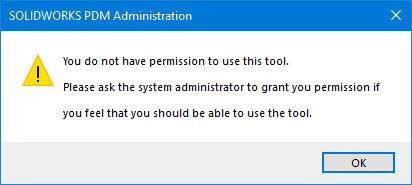
Message: “You do not have permission to use this tool. Please ask the system administrator to grant you permission if you feel that you should be able to use this tool.”
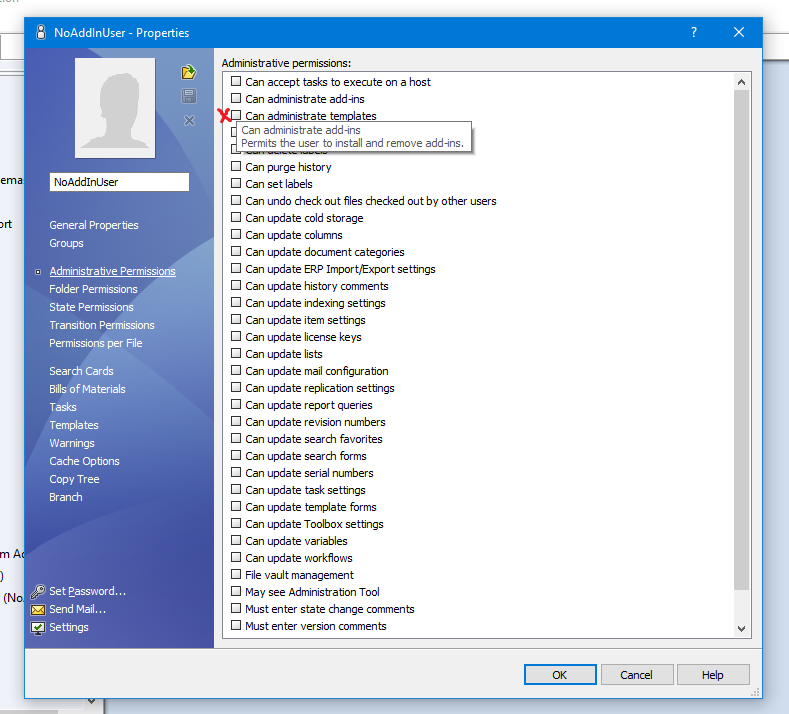
This error indicates that you lack the necessary permissions to administrate (install, update, debug, or remove) add-ins from this vault. The system administrator is the only one who can grant you that permission.
Solution: The screenshot below shows the setting that the administrator must enable to grant the user the necessary permissions.Permission Settings: Make sure that the administrator reviews and modifies the user permissions accordingly to allow access to add-in administration tools.

Don’t hesitate to reach out—together, we can achieve a smooth and efficient experience with our tools in no time!